Accept and start work
Overview
The Skedulo Plus mobile app helps resources manage and carry out their assigned work in the field. A job represents work that is to be carried out by one or more resources. Work is allocated to resources by schedulers, and this work appears in the resource’s agenda in the Skedulo Plus mobile app.
This article explains how resources can accept work and use the Skedulo Plus mobile app to navigate to work, check-in, and carry out their tasks.
The standard workflow
Work can be dispatched to resource/s after it has been allocated to them. A notification is sent to their mobile device (using either a push notification or SMS) and the Skedulo Plus mobile app will provide an alert.
By default, the resource can either Accept or Decline the job. Alternatively, you can configure your organization to prevent resources from declining a job.
When work is accepted it moves onto the resource’s Agenda.
If the work is declined it is removed and its status reverts to Pending Allocation for the scheduler to reschedule later.
Resources can manually progress their assigned and accepted work through various states using the Skedulo Plus mobile app:
-
Start travel–navigate using the map (or other) to the given address or location.
-
Check in–on arrival at the destination.
-
In progress–the job has been started.
-
Complete job–when the job is finished.
To provide visual feedback, the button text dims to gray temporarily when tapped, indicating the work status is currently updating.
The Skedulo Plus mobile app tracks the resource’s travel time, the time they checked in to the job, and how long the job was in progress.
Work items can include attachments (documents or images), collected as part of the process of completing the work. Work can also include custom fields that can track additional org-specific information. It is possible to define a custom UI to update these fields in both the web and mobile apps.
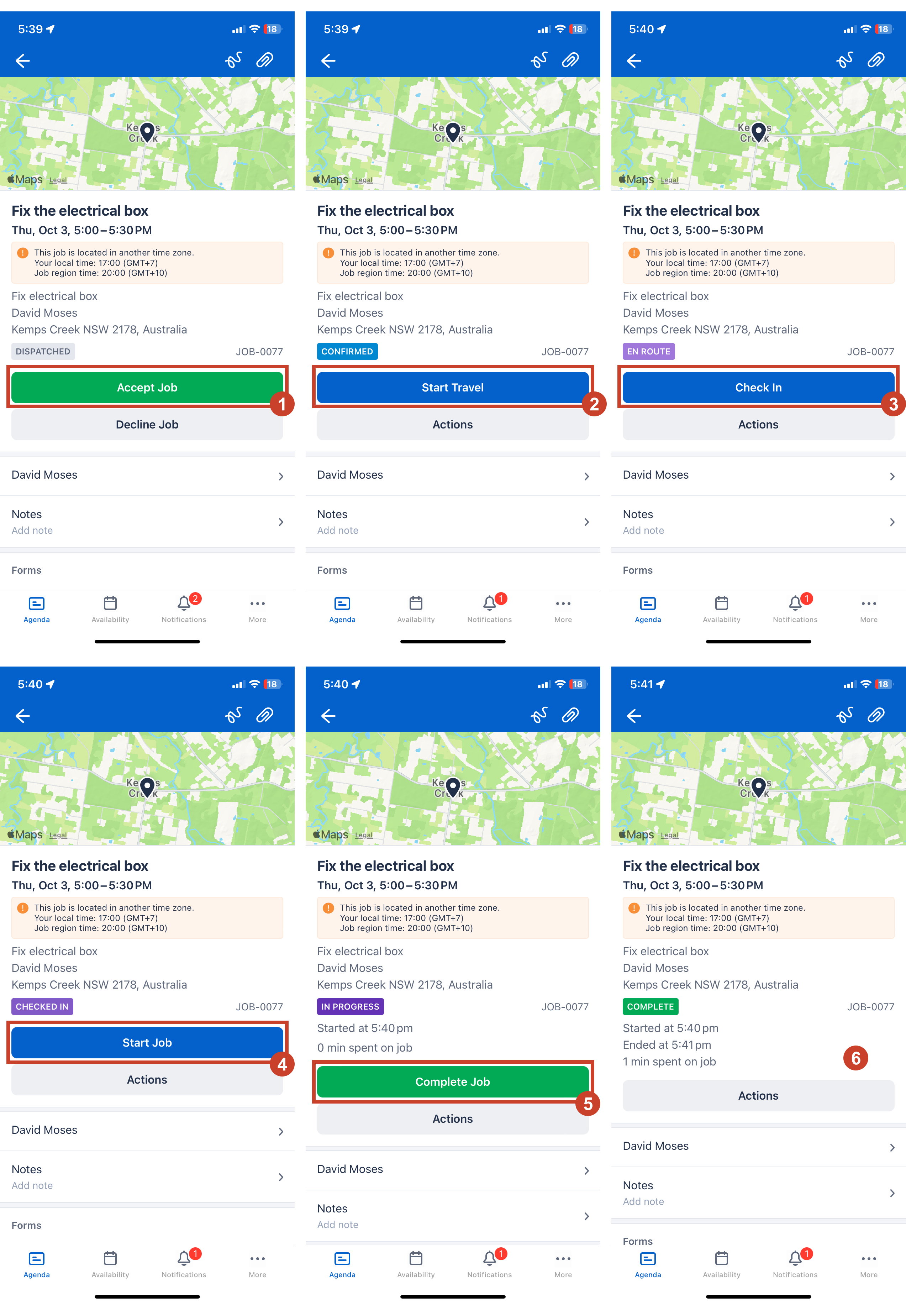
The work allocation state updates on the web app in real time as the resource changes status on the mobile app.
If the app closes or goes offline, data automatically resyncs when reconnected. You will return to the exact point where you left off.
Work Status Indicators and Work Allocation Status
Work status indicators are used throughout the mobile app to provide a visual indication of the job’s current status.
| Dispatched | The job has been allocated to the resource. |
| Confirmed | The resource has accepted the job. |
| En Route | The resource has begun travel to the job. |
| Checked In | The resource has checked in to the job location. |
| In Progress | The job is in progress. |
| Complete | Work on the job has been completed by the resource. |
| Canceled | The job has been canceled by either the resource or scheduler. |
| Declined | The resource has declined the job. |
Accept work
When work has been allocated to a resource it becomes available in their Agenda and shows a Dispatched status.
Resources can accept work from the Agenda screen and the Unaccepted work screen in the Notifications tab. You can also tap Accept from within the job details.
After you accept the work, the status becomes Confirmed. This allows you to proceed with travel, add notes, and access fully editable custom fields.
Travel to a job
Skedulo Plus tracks the resource’s travel time, the time they checked in to the job, and how long the work was in progress.
Travel time is tracked when the resource taps Start Travel and the work status is En Route.
If the app closes or loses connectivity, work details will resync once you are back online. You can resume the workflow exactly where you left off.
Complete work
Work can include a task list or work that is defined in custom fields. Resources may also be required to provide attachments in the form of files or images, signatures, or notes.
When the required work has been completed, resources can tap the Complete Job button to complete the work and provide a completion note.
Related links
Feedback
Was this page helpful?