One-off optimization (Swimlane view)
Overview
One-off optimization is useful when the workforce and demand is sporadic or unpredictable, or when responding to unplanned changes to an existing optimized schedule, such as someone calling in sick.
One-off optimization runs can provide a near real-time response by passing a smaller query volume than scheduled runs support, resulting in a shorter solve time.
This is still a background process where the solver returns the results on completion, so the process and results are not immediate or instantaneous.
Limitations
Important
For optimization requests through the API or Pulse, there is a hard limit of 3000 jobs, 2000 resources, and 4000 unique locations in a single request.
For optimization requests through Salesforce, there is a hard limit of 2000 jobs, 2000 resources, and 4000 unique locations in a single request.
To ensure meaningful results, we recommend keeping the number of jobs and resources in a single request to smaller numbers where possible.
Before you begin
To start, familiarize yourself with the optimization recipe and guidelines to create your first optimization recipe.
Create a one-off schedule
-
In the Skedulo web app, open the Schedule > Swimlane page.
-
Select the scheduling window using the calendar and time block selectors at the top of the swimlane panel.
If Working hours is active, it will only consider those periods displayed Define resource working hours. -
Select the jobs you want to include in your one-off optimized schedule from the list of work to the left of the swimlane.
-
Click the Optimize button in the upper-left of the swimlane (
 ).
).This opens the Optimize settings modal.
-
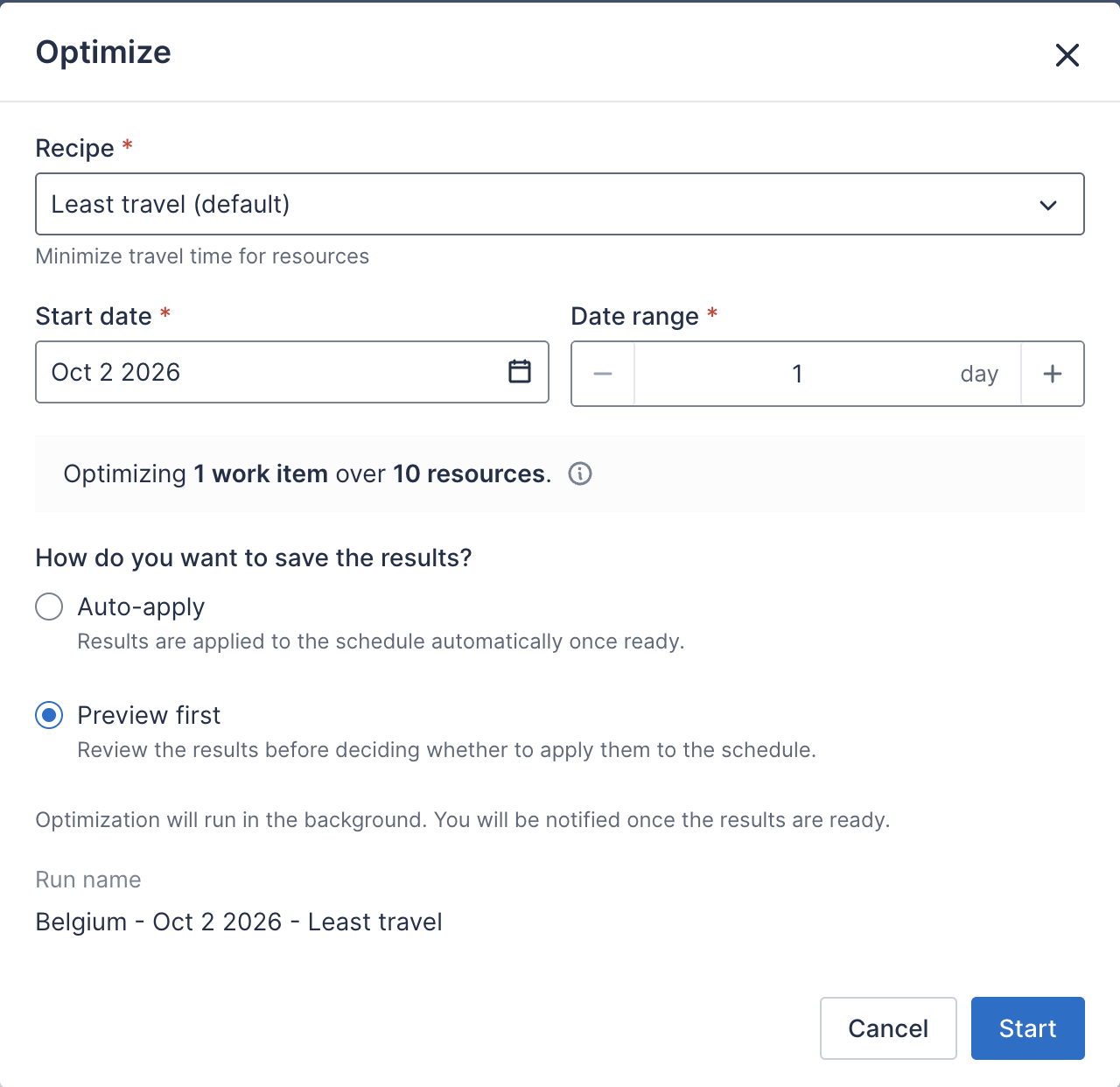
Configure the Optimize settings modal.
a. Select the optimization recipe that you want to use.
You can search your active recipes by name. The selected recipe’s description appears under the field. Your default recipe is preselected and marked (default).
See this article to learn how to create your own optimization recipe.
b. Choose the scheduling window. Select a start date and a date range of 1 to 365 days.
If the start date is in the past, the modal warns you and only optimizes from today onward.
c. Review the scope summary.
The modal shows how many work items and resources will be optimized, and updates as you change the recipe or dates. Hover over the info icon to see the regions included and how already-scheduled work is handled. If there’s nothing to optimize, for example there are no work items or every work item is locked, the modal tells you why before you start.
d. Choose how the results are saved.
Select Preview first to review the results before applying them to the schedule, or Auto-apply to apply them as soon as they’re ready.
You don’t need to name the run. Each run is named automatically from its regions, dates, and recipe, and this name is displayed in Optimization history and Background tasks.
-
Click Start to start the one-off optimization run.
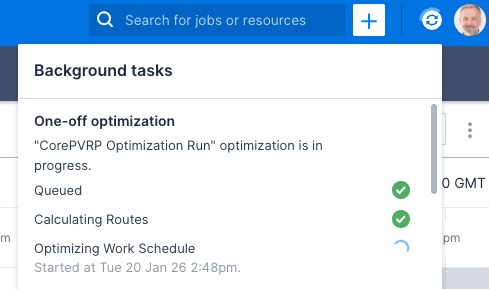
The Background tasks notification panel opens to show the status of the optimization operation as it runs in the background.
-
When the one-off optimization has been completed, click Ready to view results in the Background tasks panel to open the results page.
If you choose Preview first, select Apply to schedule the jobs according to the optimized scheduling results, or Reject to discard the results.
Rejecting the results of an optimization run prevents them from being applied to the schedule later.
Results that are neither rejected nor applied can be viewed from the Optimization History page and applied or rejected later.
How long does one-off optimization take?
The time the solver takes to find an optimized scheduling solution depends on the size of the scheduling problem.
In general, you should allow for one second per element in the optimization equation.
For example, to optimize 20 resources and 500 jobs, you can expect the solver to take approximately eight and a half minutes.
Optimization is an asynchronous process, so you can continue to use the Skedulo web app while optimization runs in the background.
Access the optimization results
Click Ready to view results on any of the optimization runs from the last seven days in the Background tasks.
Feedback
Was this page helpful?