Configure and customize push and SMS notifications
Overview
The mobile notifications section of admin settings allows admins to configure and customize push and SMS notifications sent to the Skedulo mobile app.
Administrators can specify custom notification templates for dispatch, reminders, cancellation, and job offers notifications.
Tip
Access to the admin settings is provided via the user profile button (at the top-right of the console).Notification types
There are four notification types available to tailor:
-
Dispatch: When enabled, this notification is sent to the relevant resource(s) any time a job is dispatched to a resource.
-
Remind: When enabled, this notification is sent to the relevant resource(s) any time a job is re-notified, and the resource has confirmed (accepted) the job.
-
Canceled: When enabled, this notification is sent to the relevant resource(s) any time they are deallocated or the job is canceled or removed from a resource.
-
Offer: When enabled, this notification is sent any time a job offer is sent to a resource.
Each notification type can be enabled or disabled as required, using the On and Off buttons. They are all on by default using their own default notification templates.

Each notification type can be also customized by selecting Custom.

Time change notifications
A resource can also receive a notification when work allocated to them is rescheduled. This is separate from the four types above: it is not switched on for every team, and it does not use the notification templates on this page. To find out whether your team has it, or to have it turned on, contact your Skedulo representative.
Mobile notification templates
Each notification channel, SMS and Push, uses separate templates containing text and dynamic fields. Resources can receive notification via one of two channels; SMS or PUSH. The channel that is used for a particular resource is determined by the SMS/Push setting in their preferred notification method.
Customize mobile notification templates
Note that the default notification format can not be customized.
To customize the notification templates, do the following:
- Select the Notification type you wish to inspect or customize.
- Select if the notification should be turned On or Off for the chosen notification type.
- Select the channel template you wish to inspect or customize: SMS Notifications or PUSH Notifications.
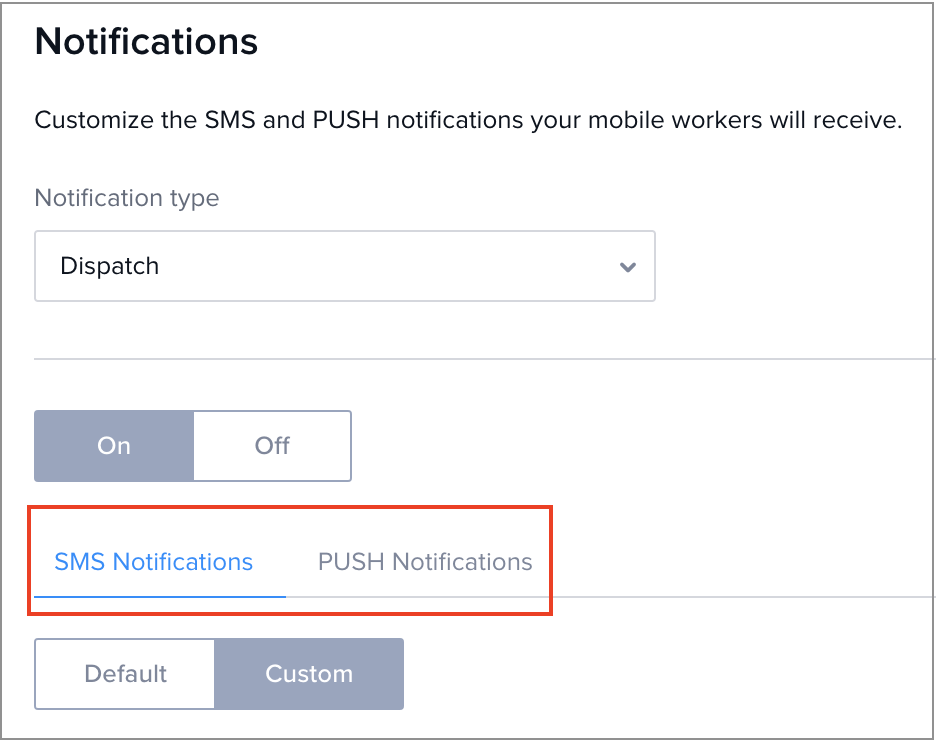
- To use a custom template select Custom and edit the text and fields via the input box.
- To draft your notification message, add text from the keyboard and also select fields from the dropdown menu to insert them in between your text.
- The preview window shows how the notification message would look on the recipient’s mobile screen. The preview uses some default job data for input, but you can also choose an existing job to utilize as an example.
- To save your custom template, click Save.
The standard job fields in the notification templates are:
- Name
- Address
- Customer
- Start time
- Duration
The custom job field types available notification templates are:
- Text
- Number
- Date
- Checkbox
- Picklist
To revert to the default style, click Default, then confirm to clear any customization and restore the default template.
Prompt resources to accept or decline jobs
Where organizations use SMS to notify their resources of jobs, admins can choose if their resources must accept or decline a job by replying to the SMS. This feature is applicable only for Dispatch notifications.
Once the setting Prompt resources to accept or decline jobs by SMS reply is enabled, the following text is appended to all dispatched job notifications sent by SMS:
Note
Reply ‘YES {jobNumber}’ to confirm or ‘NO {jobNumber}’ to decline.The default value is ON.
Note
When the workflow setting Resources need to accept or decline dispatched job allocations is turned OFF, the SMS option Prompt resources to accept or decline jobs by SMS reply will become unavailable, i.e., When jobs are auto-accepted, resources are not able to accept or decline jobs via SMS. Also, see the documentation on customizing the scheduling workflow.Example configurations
Example 1: Configuration of a custom dispatch push notification:

Example 2: Configuration of custom dispatch SMS notification:

Times shown in notifications
When a resource is allocated to a work item, Skedulo creates a job allocation, the record that puts that one resource on that one job. The job allocation carries the start and end time the resource is scheduled for, and notifications are built from those times rather than from the job’s.
For most teams the two are the same, because the job’s times govern every job allocation on it. Where a team is set up so that they can differ, this is what it means in practice:
- Who is notified. A cancellation reaches the resources whose own job allocation changed, and so does a time change where your team has time change notifications turned on. Where the job governs the times, moving the job moves every allocation on it, so every allocated resource is notified.
- What the message says. Where a message includes a time, it is the time that resource is scheduled for.
- Whether a message is sent. A resource does not receive a cancellation notification for work that ended more than 24 hours ago. That cutoff is measured against the end of their job allocation.
Two related behaviors are worth knowing:
- When work is dispatched to a resource for the first time, the resource receives the dispatch notification only, even if their times were set in the same action, because they have not been rescheduled.
- When a resource is removed from a work item, the resource is told the work is canceled, and nothing else, even if the times moved in the same action.
Related links
Feedback
Was this page helpful?