Create optimization recipes
Overview
When schedulers optimize, they consider the unique goals of their organization and the specific scheduling scenario they are trying to optimize. By giving schedulers granular control over optimization settings, they can tailor schedules to their organization’s needs, improving overall efficiency.
Optimization recipes are pre-defined combinations of objectives, constraints, and rules that can be applied to specific scenarios. Recipes let users shape how optimization behaves by configuring the weights of relevant objectives and selecting rules that influence scheduling outcomes.
You can use a recipe each time you run optimization.
For detailed information about available objectives, job removal options, constraints, travel rules, and snap/padding settings, see the Optimization Recipes Intro.
Using Objectives and Weights
Recipes are defined by weights assigned to objectives. The higher the weight, the more important the objective is during optimization. The total weight of all objectives must equal 100%.
See Score Calculation for more details.
Standard Optimization Recipes
Skedulo provides four standard recipes out of the box:
Least Resources
Use this recipe to utilize the fewest resources. Minimize resources has the highest weight.
Balance Work
Distributes work equally between resources. Balance workload has the highest weight.
Least Travel
Minimizes travel time for scheduled resources. Travel time has the highest weight.
Emergency Work
Prioritizes urgent jobs. Work priority has the highest weight.
Customize Optimization Recipes
Schedulers can tweak standard recipes or create entirely custom recipes.
To duplicate and edit a standard recipe:
- Navigate to Settings > Scheduling > Optimization recipes.
- Choose the recipe you want to adjust.
- Click the Actions menu at the end of the recipe table row.
- Select Create duplicate.
- Provide a name and description, then click Duplicate.
- Click the duplicated recipe to open the recipe editor.
- On the Objectives tab, adjust the objective weights (total must equal 100%).
- On the Constraints and Rules tab, configure any rules or constraints (scheduled jobs, travel time, snap and padding, job removal).
- On the Advanced tab, select any extensions and set their order.
- Click Save.
To create a custom recipe from scratch:
- Navigate to Settings > Scheduling > Optimization recipes.
- Click Create optimization recipe.
- On the Objectives tab, enter a name and description.
- On the Objectives tab, select weights for relevant objectives (total = 100%).
- On the Constraints and Rules tab, configure rules and constraints as needed.
- On the Advanced tab, select any extensions and set their order.
- Click Save.
Tip: Review the Optimization Recipes Intro when setting objectives, job removal behavior, or travel rules to ensure your recipe aligns with organizational goals.
Using Recipes in Optimization Runs
One-off Optimization
- Select a job card from the work list.
- Click Optimize to display the Optimize modal.
- Select a recipe. Your default recipe is preselected and marked (default), and you can search your active recipes by name.
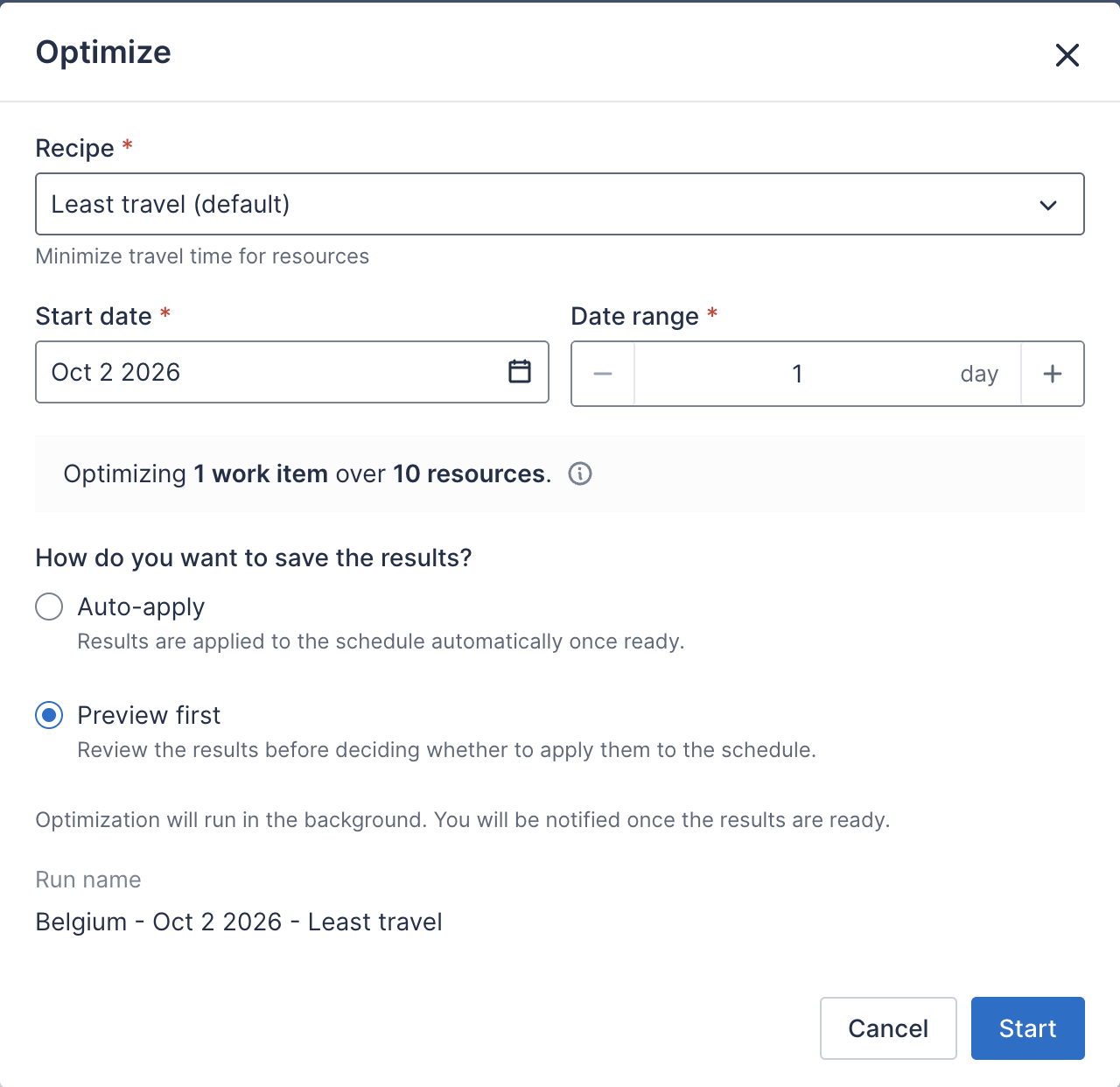
- Choose a start date and a date range of 1 to 365 days.
- Choose Preview first or Auto-apply.
- Click Start.
For the full steps in each schedule view, see One-off optimization (Swimlane view) and One-off optimization (Pulse Scheduling Experience).
Scheduled Optimization
- Navigate to Settings > Scheduling > Scheduled optimization.
- Click Create scheduled optimization or select an existing one to edit.
- Complete the required name, region, and run date fields.
- To change the recipe, deselect Use the default recipe and select a recipe from the dropdown.
- Configure the remaining optimization settings as needed.
- Click Save.
Related Links
Feedback
Was this page helpful?