Customize Skedulo Plus mobile app settings
Overview
Use the Settings > Mobile app configuration menu in the web app to configure mobile settings that fit your organizational requirements. These settings allow admins to control the behavior of the mobile app, including the ability to create activities, jobs, availabilities, and unavailabilities.
Administrators can also customize job offer card details and configure the visible date range for activities and allocations in the mobile calendar.
Important
Once you save your changes, it may take up to five minutes for them to take effect in the Skedulo Plus mobile app.Mobile settings
Activities
Allow resources to create their own activities
This setting allows resources to create activities using their Skedulo mobile app.
The default value is ON.
Allow resources to delete their own activities
This setting allows resources to delete activities using their Skedulo Plus mobile app.
Note: This setting requires Allow resources to create their own activities to be ON before it can be enabled.
The default value is OFF.
Availability
Refer to Configure Availability for Skedulo Plus.
Jobs
Set visibility period for jobs in the calendar view
This setting allows admins to set the number of days activities and job allocations are displayed in the calendar of the mobile app. The values are independent but must be a numerical value between 1 and 180. Also, see the Skedulo Plus mobile app documentation about the agenda and calendar.
-
Days in the past.
-
Days in the future.
The default value is 90.
Offers
Important
This job offer customization is planned for deprecation in the future. The new job offer customization is available with enhanced functionality. See Customize Skedulo Plus mobile app layout for more details and instructions.Customize job offer content
You can select what information you want to display on job offer cards in the Offers screen.
Click the drop-down menus on Line 3 and Line 4 to select which Job fields you want to display, including any custom fields.
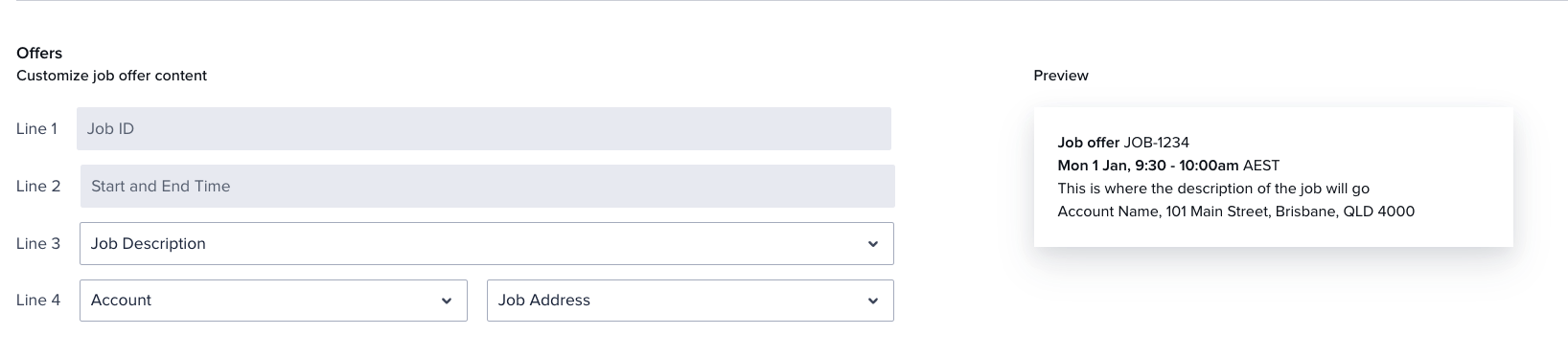
Account field visibility
Refer to Configure Account field visibility for Skedulo Plus.
Notifications
Refer to Mobile notification settings.
Other settings
Restrict users from downloading attachments or images from Skedulo to their devices
When enabled, resources are restricted from saving any images or attachments from Skedulo to their devices.
The default value is OFF.
Enable resources to edit their resource profile details
When enabled, resources can update their address and contact number in the app. Updating those fields in the mobile app will update the resource’s record in Skedulo. See the Skedulo Plus user guide for information on how to edit the profile in the app.
The default value is ON.
Prompt users to allow location access
When enabled, resources are prompted to grant location permissions in the Skedulo Plus app to support work travel monitoring and other features. See this guide for further information.
You can disable it if location tracking is not required for your organization’s workflows. When disabled, resources will not be asked to allow location access in the app, and their locations will never be accessed.
The default value is ON.
Save new attachments as Salesforce files
This setting allows admins to decide whether attachments will be saved to Salesforce as attachments or files.
-
When Save new attachments as Salesforce Files is not selected (the default), files uploaded from the mobile app are stored as attachments in Salesforce.
-
When Save new attachments as Salesforce Files is selected, files uploaded from the mobile app are stored as files in Salesforce.
The default value is OFF.
Salesforce™ mapping
These settings are associated with Salesforce page mapping. Once populated, labels defined under Menu link will appear in the Skedulo Plus mobile app, in the main menu, e.g. Visualforce One. Labels defined under the Job Details button will appear in job details in the Skedulo app. Also, see the documentation on customizing mobile forms.
Note
- This tab is only visible when logged into Salesforce CRM.
- The fields are not set by default.
- Each input field has a character count limit of 35.
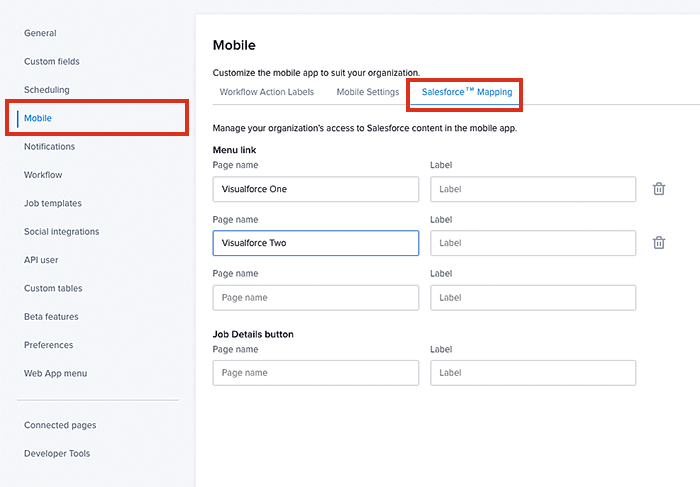
The admin settings for mobile—salesforce mapping.
See also
Customize Skedulo Plus mobile app layout
Configure and customize push and SMS notifications
Feedback
Was this page helpful?