Optimize schedules for Teams and Crews
Use the Optimization’s Teams and Crews extension to find the best schedules for your teams.
Overview
The Optimization extension is included in the Teams and Crews feature, but it needs to be enabled by setting up an Optimization recipe with the correct extension.
Enable Optimization in Teams and Crews
To enable Optimization for Teams and Crews, configure a recipe with the Teams and Crews extension.
To create an Optimization recipe, do the following steps:
- Navigate to Settings > Scheduling > Optimization and suggest recipes.
- Click Create optimization recipe.
- Provide a name and description for the recipe and configure the weightings as required.
- On the Advanced tab, use the ordered extension selector in the Extensions section to select teams-and-crews. If the recipe uses more than one extension, set their order; extensions are applied from top to bottom.
- Click Save.
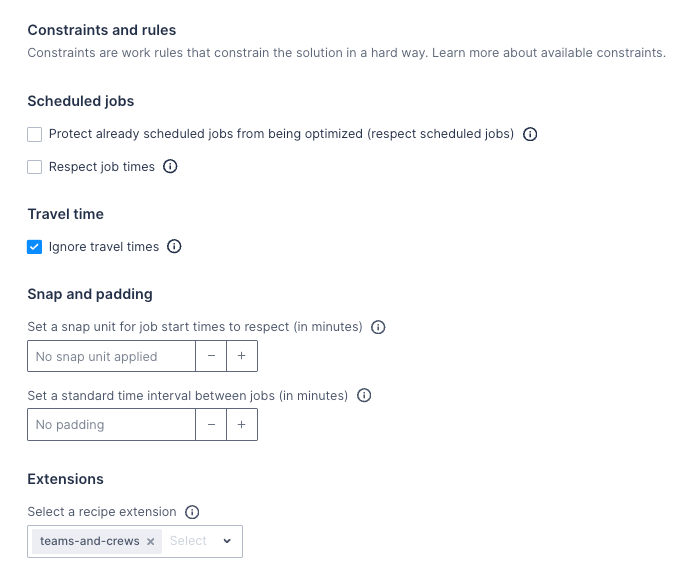
For more information about Optimization recipes, please see the recipe documentation.
Optimize a team’s schedule
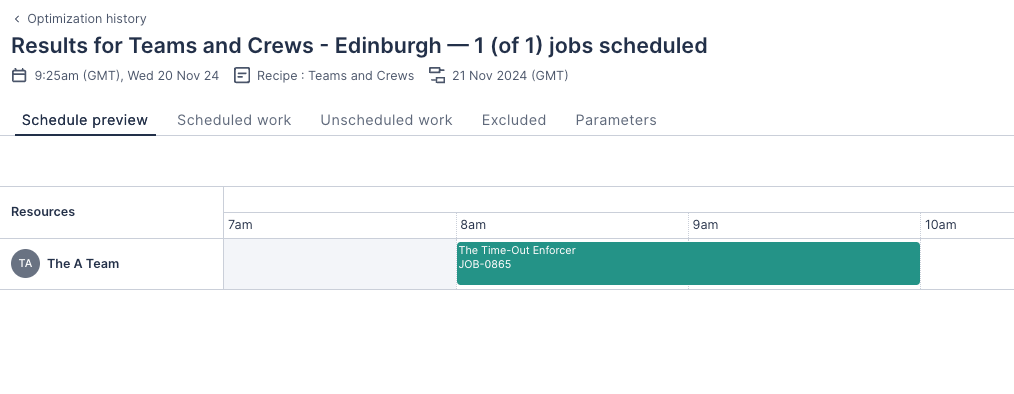
Run Optimization using the Teams and Crews recipe, as you would for any other schedule. See the Optimization documentation for details.
Feedback
Was this page helpful?