Use Suggest to schedule work in the swimlane
Important
The Pulse Scheduling Experience is only available on the Skedulo Pulse Platform.Overview
Suggest intelligently assists schedulers by recommending the most suitable person to complete the work and the best time for work that has been allocated but not scheduled. This feature significantly enhances efficiency and decision-making during manual scheduling.
Note that this feature is not available in the Teams and Crews extension swimlane.
Suggest in the swimlane works the same way whether your organization has Field: Mastermind or Field: Mastermind Lite. What differs is how suggestions are calculated:
- Field: Mastermind Lite: Suggest uses the Configure Suggest settings and Basic Traffic.
- Field: Mastermind: Suggest uses your default recipe, respects work hour limits, and uses Advanced Traffic if your organization has it.
For how to use Suggest in other parts of the application, see Suggest with Mastermind or Suggest with Mastermind Lite.
Prerequisites
Jobs must have the Queued or Pending allocation status to be eligible for suggestions.
Get to know suggest mode
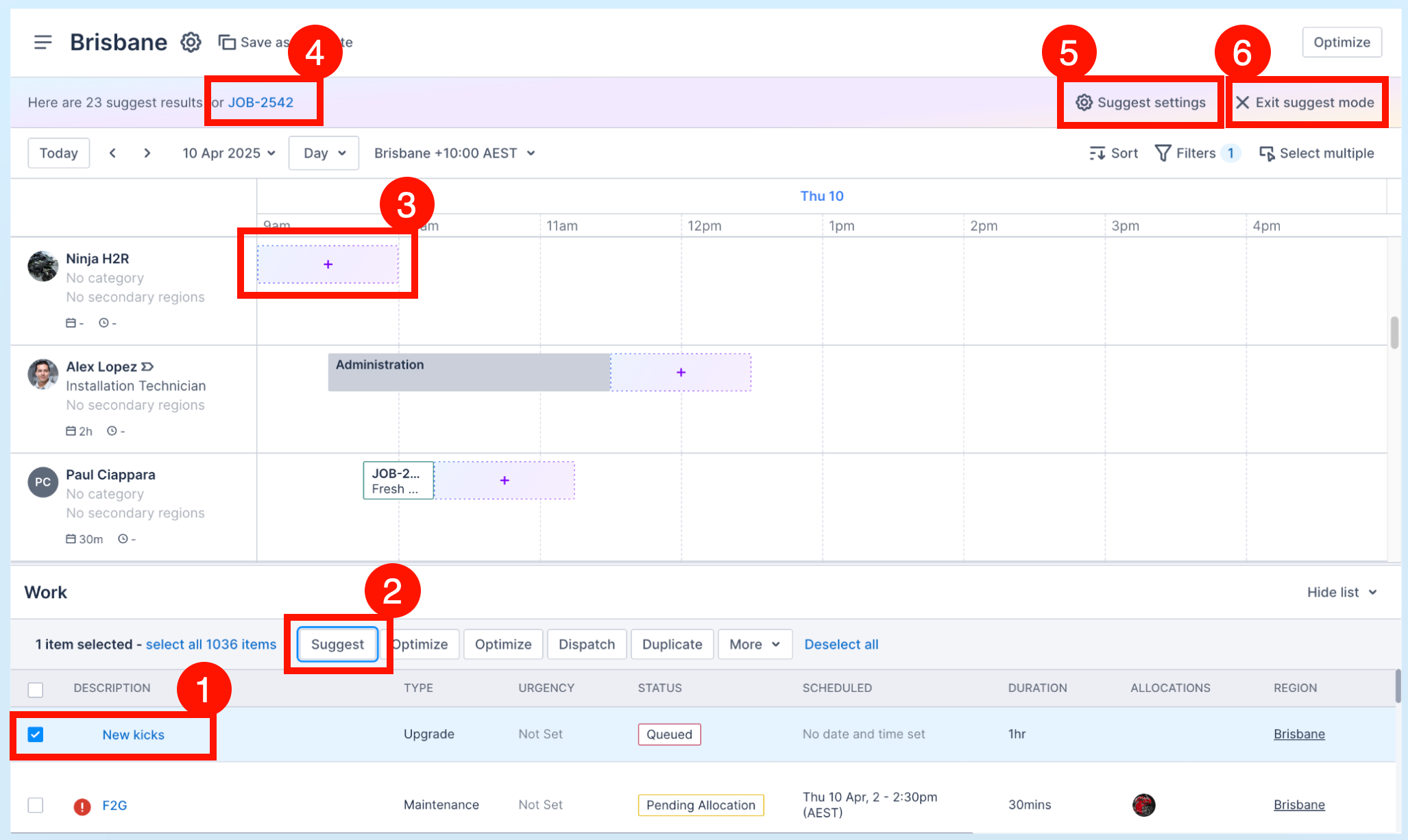
- Select a job in the work list to access the Suggest option.
- Click Suggest to enter suggest mode.
- Suggested times are highlighted on the recommended resource swimlanes. Resources are sorted by shortest travel time for the selected job.
- Click the job link to open the job details in the context panel.
- Click Suggest settings to open the settings that apply to Suggest. The settings open in a new tab and the Administrator role is required to make changes to them.
- Field: Mastermind Lite: opens the Configure Suggest settings.
- Field: Mastermind: opens the recipes page, where you can change your default recipe.
- Click Exit suggest mode to return to the regular swimlane view without highlighting and sorted resources.
View scheduling suggestions for a job
To enter suggest mode and view resources that are available for a job, do the following steps:
- In the swimlane’s work list, select the job you want to schedule. Suggest can only be used for one job at a time.
- Click Suggest.
The resources in the swimlane are sorted by shortest travel time and the job duration is highlighted as follows:
- Green: The resource is already allocated to the job. Highlighting shows the suggested time.
- Purple: The suggested time for a resource that is suitable but not yet allocated to the job.
- Click the highlighted slot in the swimlane to allocate the resource. The swimlane automatically exits suggest mode when all resources for the job have been allocated successfully.
Feedback
Was this page helpful?