Manage notifications
Overview
The mobile app keeps you informed of schedule-related events based on your notification preference:
-
Push: On iOS, these are delivered as standard push notifications. On Android, they appear as push notifications or in-app pop-ups, depending on whether the app is currently open. Upon installation, you must grant Skedulo permission to send notifications. If you log out, you will not see any notifications until you next open the app and log back in.
-
SMS: Events are sent as text messages. You do not need to be logged into the app to receive them.
The specific notifications you receive depend on your organization’s configuration. Standard events include:
- New jobs
- Job cancellations
- New offers
- Expired offers
- New shifts
- Shift schedule changes
- Approved or declined availability requests
- Job schedule changes
- Job reminders (Push notifications only)
Important
While you can disable notifications via your device settings, we recommend keeping them enabled to ensure you don’t miss critical job updates.View notifications
Tap the Notifications button located in the navigation bar at the bottom of the agenda view to open the Notifications screen.
This screen displays a chronological list of received notifications. History is retained for 28 days, after which items are automatically removed. Tapping an item opens the corresponding details.
A red badge on the Notifications button displays the total number of unclaimed offers and jobs awaiting your response.
Unaccepted work
The Notifications -> Unaccepted work screen lists work that has been assigned to you but are not yet accepted. Work items are listed chronologically, from earliest to latest.
The work appears in the Unaccepted work screen also appears in your Agenda. You can accept or decline the work from either the Unaccepted work screen or the Agenda screen.
When you have allocated jobs, which are yet to be accepted, a small red numerical counter appears on the right of the Unaccepted work button. This indicator will display regardless if they have been read or not and will remain in the list until the job is accepted, declined or canceled.
Offers
See Manage work offers for details.
Job reminder notifications
Timer-based proximity notifications are used to remind you when a scheduled job is about to start or complete. These are available offline and online as push notifications only.
Settings
To configure your alerts, navigate to More > Settings > Notification Preference. This screen displays five Job Reminder options:
- At start time
- 10 minutes before start time
- 10 minutes after start time
- At end time
- 10 minutes after end time
Note
Your baseline settings are determined by your administrator. You cannot disable mandatory reminders enforced by the system, but you can manually enable any additional options to suit your workflow.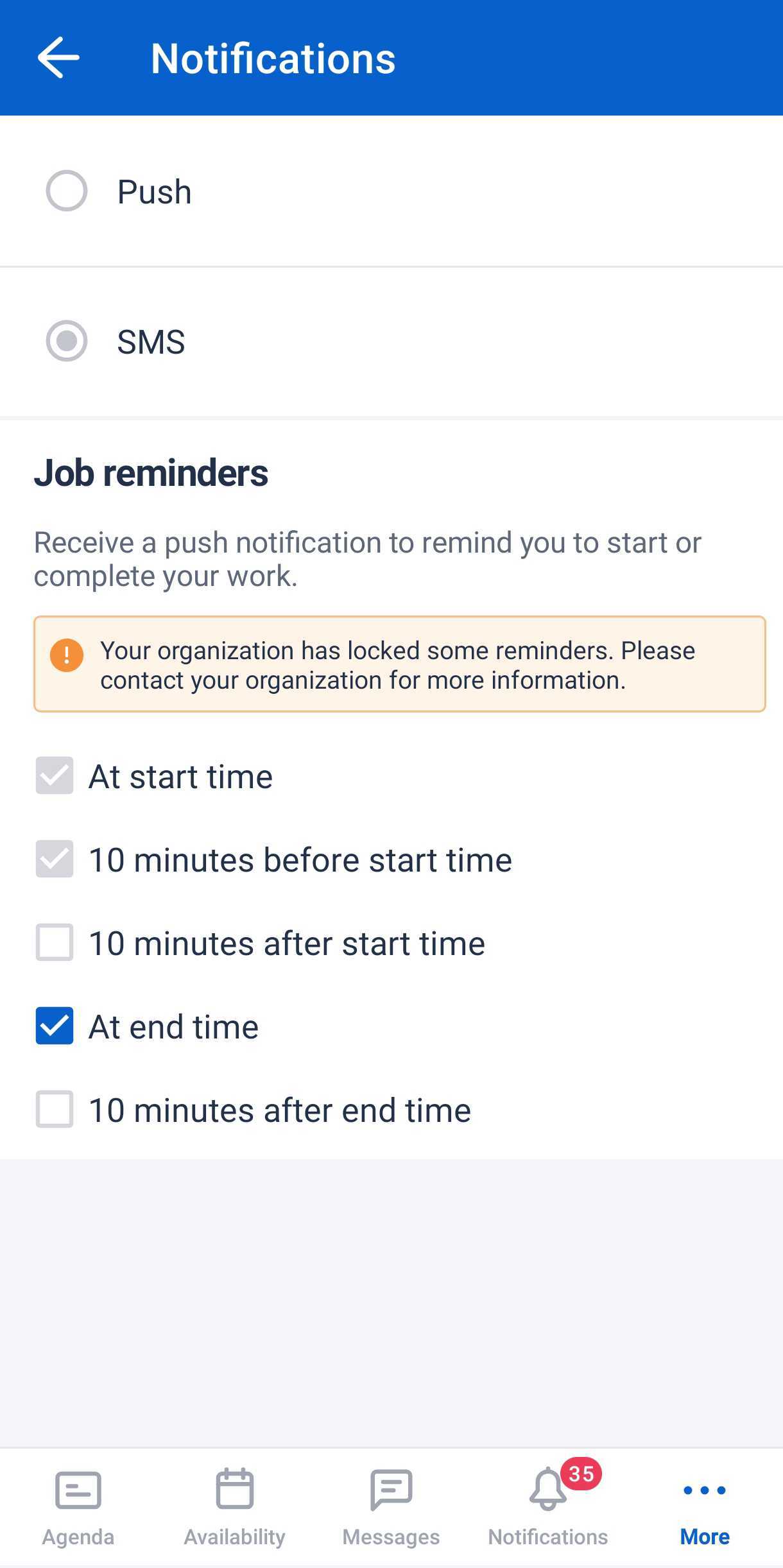
Job start time notification
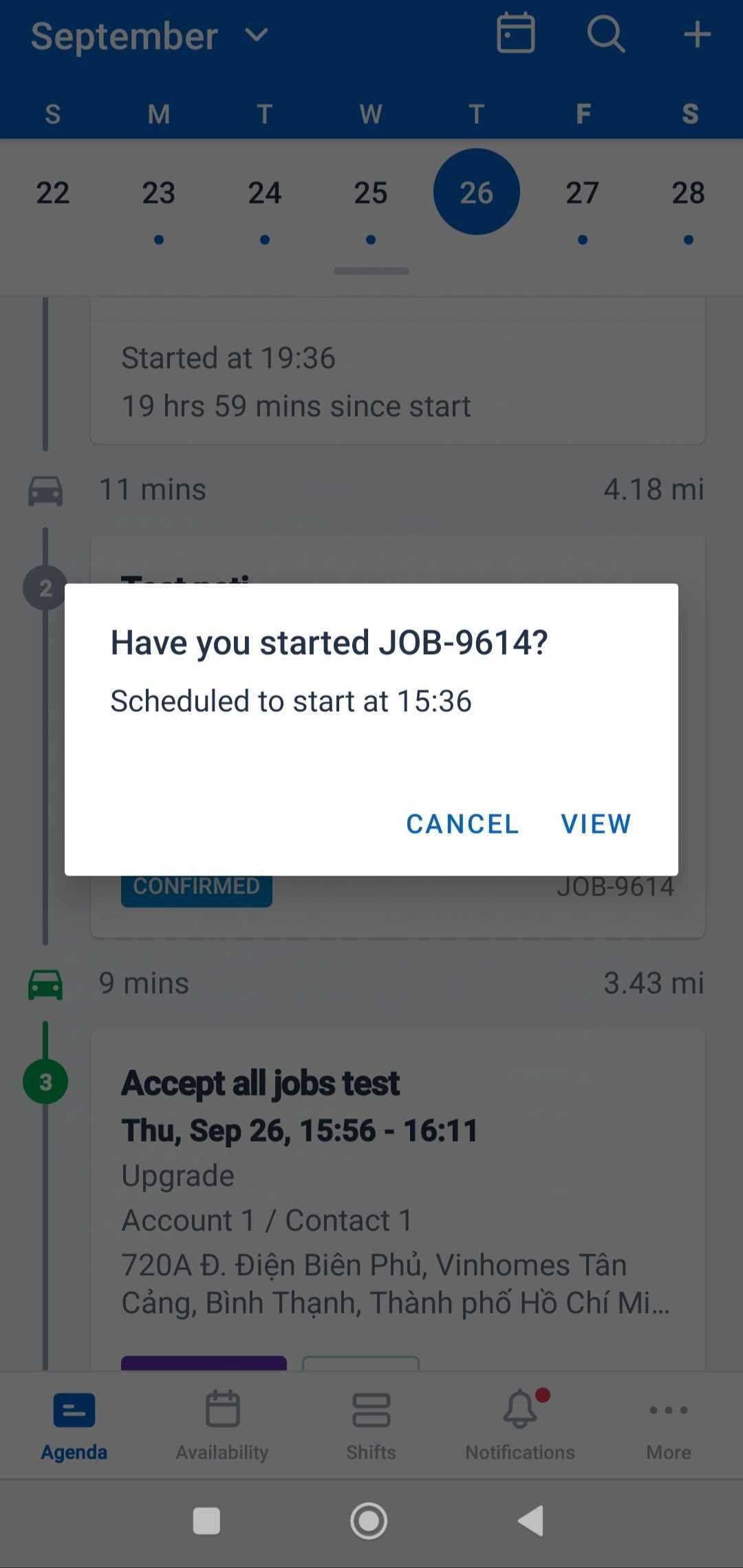
When the time is close to the scheduled start time of a job and the job is not yet in progress, then based on your selected preference, the following notifications may appear:
- 10 minutes before the scheduled start time.
- At the scheduled start time.
- 10 minutes after the scheduled start time.
Dismiss the job start reminder
- To dismiss the reminder and not start the job, click Cancel.
When all triggers for start reminder are enabled, you will still receive upcoming reminders even if you dismiss the first or second one. No further alerts will be sent after you dismiss the third notification (10 minutes past the scheduled start).
Use the reminder to start the job
- To navigate to the job and start it, click View.
If you start the job after the first or second notification, then no further notifications for that job’s start time will be sent.
Job complete time notification
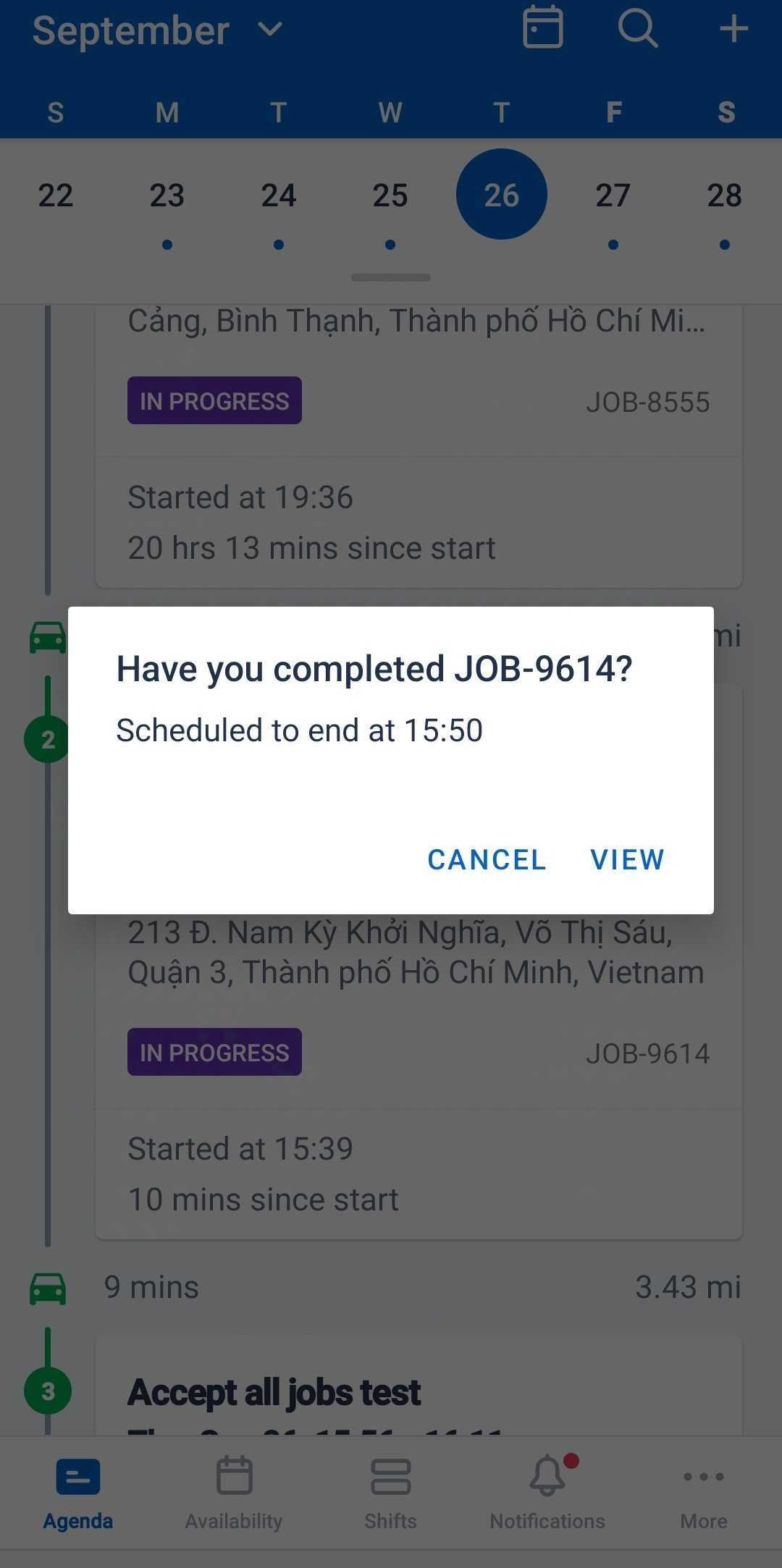
When the time is close to scheduled end time of a job and the job is not yet completed, then based on your selected preference, the following notifications may appear:
- At the scheduled end time.
- 10 minutes after the scheduled end time.
Dismiss the complete job reminder
- To dismiss the reminder and not complete the job, click Cancel.
If you dismiss the first notification, then you will recieve subsequent reminders to complete the job. If you dismiss the second notification (10 minutes after the scheduled end time), then no further notifications for that job’s end time will be sent.
Use the reminder to complete the job
- To navigate to the job and complete it, click View.
If you complete the job after the first or second notification, then no further notifications for that job’s complete time will be sent.
Related links
Feedback
Was this page helpful?