Work a task
Beta feature
Tempo is in private beta. Features described here can change between releases. Contact your Skedulo Customer Success Manager to request access to this feature.Overview
A Tempo task is one scheduling problem worked from start to finish. This page follows a single example: Tom Hadley, an installation technician in Melbourne, has called in sick for Tuesday, and his hot water system replacement at the Nguyen household cannot wait.
The task holds:
- The brief: a title and description, plus the records involved and the task’s urgency. The brief seeds Tempo’s work, so a clear brief gets a better plan.
- Who it is assigned to, from the Assigned to control at the top.
- The conversation with Tempo, including each step it takes.
- The evidence Tempo gathers, in the context panel beside the conversation.
- The messages sent to the people involved, under Comms.
The three stages
A task moves through Context, Working, and Complete. The current stage shows at the top of the task.
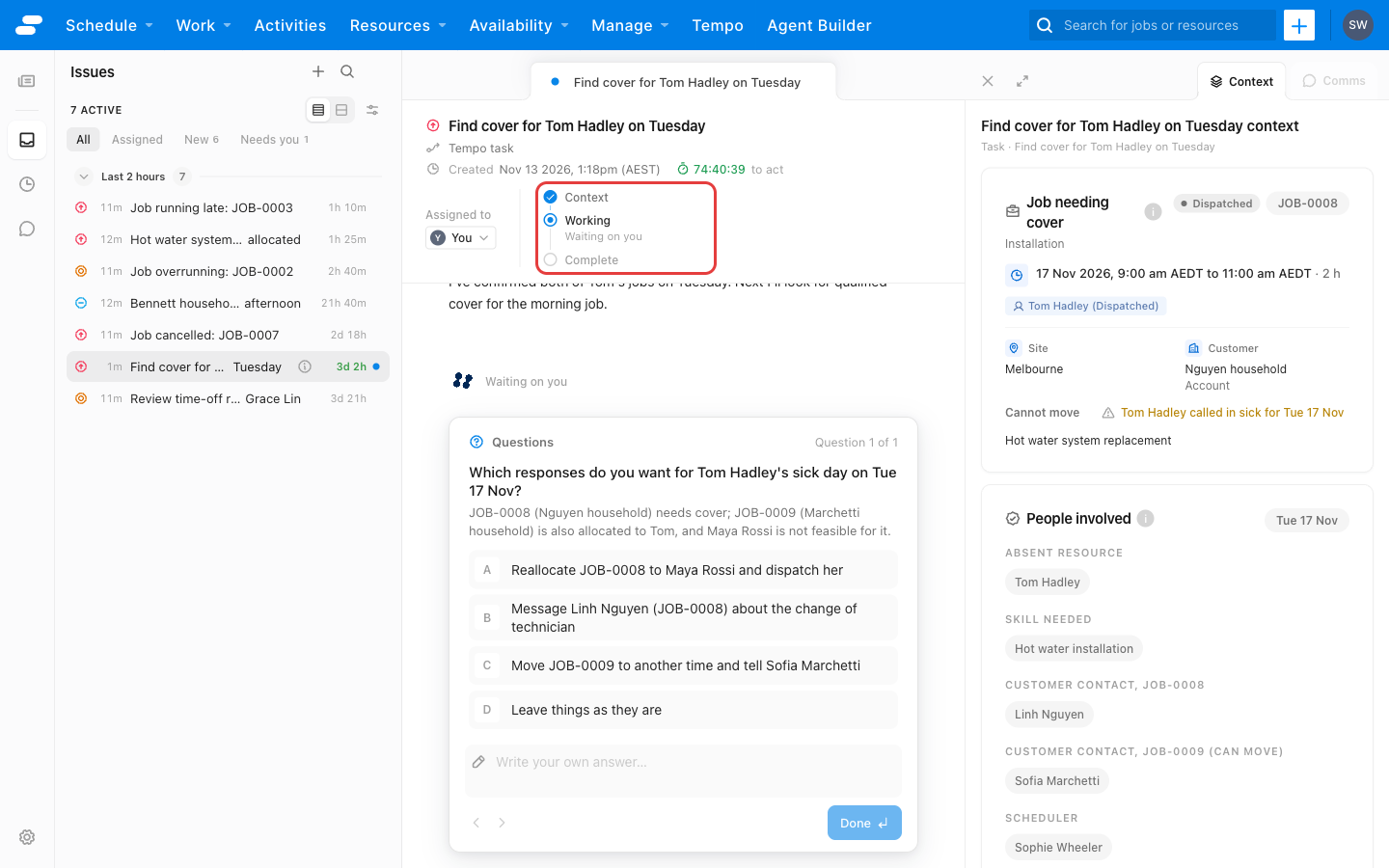
Context
When you open a task for the first time, Tempo gathers the facts. It reads the brief, looks up the records attached to it, and runs the checks the problem calls for. For Tom’s task, that means pulling up his record, finding his jobs for Tuesday, and checking who could cover each one.
Each check appears in the conversation as it runs, folding into Context generated once Tempo has what it needs. The results build up in the context panel as cards: the absence, the job and its customer, and the people who could step in.
If the records stop short of what Tempo needs, it asks you. Questions appear in a tray above the message box, each with a short reason for asking and lettered options. Choose an option or type your own answer, then click Continue. You can Skip a question that is not required. Nothing is sent until you click Done on the last question, so you can page back and change an answer. Tempo waits while the tray is open.
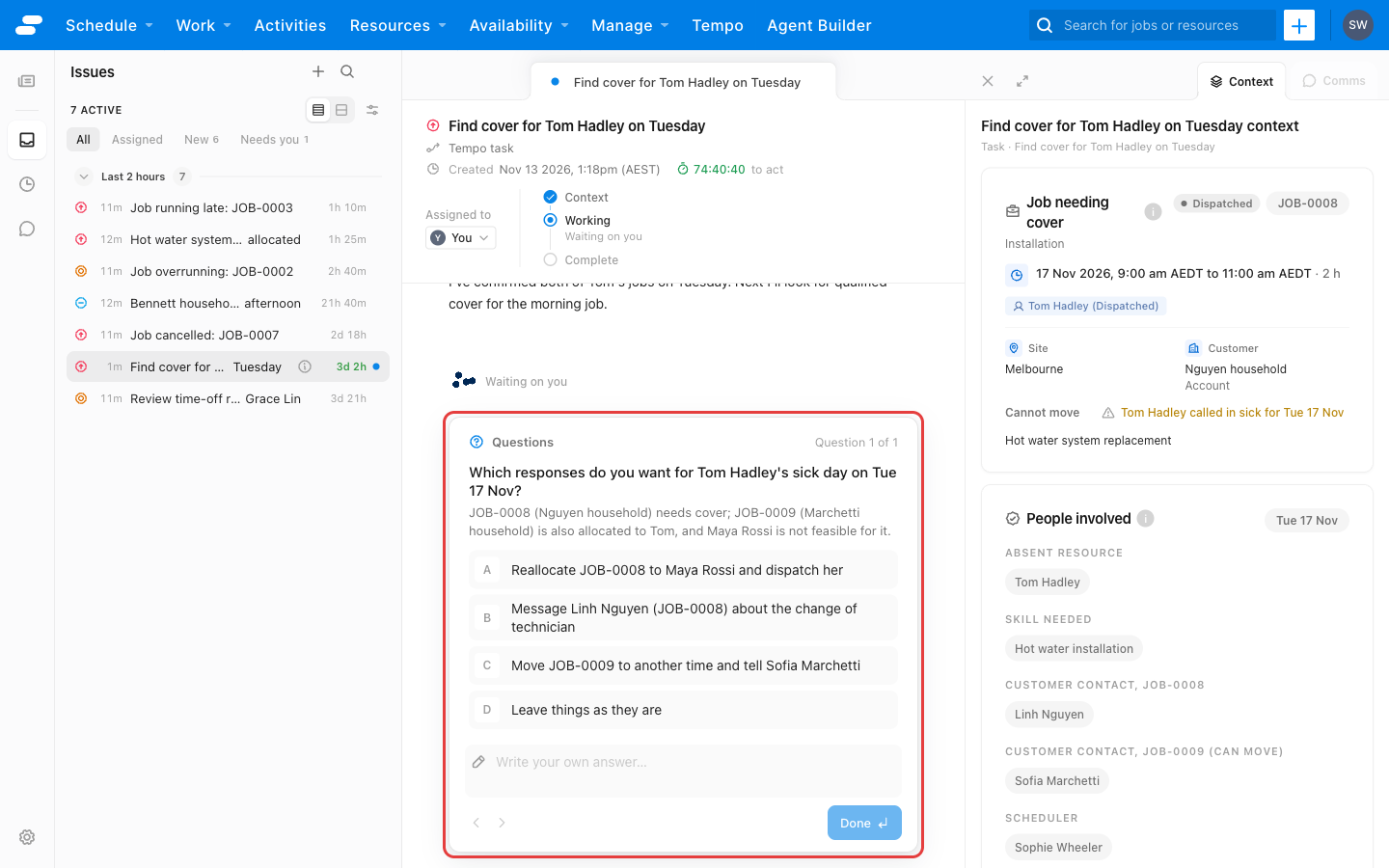
Working
Tempo recommends a plan, with the reasons behind it. For Tom’s job, the recommendation is Maya Rossi: she is also an installation technician, she is free that morning, and she is based nearby. Ben Carter was checked too, but he is booked until 12:30.
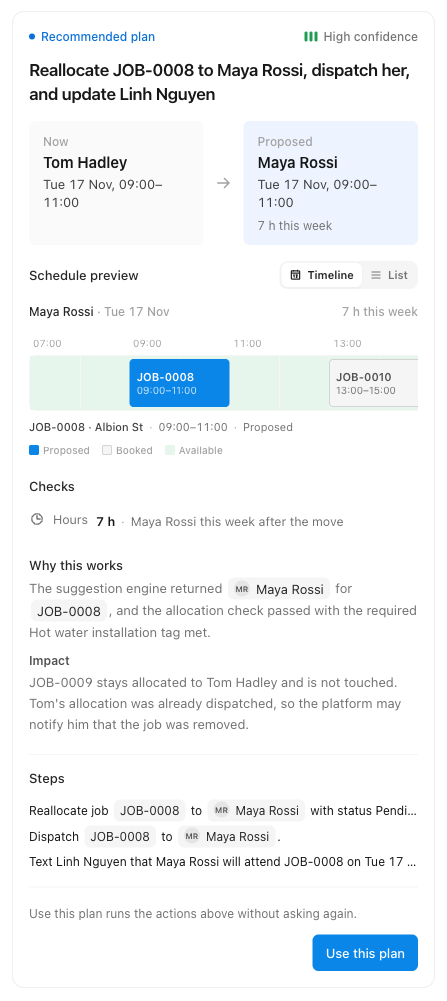
The plan card shows the change, a preview of the affected schedule, and Why this works: travel, hours, qualifications, and customer commitments. When there is more than one reasonable path, Tempo asks you to Choose a path first, then builds the plan for the one you pick. When only one path makes sense, Tempo takes it as the recommendation rather than asking you to choose from a list of one.
The first recommendation is not the only option. Ask a follow-up in the message box, such as “Is there anyone else who could do it?” or “Keep Tom’s afternoon job with him,” and Tempo revises the plan. A message can be up to 4,000 characters, and you can attach an image or a CSV, PDF, or Excel (.xlsx) file for Tempo to read. While Tempo is working, the send button becomes a stop button that ends the run.
Nothing in Skedulo changes until you click Use this plan. The plan then becomes a list of steps worked through in order: move the job from Tom to Maya, dispatch her, and text her the details.
Complete
When the plan is done, Tempo summarizes what changed and what was sent, and asks All done?. Click Mark complete to close the task, or Not yet if there is more to do. The task closes only when a person marks it complete.
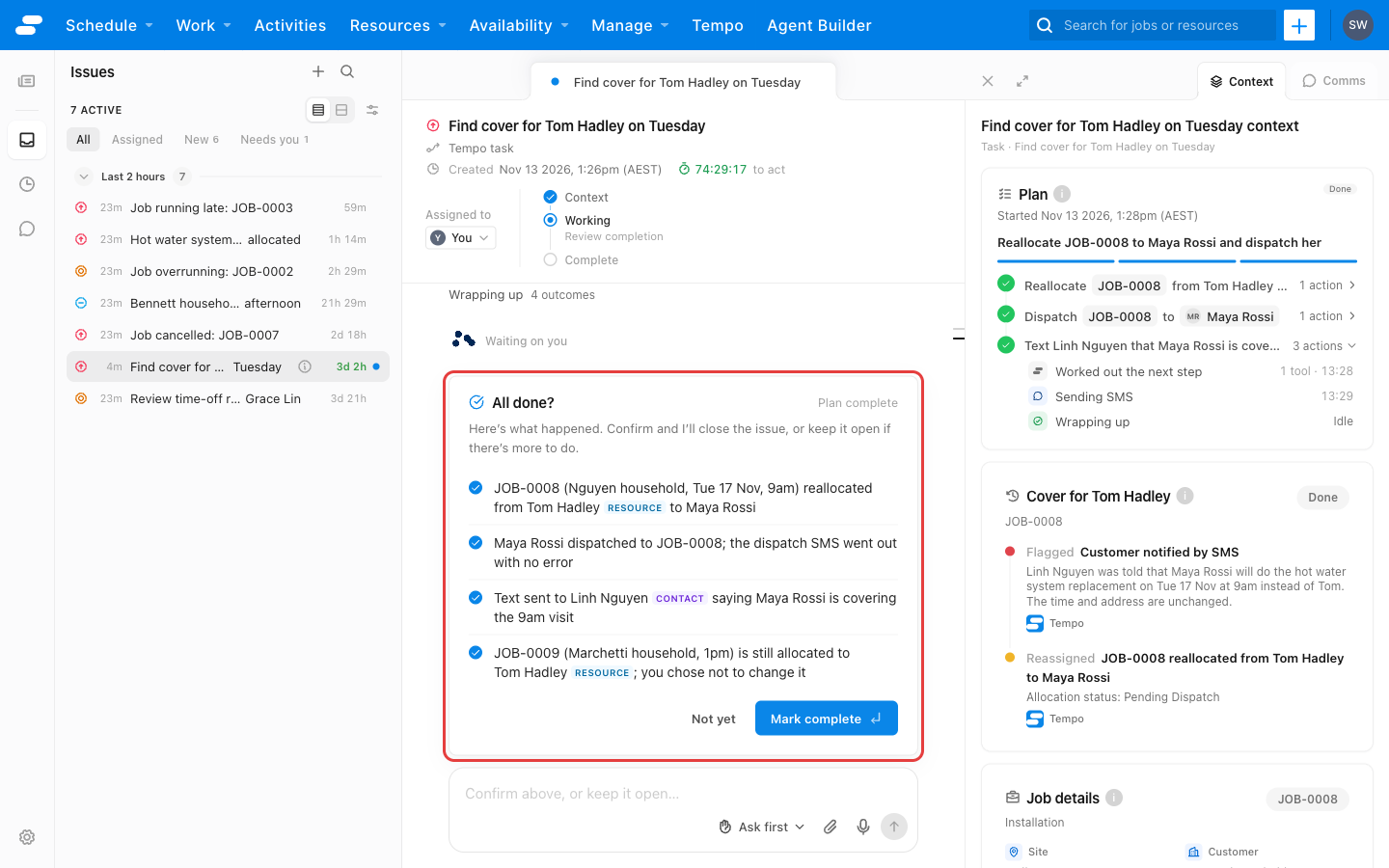
By then, the Nguyens still have their Tuesday appointment, Maya has the job and its details, and Tom can focus on getting better.
Approve, edit, or reject a change
Every change Tempo proposes to your schedule, and every message it wants to send, pauses for a person. The proposal appears in the conversation marked Awaiting approval, with Approve and Reject. Where the change is a message, click the pencil icon to edit the text before it goes.
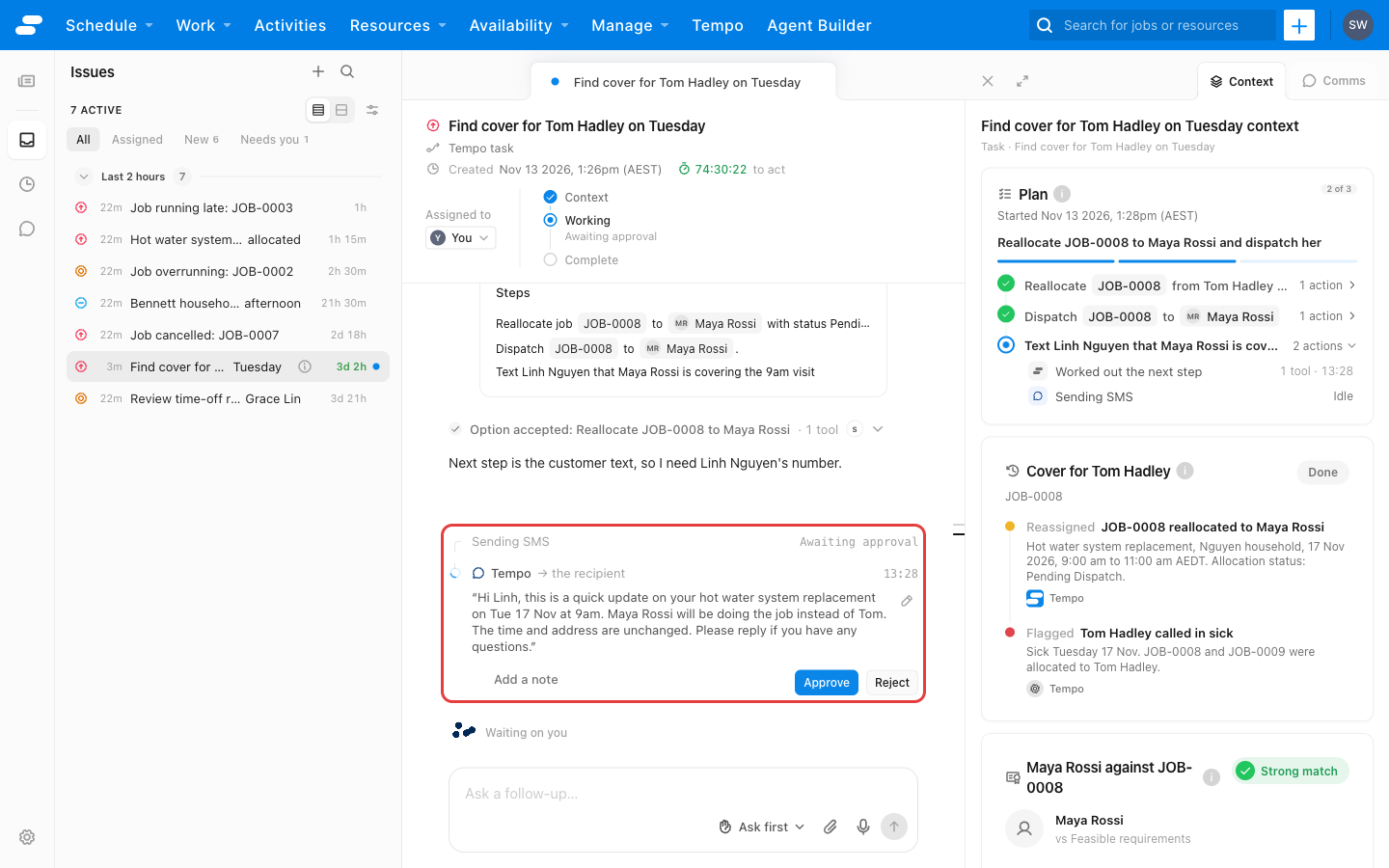
When several changes wait together, Approve all approves them in one step. To decide each one separately, click Review individually, add a note where it helps, and click Submit decisions.
Accepting a plan approves the steps in it, so a plan to move twelve jobs needs one approval, not twelve. Related changes within a plan are grouped into one approval. Steps outside the plan, such as a follow-up request you make later, pause for their own approval.
If you reject a change, Tempo does not retry it. Tell it what you would prefer instead.
Read the receipts
As Tempo works through a plan, each action lands in the conversation as a receipt:
- The plan overview lists the steps and ticks them off as they finish.
- A record card shows a write to Skedulo, with the old value struck through against the new one and an Applied mark once the write has settled.
- A message receipt shows a message sent and, when the recipient replies, what came back.
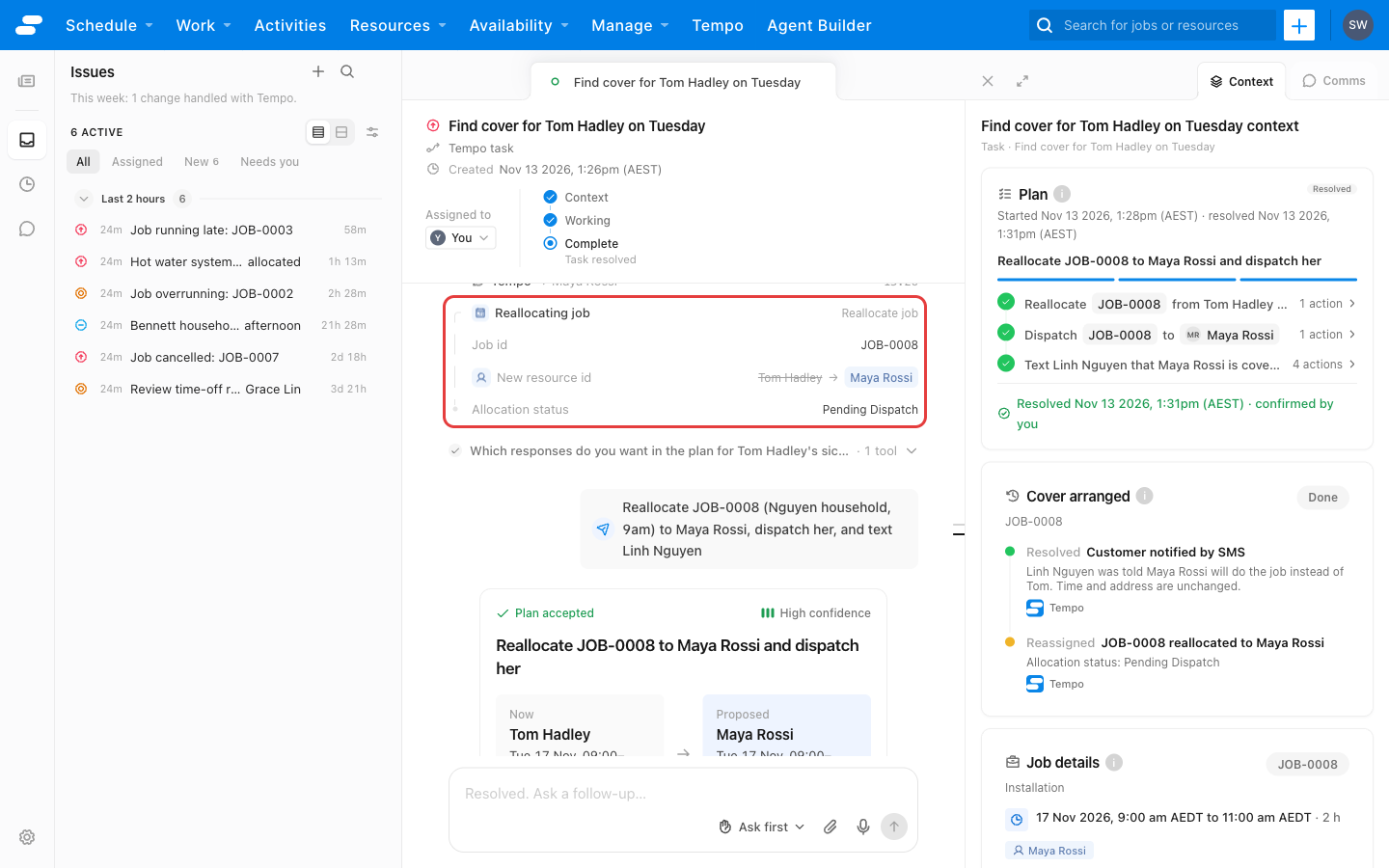
The context panel keeps the same steps as a Plan ledger, grouped by step, with the start time and, once the task is done, the time it was resolved. Click any row to jump to that point in the conversation.
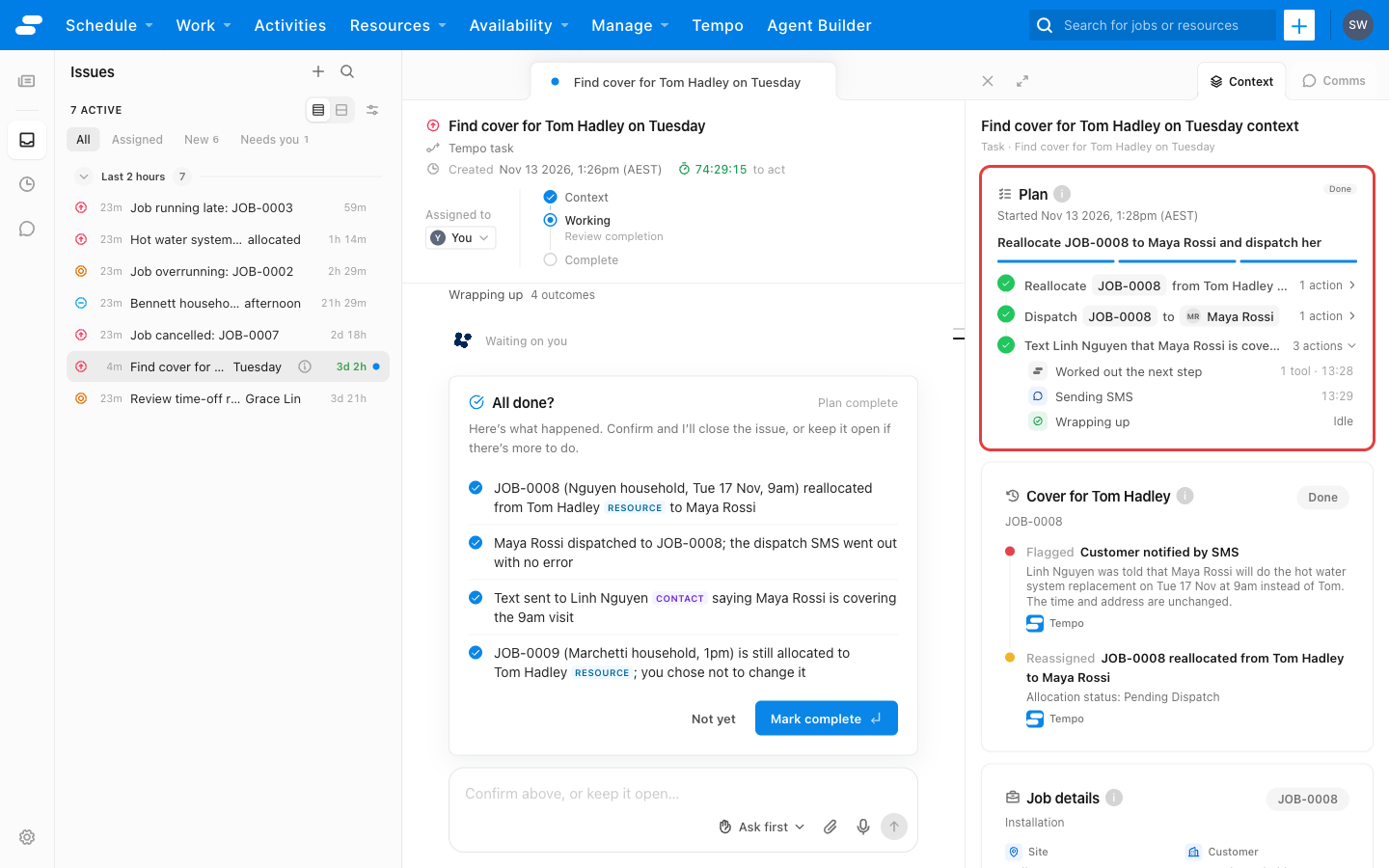
If a step fails, the receipt says why. Tempo carries on with the other steps where it can; one failed dispatch does not block the rest of the plan.
Messages and Comms
When a plan includes messaging a resource or a customer, the message pauses for your approval like any other change. Tempo sends text messages and, where email is enabled for your organization, emails. Sent messages appear under Comms in the context panel, grouped by person, with their delivery status. An email sent to an address that has no Skedulo record gets its own thread, named after the person who replies.
Where Tempo is waiting on a reply, the step shows Waiting with a timer until the reply arrives. A reply by text or by email appears in the same Comms thread, and Tempo picks the task up again from where it paused.
Change how much Tempo does on its own
The permissions control in the message box, which reads Ask first by default, sets how Tempo handles changes in this task:
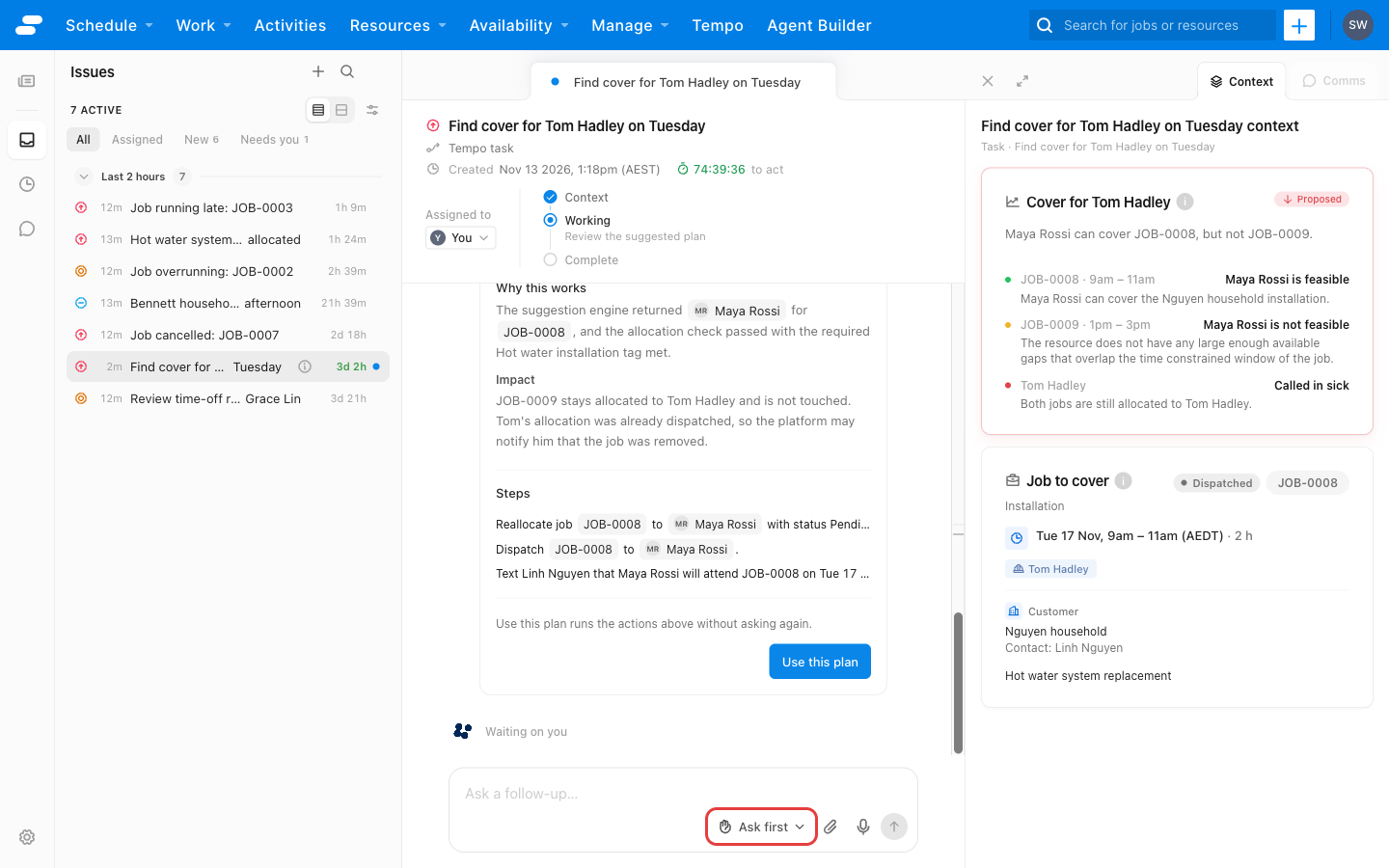
| Mode | Behavior |
|---|---|
| Ask me first | Pauses for your confirmation before any change. This is the default. |
| Make changes, ask before choosing | Makes changes without asking, but still asks you to choose between options. |
| Handle it | Makes changes and picks the recommended option without asking. |
The control offers only the modes your administrator allows for the kind of task you are working on. Unless your administrator has changed the setting, Ask me first is the only mode available. See How much Tempo does.
Important
In Make changes, ask before choosing and Handle it, Tempo writes to your schedule without a confirmation step. Use them only for routine tasks whose outcome you already trust, and review the receipts afterwards.Rate a reply
Every reply from Tempo has thumbs up and thumbs down controls. Use them when a reply was especially helpful or clearly off. After a thumbs down, Tempo asks What went wrong? You can pick a reason, such as Wrong data, Wrong action, or Incomplete, and add a comment, or leave it blank. Your ratings feed Tempo’s memory of your preferences, which you can review under Settings. See Settings, memory, and feedback.
Pick up where you left off
Tempo keeps working after you close the tab or move to another task. When you come back, the task shows what happened while you were away. If Tempo paused on a question or an approval, the task appears under Needs you in the inbox until you answer.
If a task was started by a colleague, you see their conversation and can continue it. Where a decision has already been recorded, the card that asked for it shows as decided rather than asking again.
Feedback
Was this page helpful?