Suggest with Mastermind
Overview
Suggest with Mastermind finds the best resources and time slots for a single job using the same engine as Mastermind route optimization. Schedulers use it in the web app in the same way as Suggest in Mastermind Lite. Integrations and custom scheduling experiences can also request suggestions through the Suggest API.
Uses your default recipe
Suggest with Mastermind always uses your default optimization recipe. Its objectives, constraints and extensions shape which suggestions are returned and how they’re ranked. To change how Suggest behaves, change the default recipe under Settings > Scheduling > Optimization and suggest recipes.How Suggest with Mastermind differs from Mastermind Lite
| Mastermind Lite | Mastermind | |
|---|---|---|
| Settings | Configure Suggest | Your default optimization recipe |
| Travel time | Basic Traffic | Advanced Traffic, if purchased and enabled. Otherwise Basic Traffic. |
| Working hour limits | Not respected | Respected. Suggest won’t propose a slot that takes a resource over their limit. |
| Scores and ranking | Not available | Available through the API |
| Reasons when no suggestion is found | Not available | Available through the API |
| Multiple resource requirements | Not supported | Supported through the API |
API only
Scores, reasons and suggestions for multiple resource requirements are currently available through the Suggest API only. They aren’t yet shown in the Skedulo web app. These additions are opt-in, so existing Suggest requests keep returning the same response.Set the scheduling window
The scheduling window is the period that is considered by Suggest. It is defined by setting a “view” range.
When the view is set to “Day,” Suggest attempts to schedule a job from the current time until the end of the selected day, that is, up to midnight.
When the view is set to three days or one week, Suggest attempts to schedule a job from the current time up to the end of the last day of the selected period.
Scheduling across midnight
The “up to midnight” limit in Day view applies only to the Suggest search window, not to how availability is evaluated. To have Suggest propose resources and time slots for a job that crosses midnight (for example, into a resource’s overnight availability), use the three-day or one-week view so the scheduling window extends past midnight.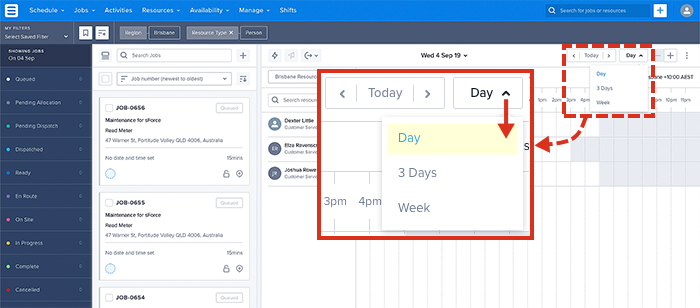
Get suggestions
From the scheduling console:
- Choose a job for Suggest. The job’s status should be Queued or Pending Allocation for the Suggest button to be available (on the job card).
- Click the Suggest button on the job card. If any suggestions are available, they will be displayed in the swimlanes.
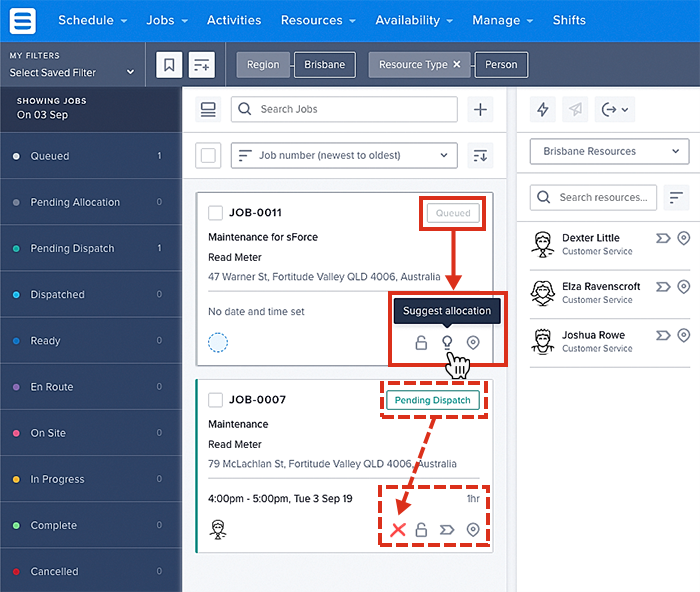
With a queued job, if a job already has one or more allocated resources, the suggested time slots for those resources are marked green. If the resources have not been previously allocated, they are marked blue.
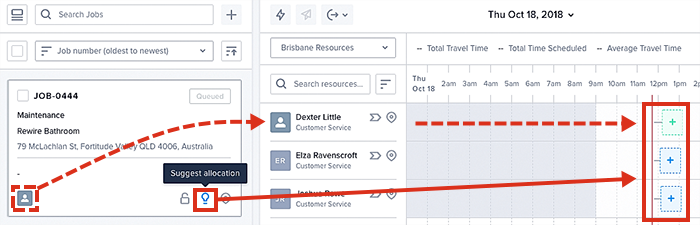
To clear suggestions, toggle the Suggest button on the job card.
Suggest in job details view and on the job page
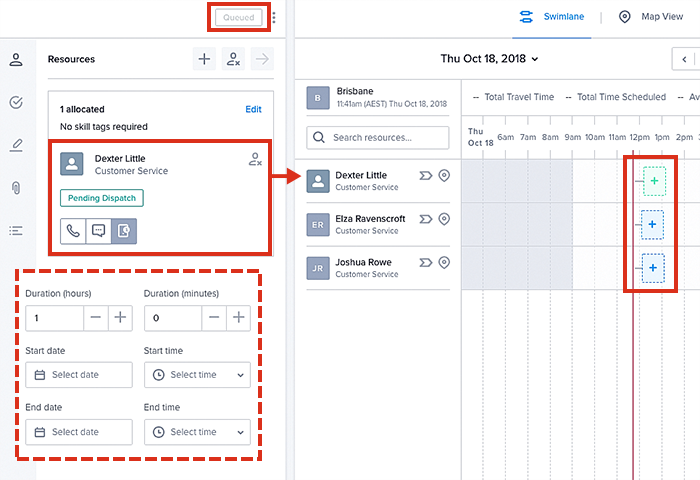
The job’s status should be “Queued” or “Pending Allocation” for Suggest to automatically provide suggestions. If any suggestions are available, they will be displayed in the swimlanes as light blue or green blocks (blue indicating an unallocated resource, green indicating a resource has already been allocated).
Save a suggestion
Click on any suggested job placeholder to schedule the job:
- The selected resource will be allocated to the job.
- The job will be scheduled for the selected date and time.
No suggestion found
Sometimes suggestions cannot be found due to the rules applied. When this happens, a notification will be displayed saying “No resources available.” With Mastermind, the Suggest API can also return the reasons.
Related links
Feedback
Was this page helpful?