Chat with Tempo
Beta feature
Tempo is in private beta. Features described here can change between releases. Contact your Skedulo Customer Success Manager to request access to this feature.Overview
Chat is a private conversation with Tempo. Where a task is a structured way to work one problem, chat is for getting things done when the job is not clearly defined yet: a question about the schedule, a quick change, or a morning’s worth of rework in one instruction.
Open it from the Chat icon on the rail. Chats are yours alone: a colleague cannot see them or pick one up. If something you discuss turns out to need tracking, ask Tempo to create a task for it.
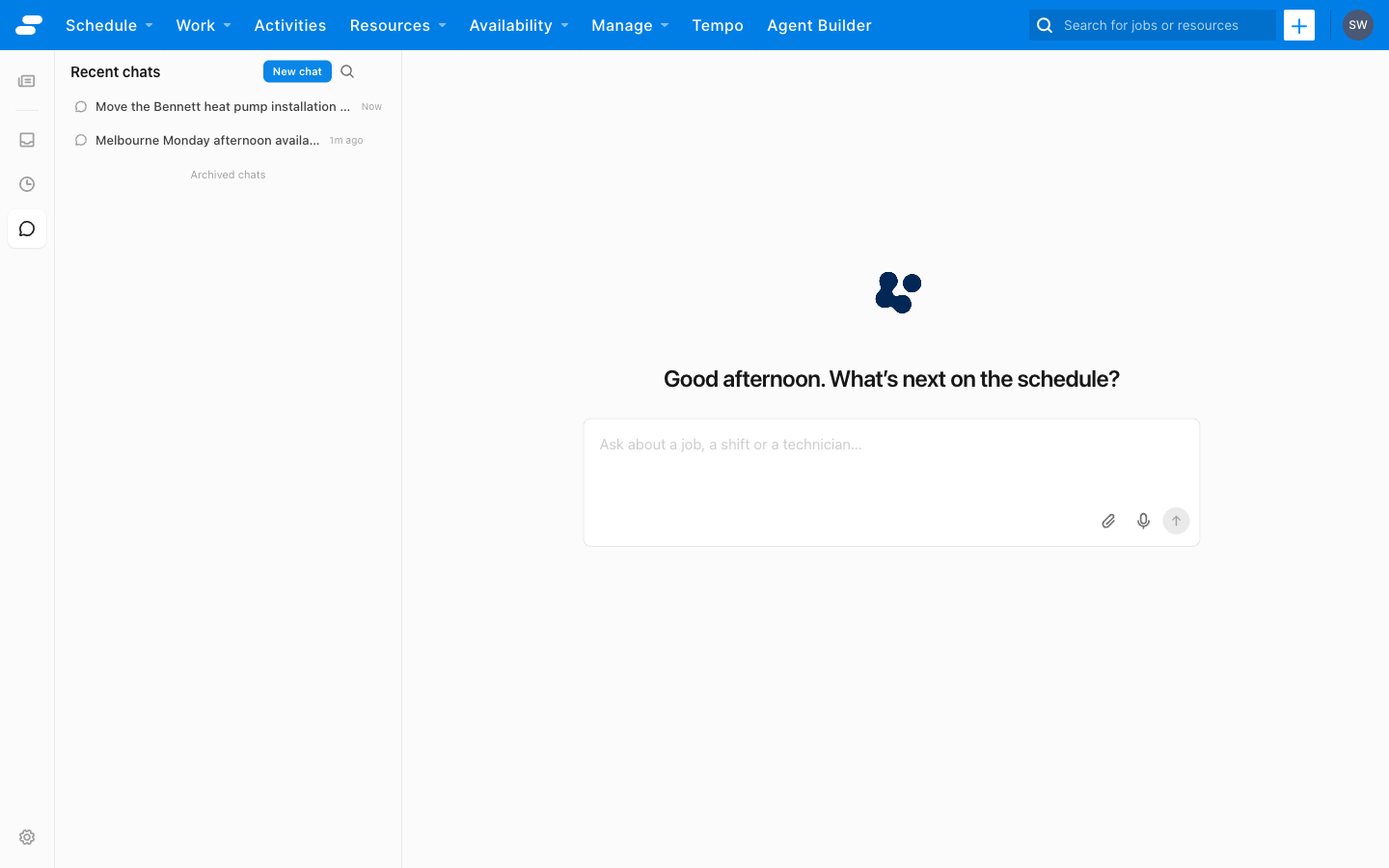
What to ask
Tempo answers from the same schedule, coverage, and customer context it reads in the inbox. It works best with a clear instruction that names the people, jobs, or dates involved:
- “Who is free in Brisbane this afternoon with an electrical license?”
- “What does Priya’s day look like tomorrow?”
- “Where is Sam right now?”
- “Move JOB-1234 to Thursday afternoon with the same technician.”
- “Alex has called in sick today. Find cover for his jobs.”
- “Sam is running 45 minutes late. Push his afternoon jobs back.”
Chat does not follow a task’s stages, so tell it what you want done and in what order. For a change that affects several jobs, say so up front, such as “these twelve jobs need moving to next week,” and Tempo plans the whole set rather than one job at a time.
You can type or dictate. Click the microphone to speak your request. You can also attach an image or a CSV, PDF, or Excel (.xlsx) file for Tempo to read.
How a conversation runs
While it works, Tempo shows what it is doing: the records it is reading and the checks it is running. When it needs a decision from you, it asks structured questions with options in the thread, the same way a task does, and waits for your answer. When there are several reasonable ways forward, it offers them as options and combines the ones you pick into one plan.
Every change Tempo proposes pauses for your approval, with Approve and Reject. Nothing changes in Skedulo until you approve. In chat, Tempo always asks first; the other permission modes are not offered. Accepting a plan approves the steps in it, so one approval covers a multi-job reschedule.
Replies can include interactive cards: a schedule preview, a list of candidates with travel time and fit, or a comparison of options. These are the same cards you see in a task.
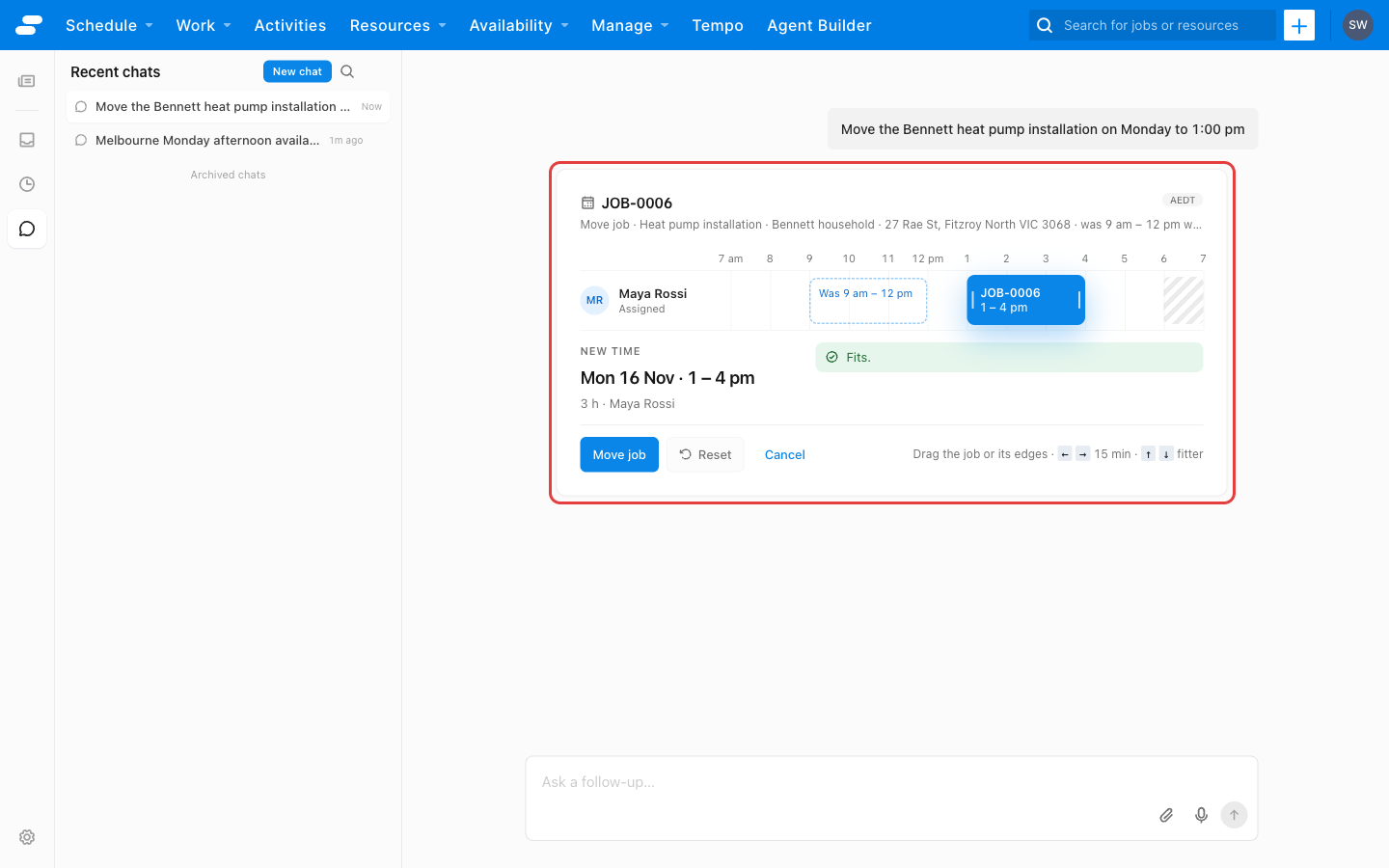
Recent and archived chats
The Recent chats list shows your conversations, newest first, each titled from what you asked. Click New chat to start another. Rename a chat to make it easier to find. Archive a chat you have finished with, find it later under Archived chats, and Restore it from there if you need it again. Select several chats to archive or delete them together.
Create a task from a chat
If a conversation uncovers something that needs tracking, such as a reassignment that has to wait on a customer’s reply, ask Tempo to create a task for it. The task appears in the inbox for your team, with the context from the chat attached, and follows the normal task stages from there.
Feedback
Was this page helpful?