The Tempo inbox
Beta feature
Tempo is in private beta. Features described here can change between releases. Contact your Skedulo Customer Success Manager to request access to this feature.Overview
The Tempo inbox is where scheduling problems come to you. Each item in the list is a task: something that needs a decision, with Tempo’s reasoning and a proposed fix attached. You work the list the way you would an email inbox, clearing tasks as they are resolved.
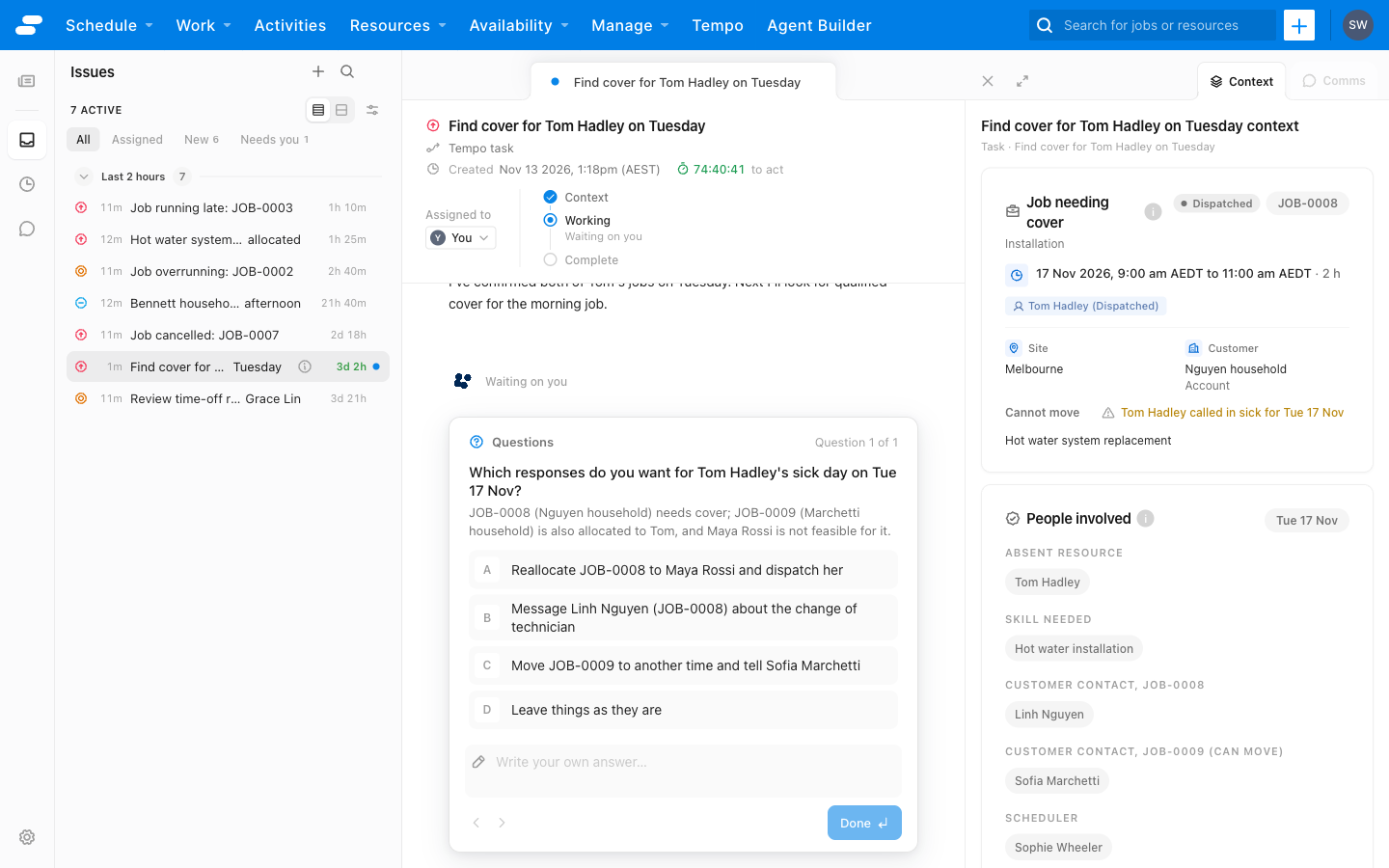
The page has four parts, left to right:
- The rail. Icons for Briefings, the Inbox, History, Chat, and Settings.
- The task list. Every active task, with search, filters, grouping, and sorting at the top.
- The task. The brief, the conversation with Tempo, and the plan. Open tasks sit in a strip of tabs across the top so that you can switch between them.
- The context panel. The evidence Tempo has gathered for the open task, and the Comms view of messages sent to the people involved.
Both side panels can be resized or collapsed.
The Live brief
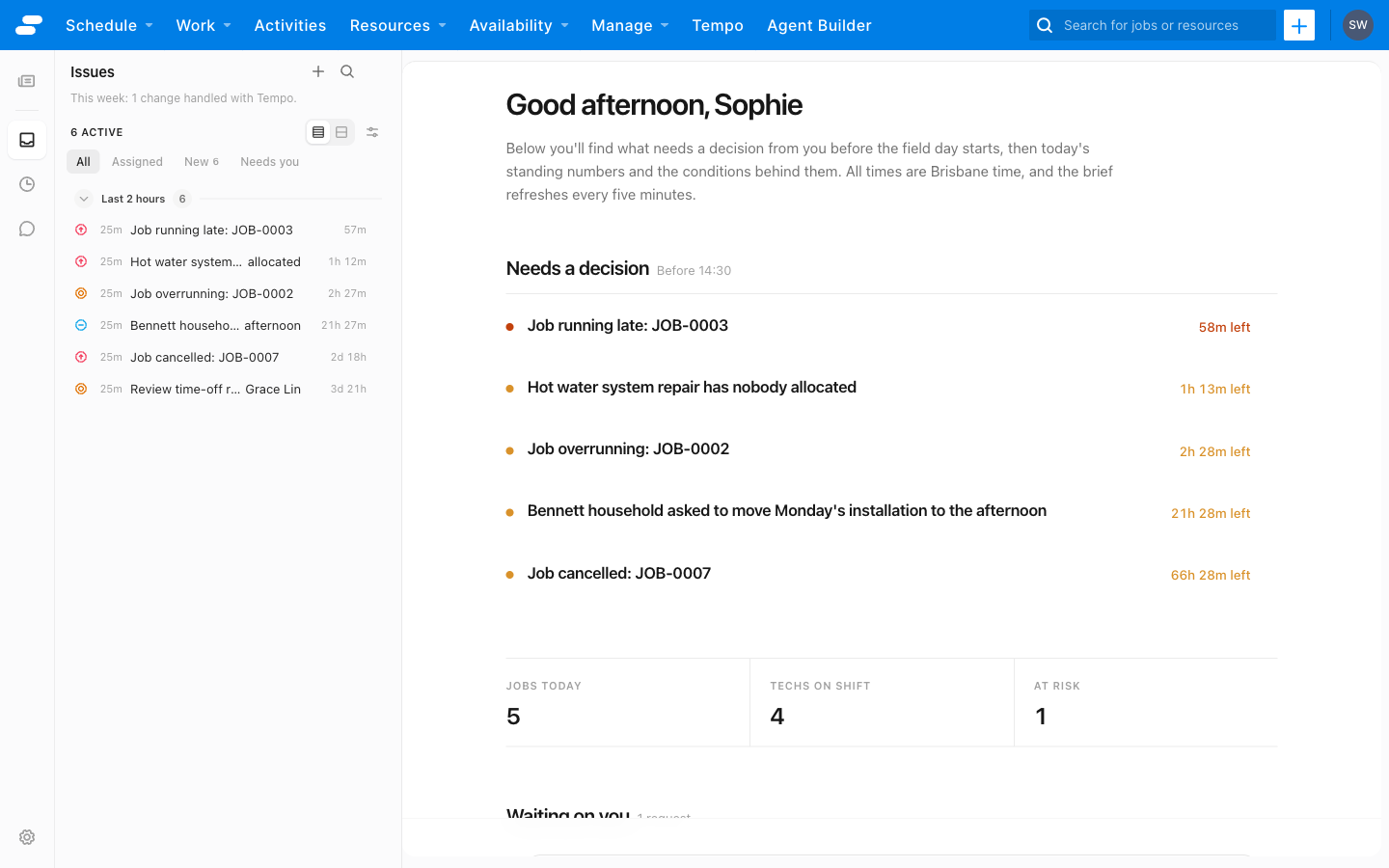
When no task is open, the inbox shows the Live brief: a short, document-style summary of the day, built from your live schedule and refreshed every five minutes. It leads with Needs a decision, the tasks waiting on you. Where there is something to show, it continues with Right now, the headline numbers for the day; Waiting on you, the pending approvals, which you can approve in place; and Handled overnight.
Click a row under Needs a decision to open the task behind it. To return to the brief after opening a task, click Briefings on the rail and choose Live brief. Where scheduled briefings are set up for your organization, each one Tempo has prepared is listed below it.
The task list
The count at the top shows how many tasks are active and how many have lapsed. See Lapsed tasks and history. Once Tempo has handled at least one change in the last seven days, a line in the task list shows the count, for example, This week: 14 changes handled with Tempo.
Tabs
| Tab | Shows |
|---|---|
| All | Every active task. |
| Assigned | Tasks assigned to you. |
| New | Tasks nobody has opened yet. |
| Needs you | Tasks where Tempo has paused and is waiting for a person: a question to answer, an option to choose, or a change to approve. |
Needs you is the tab to clear first. While a task is in that state, Tempo does nothing further on it.
Filter, group, and sort
Click the filter icon to open the controls:
| Control | Options |
|---|---|
| Sort by | Deadline, Priority, Status, Created |
| Group by | Attention, Age, Priority, Status, None |
| Type | All, Issues, Tasks |
| Owner | Anyone, Tempo, Team |
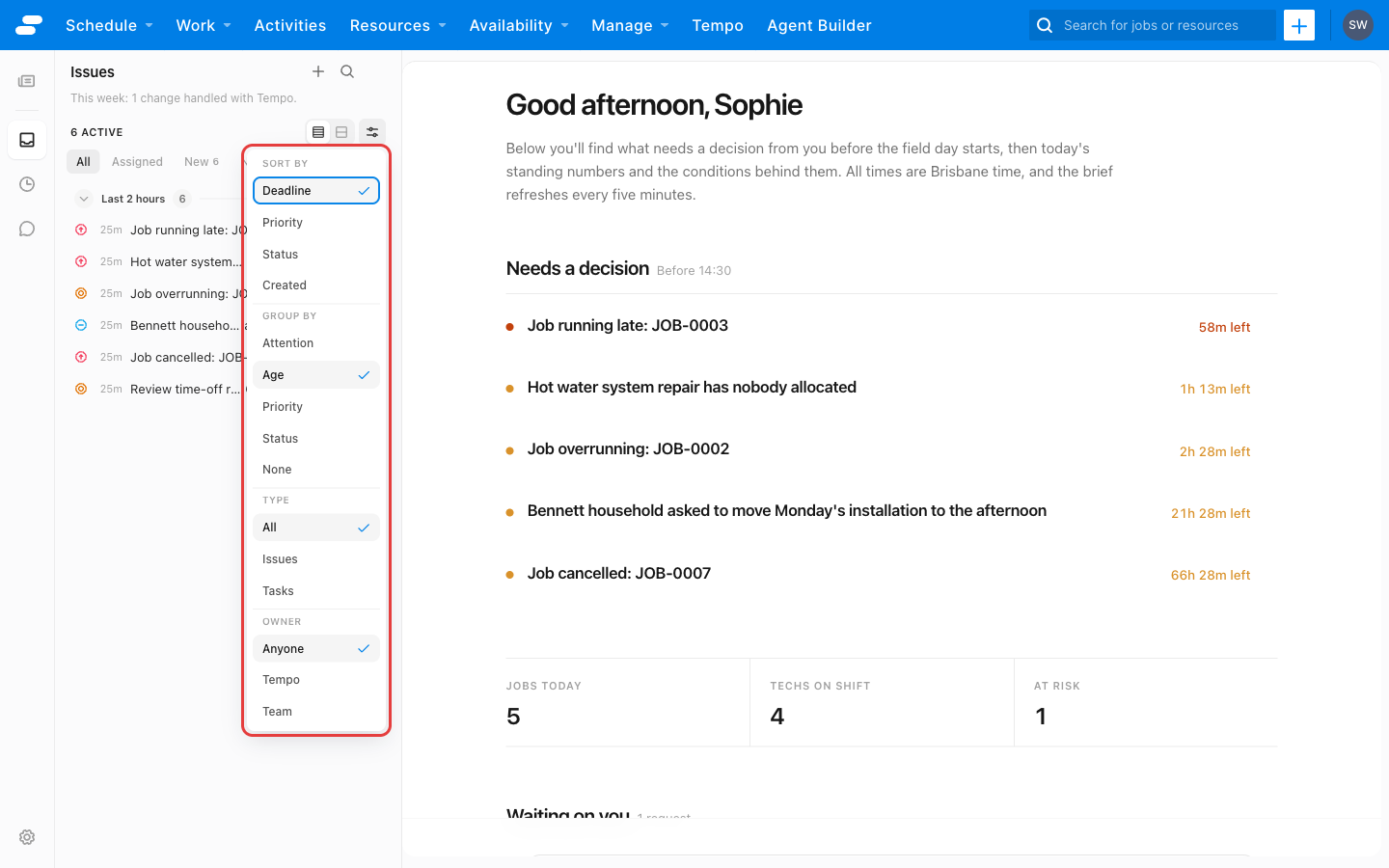
Grouping by Age gives the familiar Last 2 hours, Today, Yesterday, This week, and All others sections. Grouping by Attention puts the tasks Tempo is working on in their own group. Grouping by Status separates tasks nobody has started (New) from those under way (In progress).
The filter, grouping, and density you choose are kept in the page URL. Copy the URL to share the same view with a colleague.
Use the search icon to search task titles, previews, and resource names. Use the density toggle to switch between comfortable and compact rows.
The list loads tasks a page at a time. Click Load more tasks at the bottom of the list for the next page. Search and filters apply only to the tasks already loaded.
Task statuses
A dot on each active row shows where the task stands:
| Dot | Meaning |
|---|---|
| Needs you | Tempo has paused and is waiting for a person. |
| Tempo working | Tempo is working on the task now. |
| Tempo finished | Tempo has finished its run and the task is ready for you to review. |
A closed task shows a label instead:
| Label | Meaning |
|---|---|
| Resolved | Completed. The task moves to History. |
| Dismissed | Archived without being resolved. The task moves to History. |
| Lapsed | Passed its deadline without being resolved. |
A row also shows the task’s priority and, where it has a deadline, a countdown that changes from On track to Due soon, Due now, and Overdue.
Act on a task from the list
Right-click a task to:
- Assign it to a team member, or unassign it. You can also change the assignee from the Assigned to control at the top of an open task.
- Change its Urgency to Critical, High, Medium, or Low.
- Change its Status.
- Archive it. An archived task shows as Dismissed in History.
- Delete it.
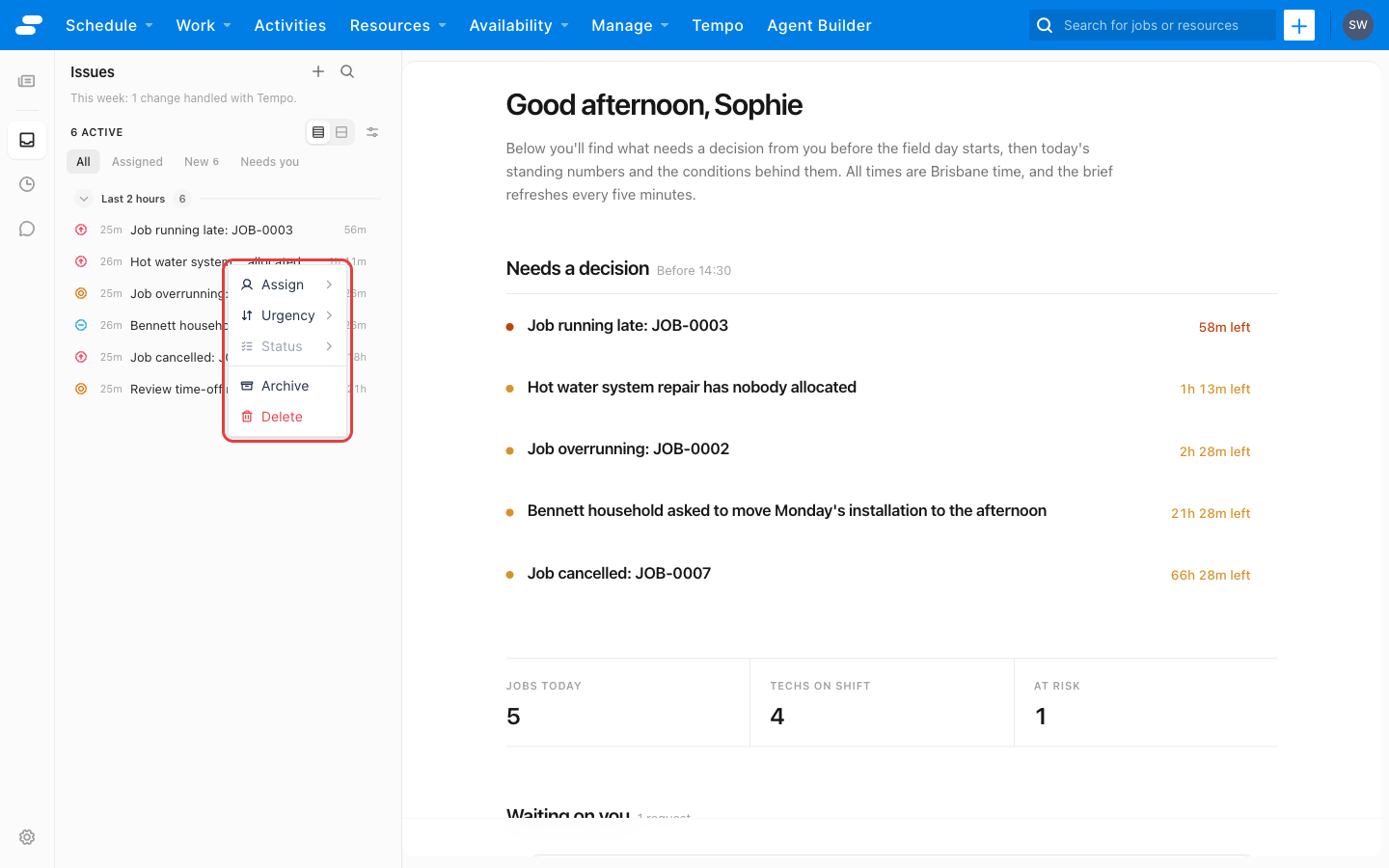
To act on several tasks at once, select them and use the bulk bar that appears to change their urgency or delete them. Press x to select the focused row, hold Shift and use the arrow keys to extend the selection, or press Ctrl+A (Cmd+A on a Mac) to select everything in the list. Right-clicking a selected row applies the action to the whole selection.
Keyboard shortcuts
| Keys | Action |
|---|---|
| Up and Down arrows, Home, End | Move between tasks, opening each one. |
| Enter | Open the task. |
x |
Select or deselect the focused task. |
| Escape | Clear the selection. |
Create a task
Most tasks arrive from automations, but you can create one yourself when something comes up that is not covered. Click + at the top of the task list.
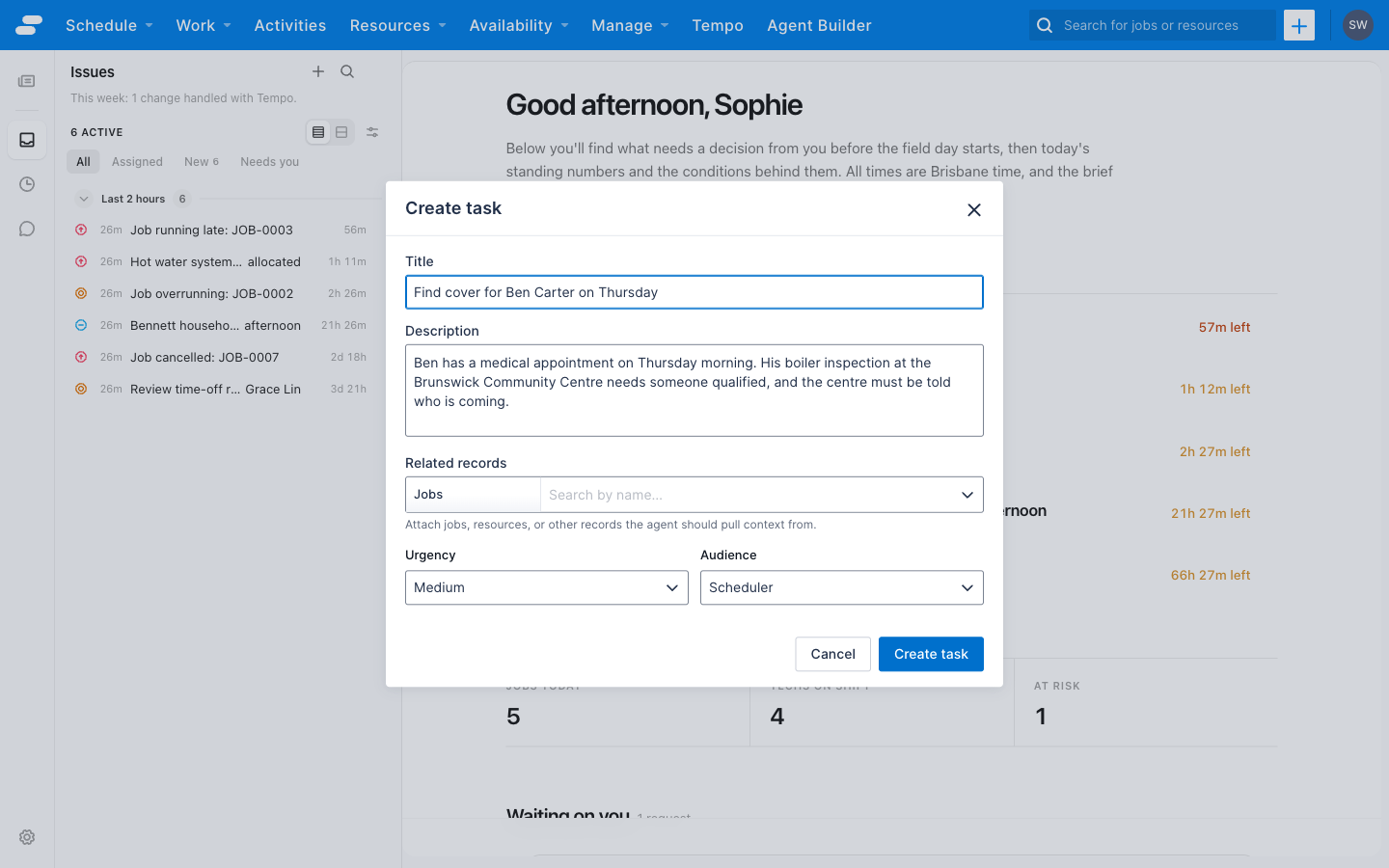
| Field | What to enter |
|---|---|
| Title | What needs attention, for example, Find cover for Alex Chen on Thursday. |
| Description | Any context Tempo or a colleague should know. Write it as the brief you would give a colleague: what happened, what outcome you want, and anything that constrains the answer. Tempo reads this when it starts work. |
| Related records | The jobs, resources, or other records involved. Tempo pulls context from these first. |
| Urgency | Critical, High, Medium, or Low. |
| Audience | Who the task is for: Scheduler, Admin, or Resource. |
Click Create task. Tempo starts gathering context as soon as the task is opened.
Lapsed tasks and history
A task that passes its deadline without being resolved becomes lapsed. Lapsed tasks leave the main list so that it stays focused on what can still be acted on. Open the lapsed list from the count at the top of the inbox to review them, or clear them in one step with Archive all.
History, on the rail, lists tasks that have closed: Resolved, Dismissed, and Lapsed. Open a task from History to read its full record: the evidence gathered, the plan, each step taken, what changed on each record, and the messages sent. Anyone who opens it later can see what was done and why.
Feedback
Was this page helpful?