Introduction to automations
Beta feature
This feature is currently in beta, and should be considered ‘under development’. Learn about the automations beta.Overview
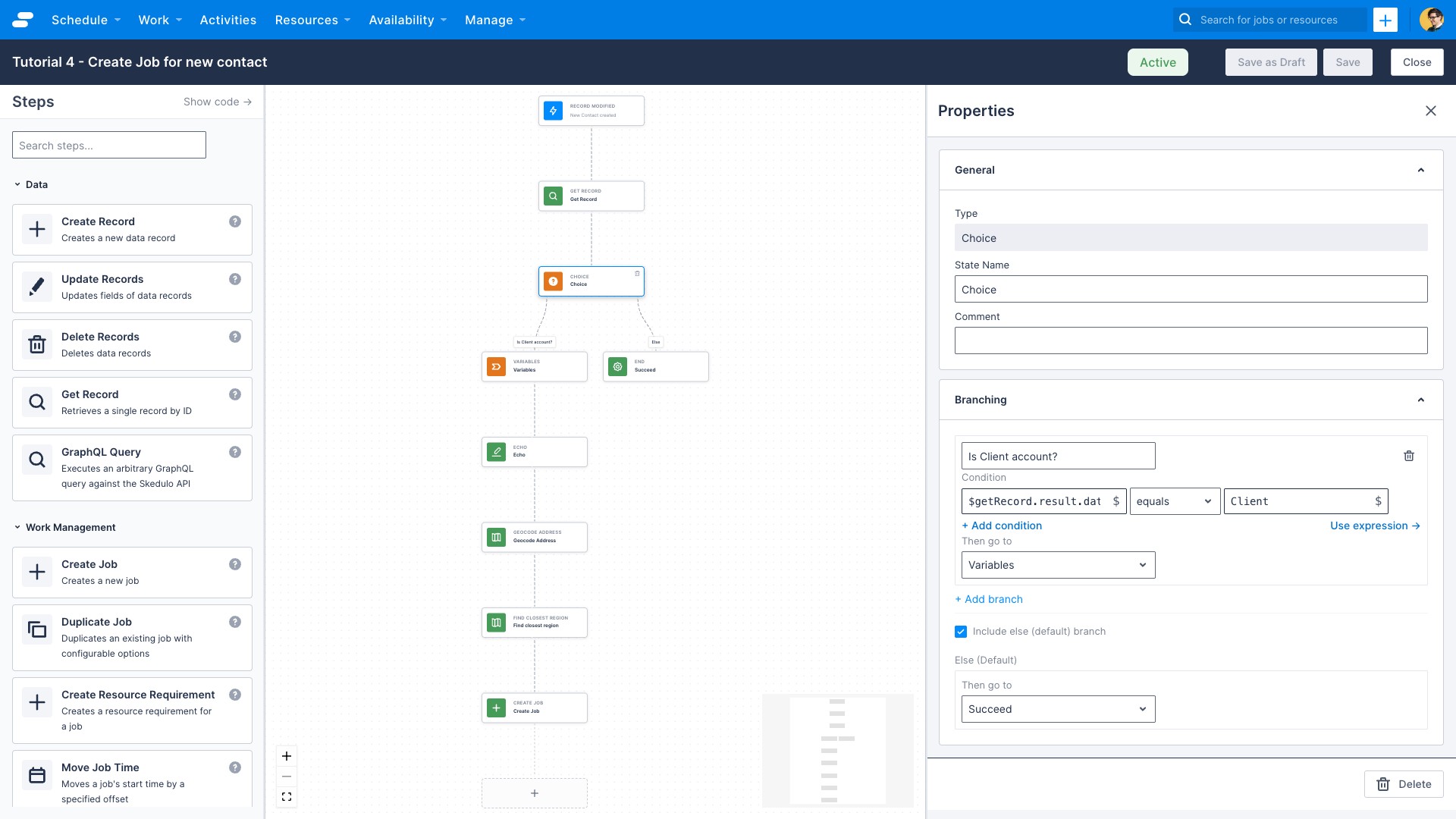
Automations is a feature for Skedulo administrators that allows them to define automated workflows in a low-code builder.
With automations, administrators can build workflows that respond to events within the Skedulo platform.
Automation concepts
Workflow
You can think of a workflow as a recipe that contains all the steps required to complete a task.
Steps
Workflows are composed from steps. These steps are executed sequentially. Steps fall into three broad categories:
- Triggers
- Actions
- Control flow
Steps typically have inputs and outputs. You can pass the output of a step as input to another step.
See Steps for reference documentation on each step type.
Triggers
Every workflow needs a starting point. A trigger represents a specific event or condition that tells the platform to start the workflow.
Triggers supply the starting context to the workflow, passing details of the event or condition to the steps that follow.
A workflow can only have a single trigger, and it has to be the first step in any workflow.
We currently support four trigger types:
- Record Modified: start a workflow when a record for a standard or custom object is created, updated, or deleted
- Record Time Offset: start a workflow at a time relative to a date field on a record, for records matching a condition
- Scheduled: start a workflow on a recurring schedule, independent of any record
- Event: start a workflow when a named platform event occurs, such as a rules violation
See Triggers for reference documentation on all trigger types and the variables they expose.
Actions
Actions represent the actual work or tasks that can be done.
Examples of actions include:
- Update Records
- Cancel Jobs
- Lock/Unlock Jobs
- Find Closest Region
- Geocode Address
- and many more…
See Actions for an overview of how action steps work, or browse the full Action Reference for details on every available action.
Control flow
Control flow steps let you control which steps are executed: they “control” the “flow” of data through the workflow.
We currently support a Choice step that allows you to branch the path of the workflow based on conditions.
Variables
If steps represent the work or tasks to be done within a workflow, variables represent the information that flows from one step to another. You can also use a Variables step to explicitly assign named values mid-workflow for use in later steps.
How are variables used in workflows?
- A trigger adds variables to the workflow that describe how/why it was started.
- An action has input and output variables.
- A choice step evaluates variables from other steps.
- Given the workflow executes steps sequentially, you can only use variables from a step that comes before the step you are configuring.
Expressions
Step input fields, variable definitions, and choice conditions all accept JSONata expressions: a lightweight language for querying and transforming workflow data. Expressions let you reference variables from previous steps, combine fields, format strings, and evaluate conditions without writing code.
For example, you can build a full address string from individual fields, or check whether a picklist value equals a specific option. See JSONata expressions for a full reference and practical examples.
Feedback
Was this page helpful?