Settings, memory, and feedback
Beta feature
Tempo is in private beta. Features described here can change between releases. Contact your Skedulo Customer Success Manager to request access to this feature.Overview
Tempo adapts to how you work. When you correct it, rate a reply, or express a preference, it can remember that for next time. Settings, on the inbox rail, is where you see what it has picked up and decide what it keeps.
The sections that appear in Settings depend on what is enabled for your organization. You may see some or all of the following.
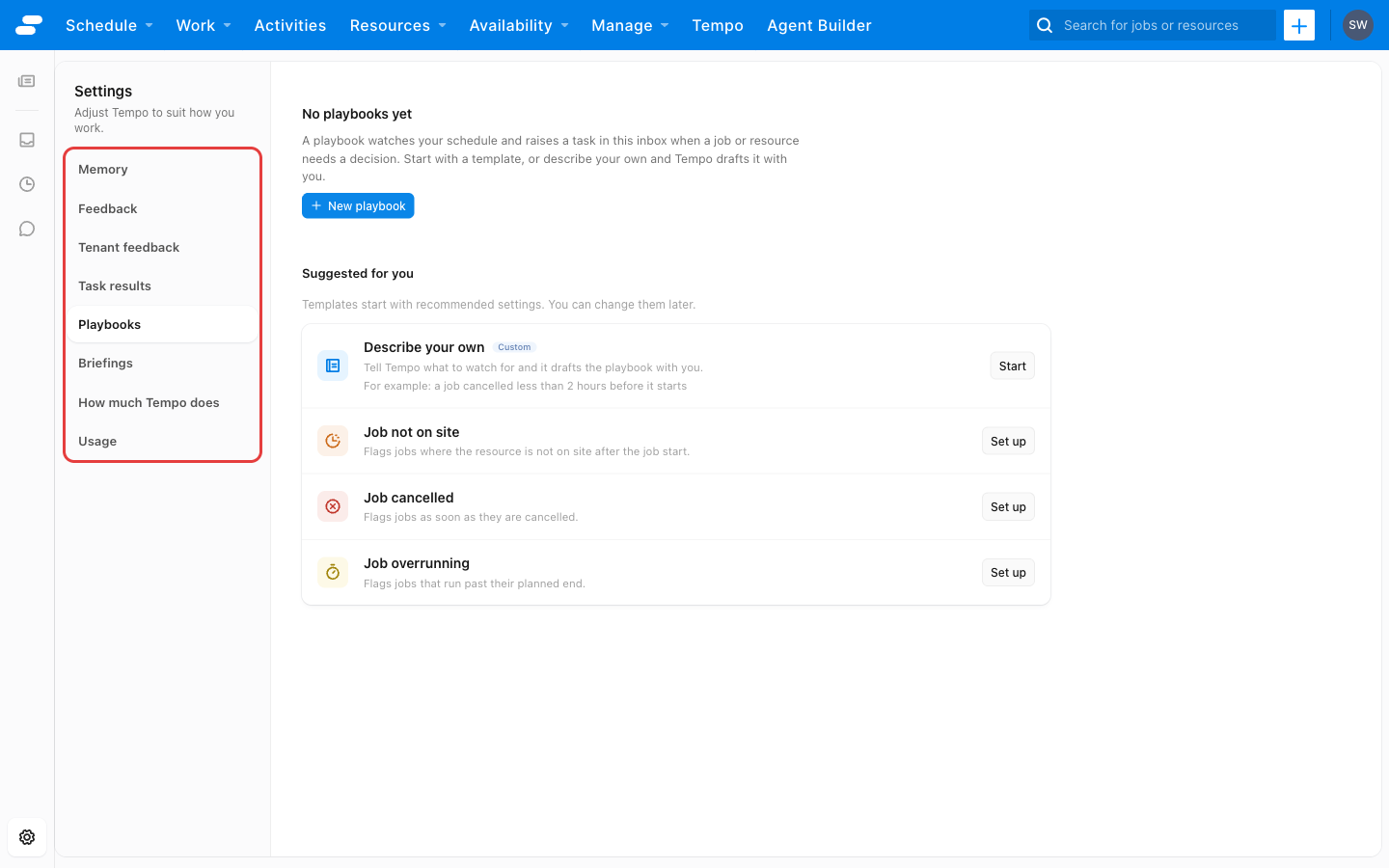
Playbooks, Briefings, and How much Tempo does work only after Skedulo has enabled the Tempo inbox for your organization. Until then, Playbooks and Briefings report that they could not load, and How much Tempo does is not shown. Contact your Skedulo Customer Success Manager to have it enabled.
Playbooks and briefings run as automations. To open those automations, an administrator must first enable automations under Settings > System administration > Beta features, then refresh the browser. Until then, the Automations links in these sections lead to a page that cannot be found. See Learn about the automations beta.
Memory
Tempo does not change its behavior silently. When it notices something it could remember, such as “prefers to be told the travel time before the resource name” or “always wants customers notified by text, not email,” it proposes it first.
- Reflections to review lists candidate memories waiting for your decision. Approve a memory to let Tempo use it, or Dismiss it.
- What Tempo remembers lists the memories in use. Forget removes one permanently, after an inline confirmation. There is no undo.
- Rejected lists the candidates you dismissed. Restore one to return it to Reflections to review.
Memories are grouped by kind: a preference, a presentation choice, an interaction style, or a correction.
Some candidates are flagged as a scheduling rule rather than a personal preference, for example, “never allocate overtime without a manager’s approval.” Tempo withholds Approve for those and explains why. Rules belong in your organization’s policy configuration, where they apply to everyone, not in one person’s memory. Ask your administrator to set them up.
Feedback
The thumbs up and thumbs down controls on Tempo’s replies and interactive cards feed this section.
- Replies lists the ratings you have given, each with the reply it was cast against.
- Interactive cards lists ratings on cards, shown exactly as the card looked when you rated it, with its actions disabled.
Click Forget on a rating to remove it.
Tenant feedback
Users with the right permission also see Tenant feedback: a summary of ratings across the organization, useful for spotting where Tempo is consistently helpful or consistently off. Individual ratings are shown only once enough people have given them, so a summary never identifies a single person’s votes.
Task results
Users who can see Tenant feedback also see Task results: for each kind of task, the number of tasks resolved and the median time from a task being opened to it being resolved.
Playbooks
A playbook watches for one kind of scheduling problem and raises a Tempo task when it happens. Each playbook is backed by an automation that Tempo creates and keeps up to date, so you do not build the automation yourself.
Suggested for you offers a few playbooks to set up. Click New playbook to choose from all of them:
| Playbook | Raises a task when |
|---|---|
| Job not on site | A job has started and the resource is still Dispatched or En route a set time later. |
| Job cancelled | A job is canceled. |
| Job overrunning | A job is still On site or In progress a set time after its planned end. |
| Travel not started | A job is still Dispatched a set time before it starts. |
| Time-off request | A resource asks for time off. |
| Time-off request waiting | A time-off request is still pending a set time after it was raised. |
| Customer email | A new email arrives, other than a reply or an automatic reply. Offered only where inbound email is set up for your organization. |
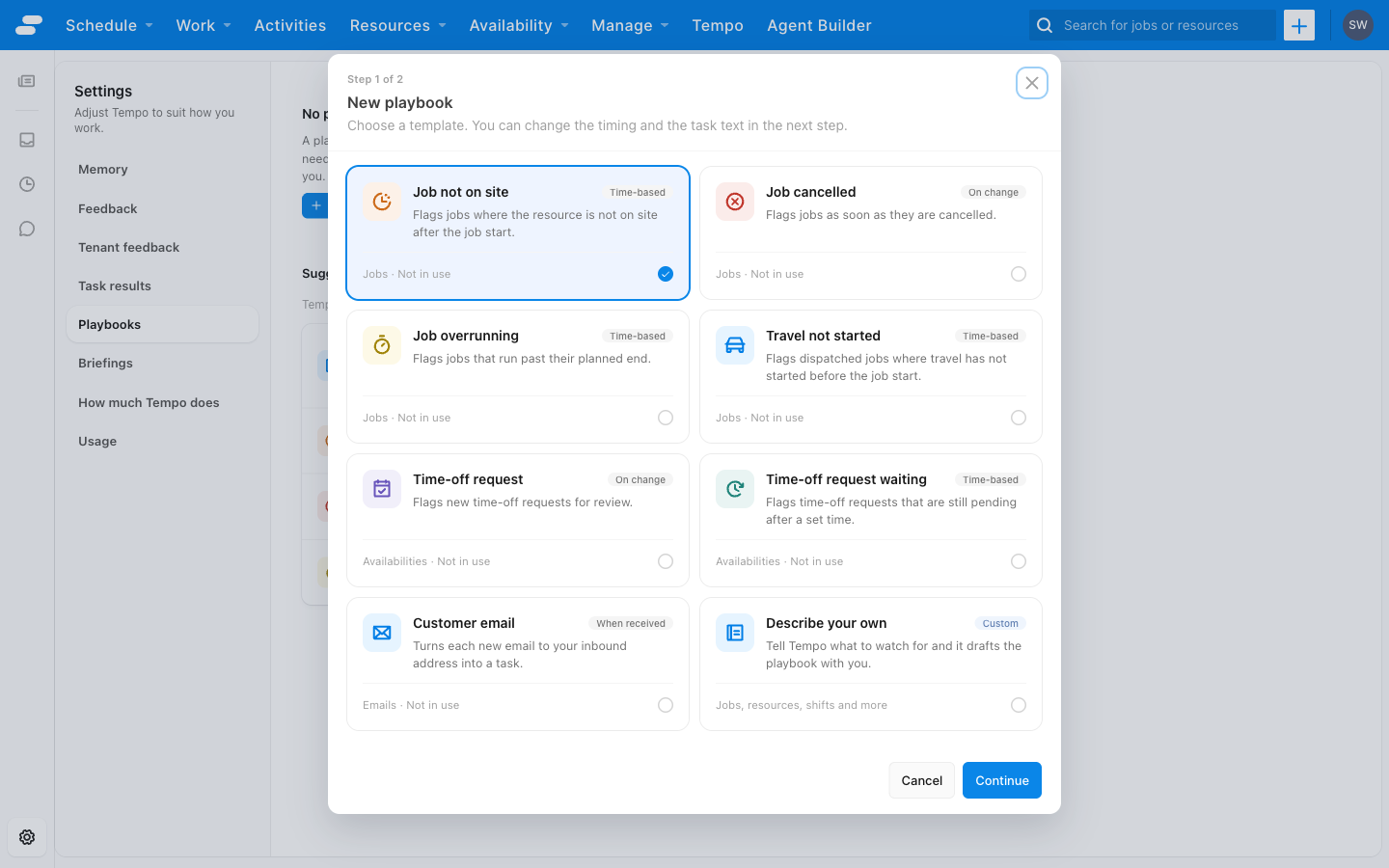
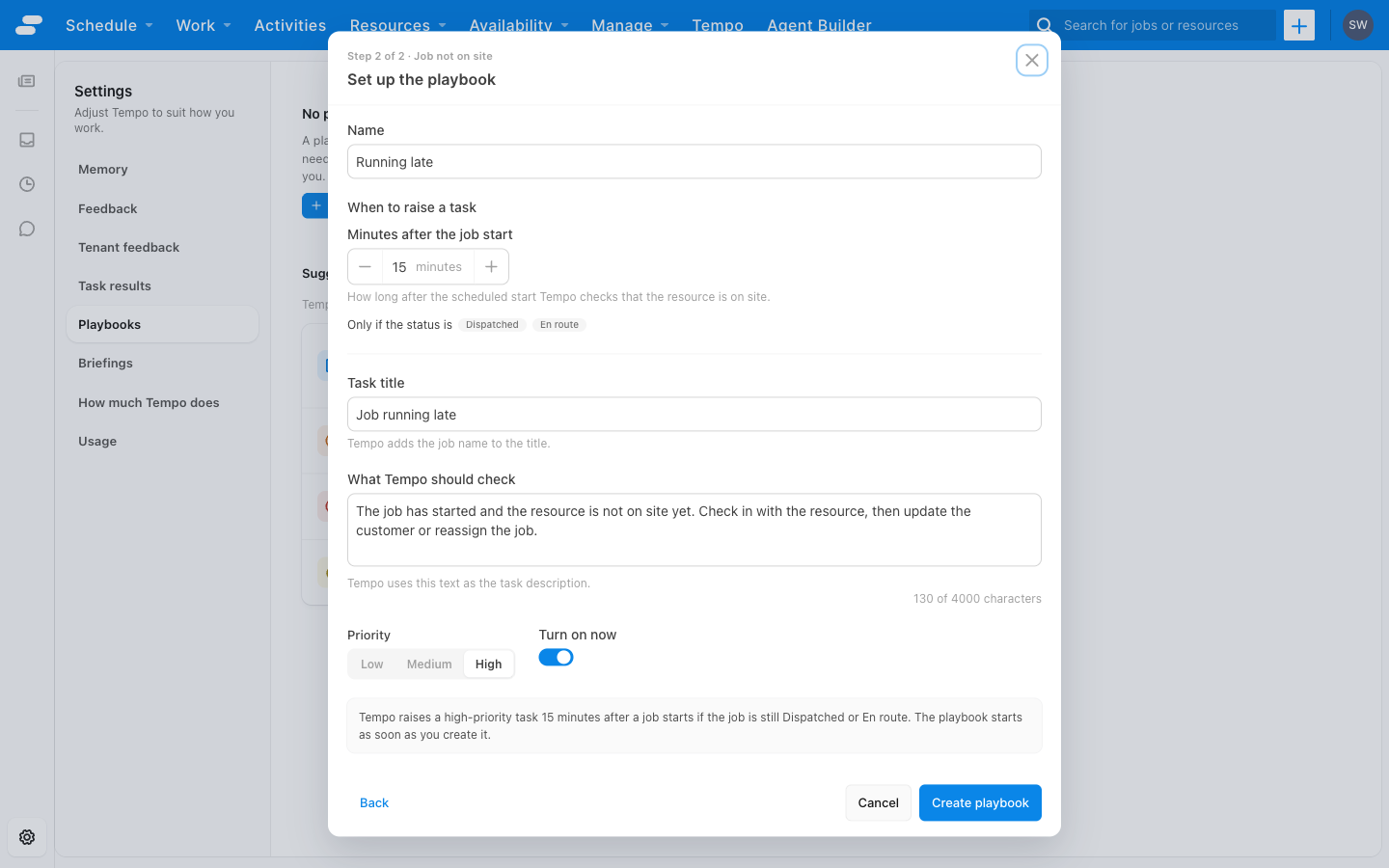
For each playbook you set the task title, what Tempo should check, the priority, and, for the timed playbooks, how long to wait. For the playbooks that watch for a canceled or overrunning job, Tempo starts looking for options as soon as the task is raised, so a plan is waiting for approval when you open it.
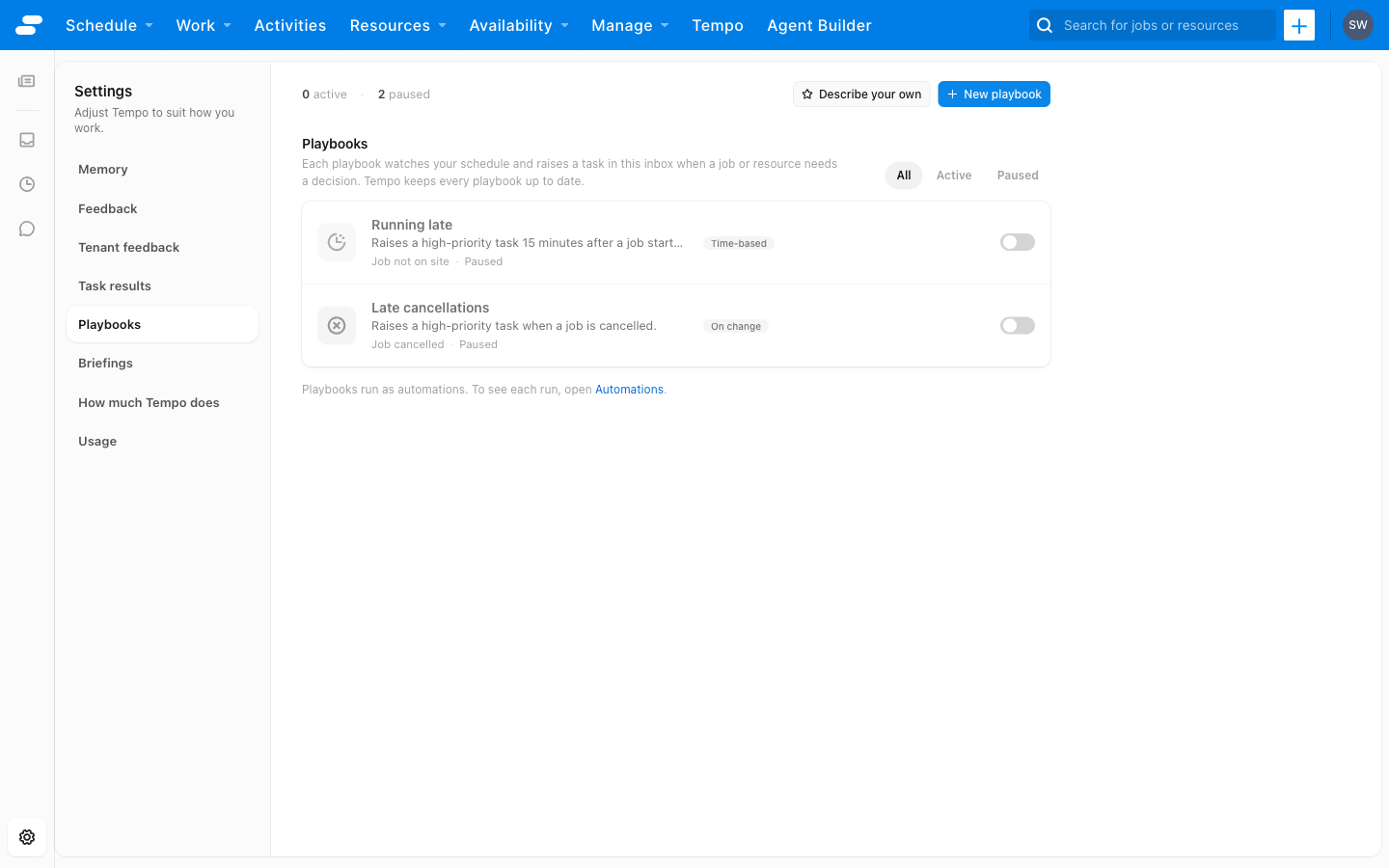
Use the All, Active, and Paused filters to find a playbook, and pause one to stop it raising tasks without deleting it. Where it is enabled, Describe your own lets you describe a playbook to Tempo in plain language.
If someone edits a playbook’s automation in Automations, the playbook is marked Edited in Automations in the list, and Tempo stops updating it. Open the playbook and click Restore Tempo version to discard the outside changes.
Briefings
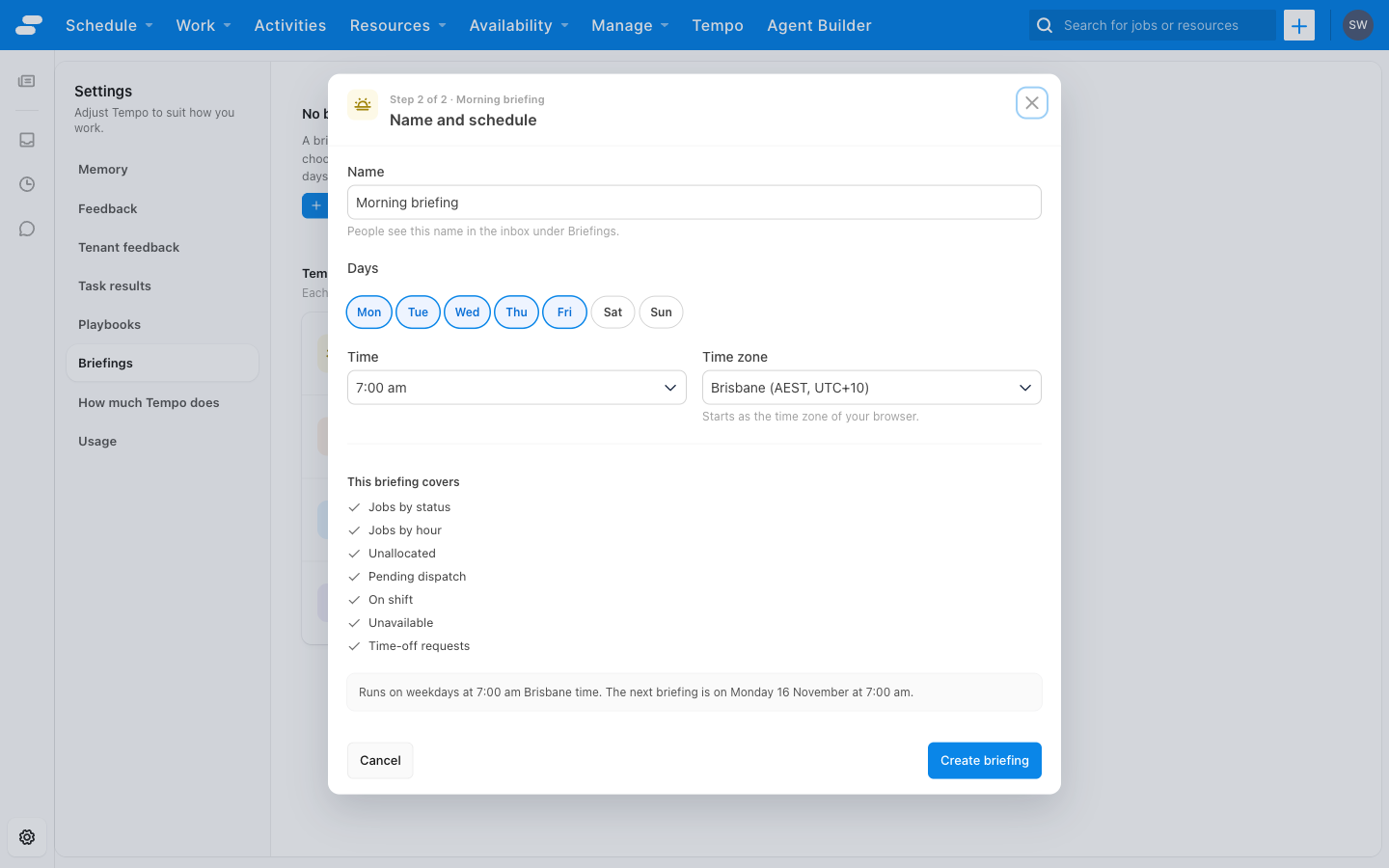
Where briefings are enabled for your organization, Briefings lists the briefings Tempo prepares on a schedule. Each one appears under Briefings on the inbox rail when it is ready. Like a playbook, a briefing is backed by an automation that Tempo creates and keeps up to date.
Users who are allowed to manage briefings choose one from Templates, then set its name, days, time, and time zone. A briefing can be paused, edited, or deleted. If someone edits a briefing’s automation in Automations, Tempo stops updating it until you click Restore Tempo’s version.
How much Tempo does
Administrators of Tempo see How much Tempo does, which sets, for the whole organization, how far Tempo may go for each kind of task. The kinds are grouped as Tasks Tempo picks up (one row for each kind of playbook), Messages to customers, and Chat.
| Level | What Tempo does |
|---|---|
| Suggest only | Lays out the options. It changes nothing. |
| Ask a scheduler | Prepares the change. A scheduler approves it before it happens. This is the default. |
| Act, then notify | Makes the change, then tells the scheduler what it did. |
Act, then notify is offered only for Telling a customer their time changed, where it lets Tempo text a customer about a new appointment time without an approval, and it asks you to confirm before it is saved.
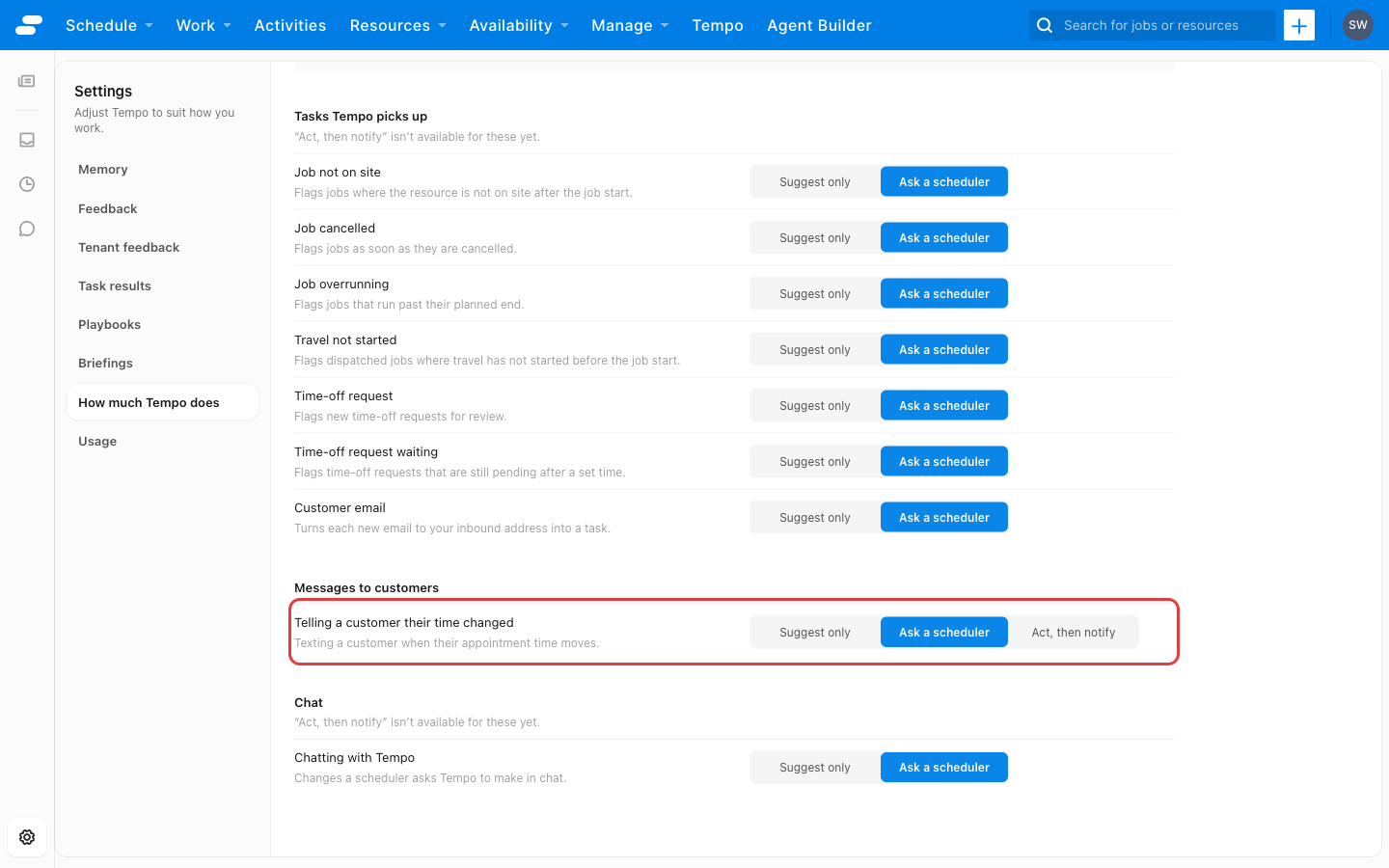
The level also limits the permission mode a scheduler can choose in a task. See Change how much Tempo does on its own.
What Tempo did
Users with the right permission see What Tempo did: every change Tempo made, and who approved it. Each row shows what changed, who approved it, and the outcome, with a link to the task or conversation. The approver is a person’s name, Allowed by org policy where a setting in How much Tempo does allowed the change, or No approval recorded.
The list covers the last seven days unless you change it. Filter it by date, by the person who approved, or by task type.
Usage
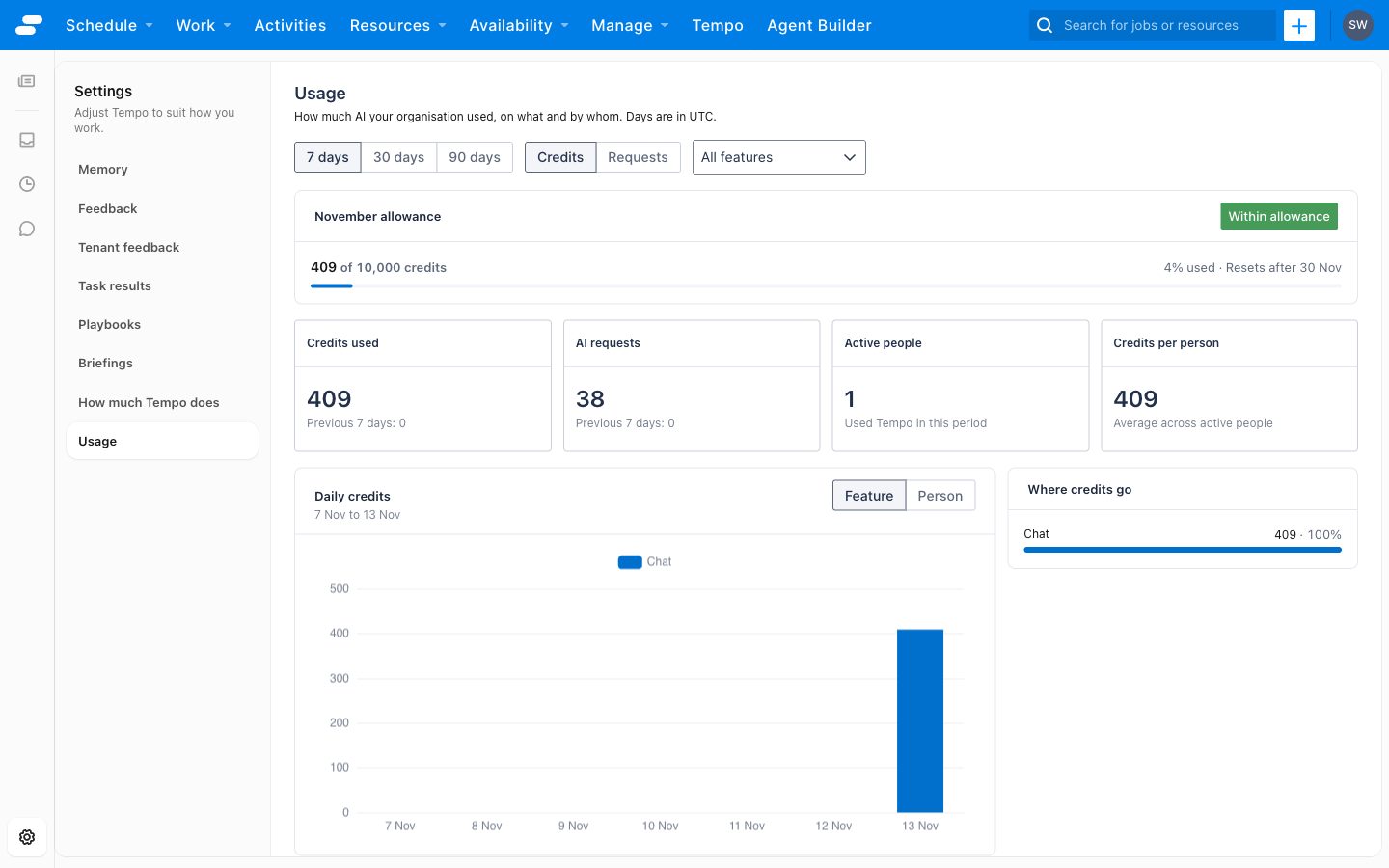
Administrators with permission to view usage see Usage: how many AI credits the organization has used, on what, and by whom.
- Choose a Period of 7, 30, or 90 days, and show the figures as credits or as requests.
- The headline figures are Credits used, AI requests, Active people, and Credits per person, with the month’s allowance.
- The daily chart can be grouped by feature or by person.
- The People table lists each person’s usage, their active days, and when they were last active.
Feedback
Was this page helpful?