Enable Tempo in a tenant
Beta feature
Tempo is in private beta. Features, limits, and setup steps described here can change between releases. Contact your Skedulo Customer Success Manager to request access to this feature.Three things have to be true before a user can open Tempo:
- Skedulo has enabled Tempo for the tenant.
- The navigation menu has a link to the Tempo inbox.
- The user’s role has the Use AI Agent permission.
Prerequisites
- A Skedulo tenant on either the Skedulo Pulse Platform or Skedulo for Salesforce. On both platforms, Tempo runs in the Skedulo web app.
- Access to the tenant as an administrator, so that you can edit the navigation menu and user roles.
Step 1: Request access
During the beta, Skedulo enables Tempo for your tenant when you join the program. Contact your Skedulo Customer Success Manager to request access.
Until Tempo is enabled for the tenant:
- The
/p/ai-inboxroute in the web app returns a not-found page. - The AI actions (for example, Create Tempo Task) do not appear in the automation builder. See Create Tempo tasks from automations.
Skedulo enables the Tempo inbox separately. A tenant can open the inbox page without it, but in Tempo’s settings Playbooks and Briefings report that they could not load, and How much Tempo does is not shown. If you see this, ask your Customer Success Manager to enable the Tempo inbox for the tenant.
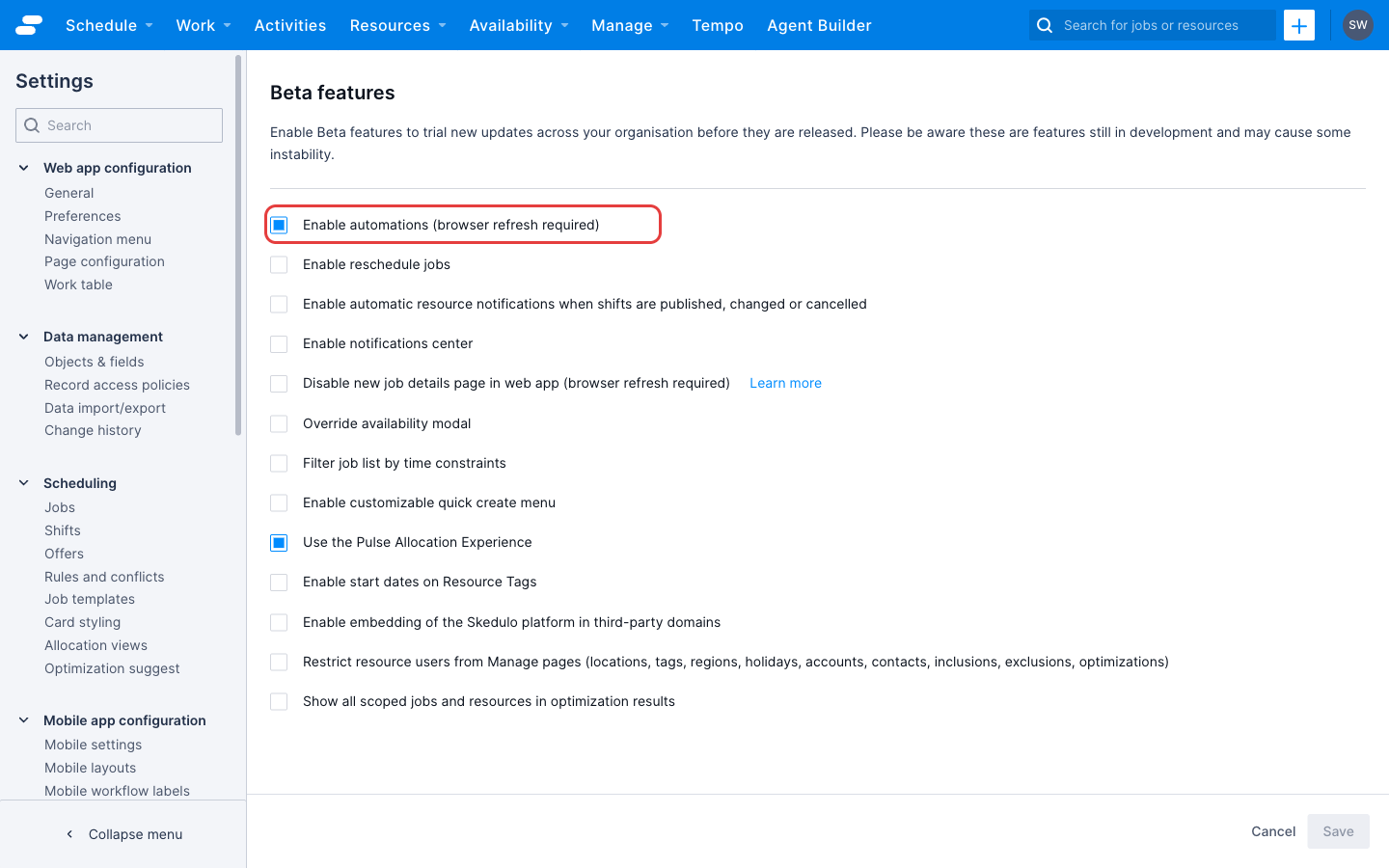
Automations is a separate, self-service beta. To build automations that create Tempo tasks, or to open the automations behind Tempo’s playbooks and briefings, an administrator must enable it under Settings > System administration > Beta features by checking Enable automations (browser refresh required), then refresh the browser. Until then, the Automations page returns a not-found page. See Learn about the automations beta.
Step 2: Add Tempo to the navigation menu
Tempo is not added to the navigation menu automatically. Add a menu item that links to the inbox page:
- Navigate to Settings > Web app configuration > Navigation menu.
- Click Add menu item.
- In the Menu item name field, enter Tempo (beta).
- Under Type, select Link.
- In the Destination Link field, enter
p/ai-inbox. - From the Roles with access drop-down list, select the roles that should see the menu item, for example, Administrator and Scheduler.
- Click Done, then click Save.
For more about menu items and role-based visibility, see Configure the navigation menu.
Step 3: Check the permission
A user needs the Use AI Agent permission (skedulo.tenant.web.ai.agent.use) to open Tempo, work tasks, or use the chat. The standard Administrator and Scheduler roles include this permission. A custom role, or a standard role that has been edited, might not.
To check or add the permission, see Functional permissions.
Without the permission, the menu item still appears for the role, but the inbox reports that the user does not have access.
Confirm that Tempo is working
- Sign in as a user with the permission and click Tempo (beta) in the navigation menu. The Tempo inbox opens.
- Create a task from the inbox: give it a title and a short description such as “Find cover for Alex Chen’s jobs on Thursday,” then open it. Tempo gathers context from the records it finds and recommends a plan.
Nothing in Skedulo changes until a person approves the plan, so this check is safe to run against real data.
Related permissions
Tempo uses a small set of permissions beyond Use AI Agent. You only need these for the integration work described in the rest of this section.
| Permission | Who needs it |
|---|---|
skedulo.tenant.web.ai.agent.use |
Anyone who opens the inbox or chat. |
skedulo.tenant.ai.agent.admin |
Anyone who creates or publishes a custom agent. |
skedulo.tenant.ai.agent.automation |
The API user that runs automations, so that automation actions can create and run Tempo tasks. See Create Tempo tasks from automations. Also any token that calls a published agent directly. |
skedulo.tenant.ai.feedback.govern.user |
Anyone who reviews Tenant feedback and Task results in Tempo’s settings. |
skedulo.tenant.ai.activity.read |
Anyone who reviews What Tempo did in Tempo’s settings. The user also needs skedulo.tenant.ai.feedback.govern.user: without it the section appears, but the list does not load. |
skedulo.tenant.usage.view |
Anyone who reviews Usage in Tempo’s settings. The user also needs the Administrator role. |
For what these settings sections show, see Settings, memory, and feedback.
Next steps
- Create Tempo tasks from automations so that Tempo starts working on a problem before a scheduler looks.
- Custom agents to give Tempo instructions and tools specific to your operation.
Feedback
Was this page helpful?