Create Tempo tasks from automations
Beta feature
Tempo is in private beta. Features, limits, and setup steps described here can change between releases. Contact your Skedulo Customer Success Manager to request access to this feature.A scheduler can create a Tempo task by hand, but most tasks should come from an automation. An automation watches for an event in Skedulo, such as a worker recording sick leave, creates a task in the Tempo inbox, and asks Tempo to start working on it. By the time a scheduler opens the inbox, Tempo has already gathered the context and recommended a plan.
This page describes the AI actions available in Automations and walks through a complete example.
Before you start
- Enable Tempo in the tenant. The AI actions only appear in the automation builder once Tempo is enabled for the tenant.
- Enable the automations beta, if your team has not already. Automations is an open beta that any administrator can switch on under Settings > System administration > Beta features. See Learn about the automations beta for the steps and what to consider first.
- Know how automations work: a trigger, a workflow of steps, and JSONata expressions to pass values between steps.
The AI actions
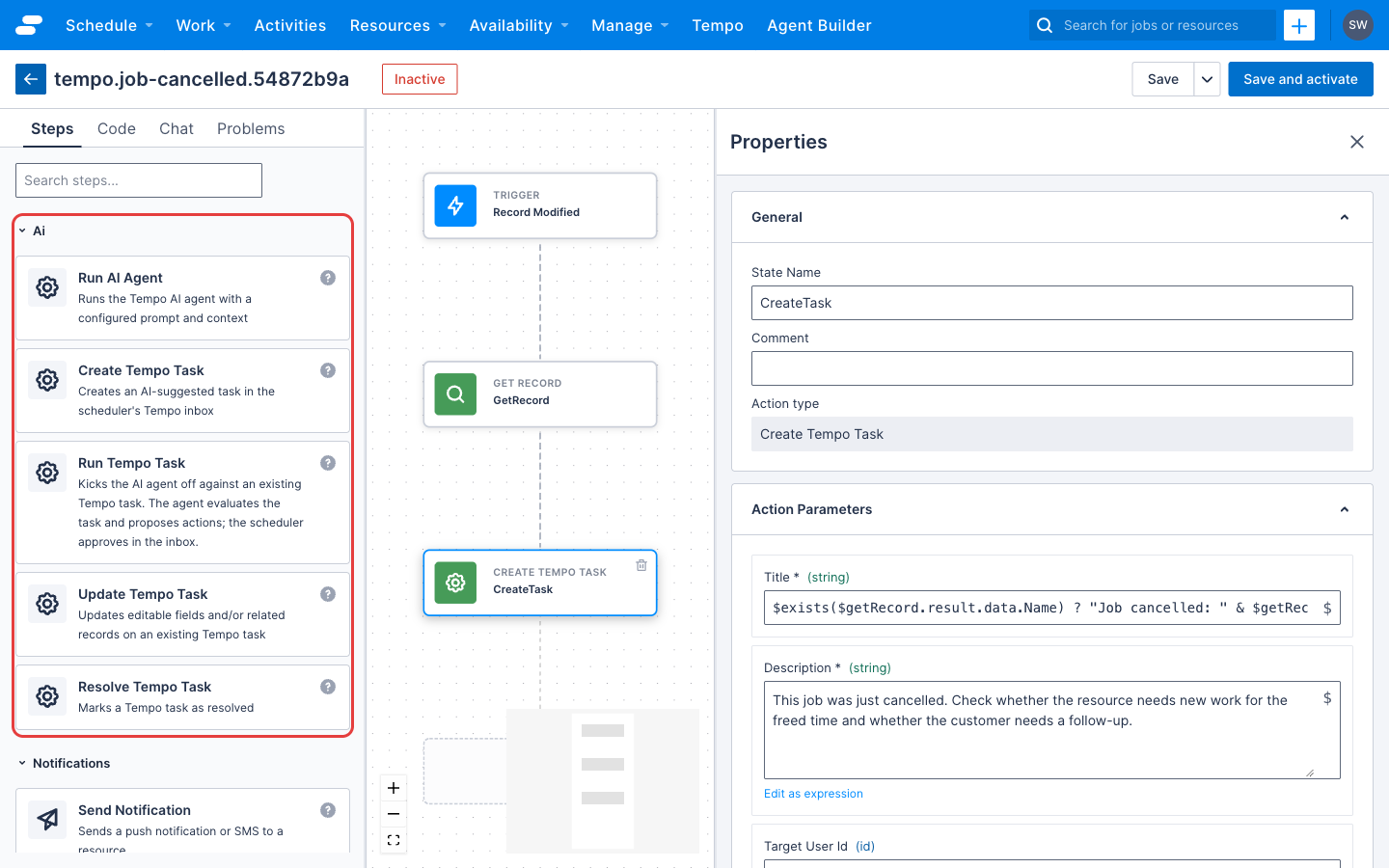
All of these actions are in the AI category of the automation builder.
| Action | What it does | Use it when |
|---|---|---|
Create Tempo Task (create-tempo-task) |
Creates a task in the inbox and attaches the records involved. | An event needs a scheduler’s attention. |
Run Tempo Task (run-tempo-task) |
Starts Tempo on an existing task. Tempo investigates, proposes actions, and pauses for approval in the inbox. | You want the task worked before anyone opens it. |
Update Tempo Task (update-tempo-task) |
Changes a task’s title, description, or priority, or the records attached to it. | New information arrives after the task was created. |
Resolve Tempo Task (resolve-tempo-task) |
Marks a task as resolved and clears it from the inbox. | Another part of the automation handled the situation. |
Run AI Agent (run-ai-agent) |
Runs Tempo headlessly with a prompt and returns a summary. Not tied to a task. | You need an answer or a summary inside the workflow. See the warning below. |
Update Tempo Briefing (update-tempo-briefing) |
Submits the data for one run of a Tempo briefing and starts generating its content. | Tempo adds this step to the automations it manages for briefings. You rarely add it yourself. |
Warning
Run AI Agent executes its prompt without pausing for a person to approve. If the prompt asks Tempo to change the schedule, the change happens. Use Run Tempo Task for anything that writes to Skedulo, so that the scheduler approves the plan in the inbox.Create Tempo Task
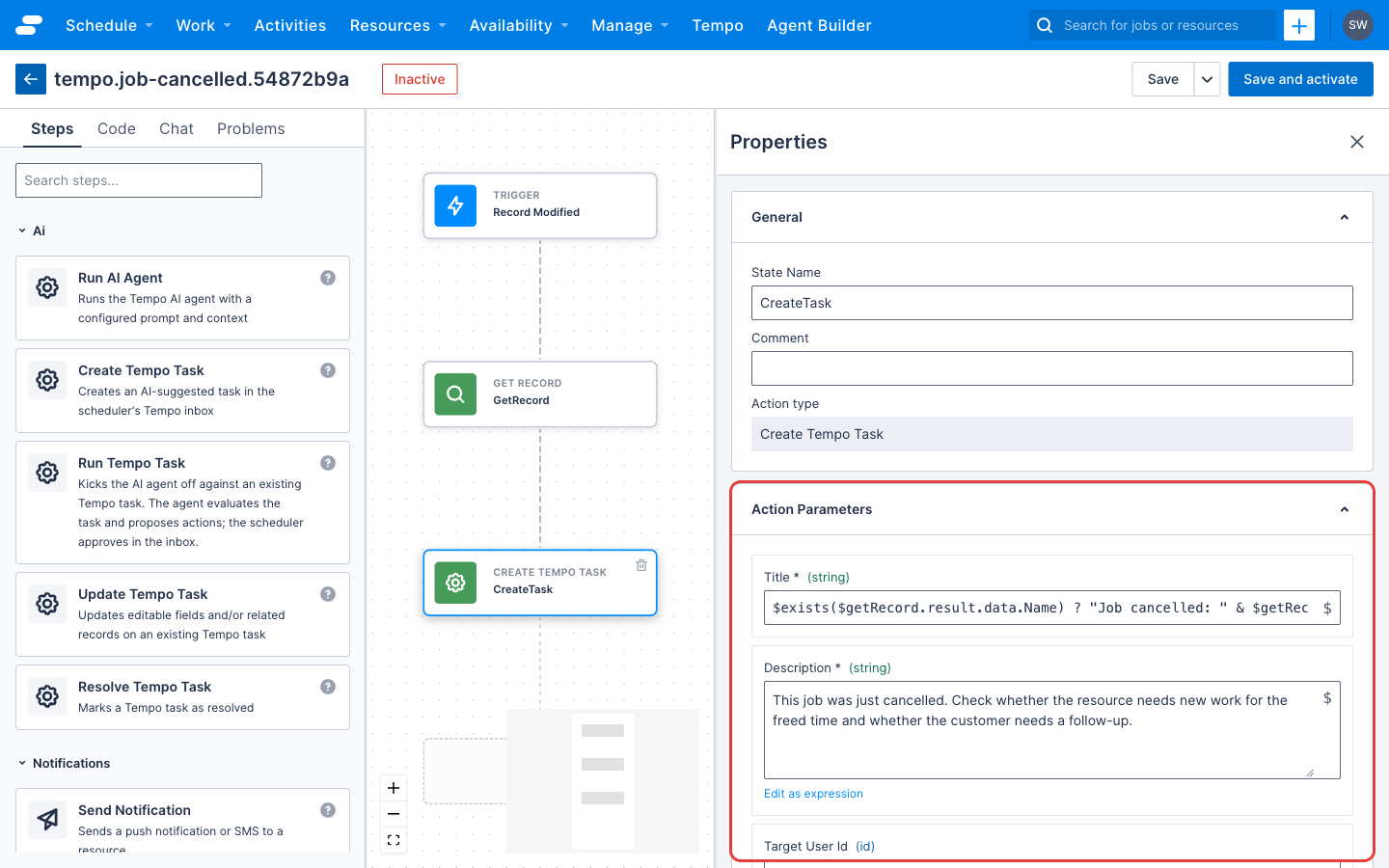
| Argument | Required | Description |
|---|---|---|
title |
Yes | Short title shown in the inbox, for example, 3 unassigned jobs in Brisbane. |
description |
Yes | What the scheduler sees when they open the task. This text also seeds Tempo’s instructions when the task is worked, so write it as the brief you would give a colleague. |
targetUserId |
No | UID of the user the task is assigned to. If omitted, the task is visible to all schedulers. |
contextRecords |
No | Records to attach as context. Each entry has objectType, id, and an optional relationship label such as subject or actor. A task can reference records of different object types. |
priority |
No | low, medium, or high. Defaults to medium. |
dueDate |
No | When the scheduler should act on the task, as an ISO 8601 date and time with a UTC offset, for example, 2026-06-23T09:00:00+10:00. Shown in the inbox and used to sort overdue tasks. |
expiresAt |
No | When the task stops being relevant, in the same format. The inbox drops expired tasks. |
autoInvestigate |
No | When true, Tempo starts working on the task as it is created, with the same defaults as Run Tempo Task, so a plan is waiting for approval when the scheduler opens it. Defaults to false. |
With autoInvestigate, the action returns as soon as the task exists and does not report on the run. If the run cannot start, the task stays in the inbox for the scheduler to open. Use a separate Run Tempo Task step when the workflow needs the run’s status or output, or different limits.
Output: taskId and threadId. The thread ID identifies the conversation that Tempo and the scheduler share for this task.
Run Tempo Task
| Argument | Required | Description |
|---|---|---|
taskId |
Yes | UID of the task to work. |
additionalPrompt |
No | Extra instruction appended to the task description. Use it only to steer Tempo beyond what the description already says. |
maxIterations |
No | Maximum agent steps. Defaults to 5; between 1 and 15. |
timeoutSeconds |
No | Maximum run time. Defaults to 120 seconds; between 10 and 300. |
Output: runId, status, and either summary (when status is completed) or proposedActions (when status is awaiting_approval). A status of awaiting_approval means Tempo has paused on one or more proposed changes, and the scheduler approves or rejects them in the inbox.
Update Tempo Task
| Argument | Required | Description |
|---|---|---|
taskId |
Yes | UID of the task to update. |
title, description, priority |
No | New values. Only the arguments you provide change. |
relatedRecords |
No | An object with operation set to modify or replace. With modify, supply add and remove lists of records. With replace, supply records, the complete new set. An empty records list removes every attached record. |
Output: taskId.
Resolve Tempo Task
| Argument | Required | Description |
|---|---|---|
taskId |
Yes | UID of the task to resolve. |
resolutionNote |
No | A short note stored on the task for audit, describing how it was handled. Up to 2,000 characters. |
Output: taskId.
Run AI Agent
| Argument | Required | Description |
|---|---|---|
prompt |
Yes | The instruction for Tempo, for example, Summarize this job and suggest scheduling improvements. |
contextRecords |
No | Records Tempo should operate on, in the same shape as for Create Tempo Task. |
additionalContext |
No | A map of string values passed to Tempo as extra context. |
maxIterations, timeoutSeconds |
No | As for Run Tempo Task. |
Output: summary and actionsTaken.
Update Tempo Briefing
This action is the last step of an automation that Tempo manages for a briefing. Earlier steps gather the schedule data, and this step hands it to Tempo, which generates the briefing once and stores it.
| Argument | Required | Description |
|---|---|---|
briefingId |
Yes | ID of the Tempo briefing this run belongs to. |
scheduledTime |
Yes | The time this run was scheduled for, as an ISO 8601 date and time. Tempo accepts a time between 48 hours ago and 15 minutes from now. |
data |
Yes | An object of named sections of schedule data for the briefing to cover. Tempo rejects data over 256 KB of JSON. |
Output: runId and status (generating, ready, or failed). Repeating a call with the same briefing ID and scheduled time returns the existing run and does not generate the briefing again.
Referencing action output
Each action exposes its output under a variable named after the action, following the pattern described in Actions. For example, the task ID from a Create Tempo Task step is:
$createTempoTask.result.data.taskId
Example: a worker records sick leave
This automation creates a task when a resource records sick leave, attaches the leave and the resource to the task, and starts Tempo on it. By the time the scheduler opens the inbox, Tempo has found the affected jobs and recommended cover.
Trigger
Use a Record modified trigger on the Availabilities object for the Insert operation. In the Run when filter, limit it to sick leave:
current.IsAvailable == false AND current.Type == 'Sick'
Step 1: Create Tempo Task
| Argument | Value |
|---|---|
title |
'Sick leave recorded: find cover' |
description |
'A resource has recorded sick leave from ' & $trigger.current.Start & ' to ' & $trigger.current.Finish & '. Find cover for their jobs in that window so customers keep their appointments, and let the people affected know.' |
priority |
high |
contextRecords |
See below. |
Set contextRecords to attach both the leave record and the resource:
[
  { "objectType": "Availabilities", "id": $trigger.current.UID, "relationship": "subject" },
  { "objectType": "Resources", "id": $trigger.current.ResourceId, "relationship": "actor" }
]
Step 2: Run Tempo Task
| Argument | Value |
|---|---|
taskId |
$createTempoTask.result.data.taskId |
Leave the other arguments at their defaults.
If nothing later in the workflow uses the run’s output, you can instead set autoInvestigate to true in step 1 and leave out step 2.
What the scheduler sees
The task appears in the inbox with the leave record and the resource in its context panel. Tempo has read the brief, looked up the resource’s jobs for the leave period, and proposed replacements. The run status is awaiting_approval. The scheduler reviews the plan, approves or edits it, and Tempo makes the changes and sends the messages.
Troubleshooting
| Symptom | Cause |
|---|---|
| The Automations menu is missing. | The automations beta is not enabled for your team. See Learn about the automations beta. |
| The AI actions are missing from the automation builder. | Tempo is not enabled for the tenant. Contact your Skedulo Customer Success Manager. |
| An AI action fails with a 403 error. | The API user that runs automations does not have the skedulo.tenant.ai.agent.automation permission. |
Run Tempo Task returns completed with a summary but no plan. |
Tempo decided no change was needed, or the task description did not ask for one. Make the description a clear brief with an expected outcome. |
| Run Tempo Task times out. | Raise timeoutSeconds (up to 300) or simplify the brief. The task stays in the inbox and the scheduler can continue it there. |
Feedback
Was this page helpful?