Preview and debug low-code forms with Local Development Mode
Overview
Low-code Local Development Mode (LDM) is a browser app that renders a standard low-code (ui_def) Skedulo Plus extension against your Skedulo team. It uses the same expression engine and data flow as the Skedulo Plus mobile app, runs your form’s custom functions (cf.*) in the browser, and reads and saves real data. Edit a form’s JSON or its custom function source and the browser re-renders it immediately, without redeploying the form or opening the mobile app. Each reload also fetches the form’s data again, so values you have typed but not saved are lost.
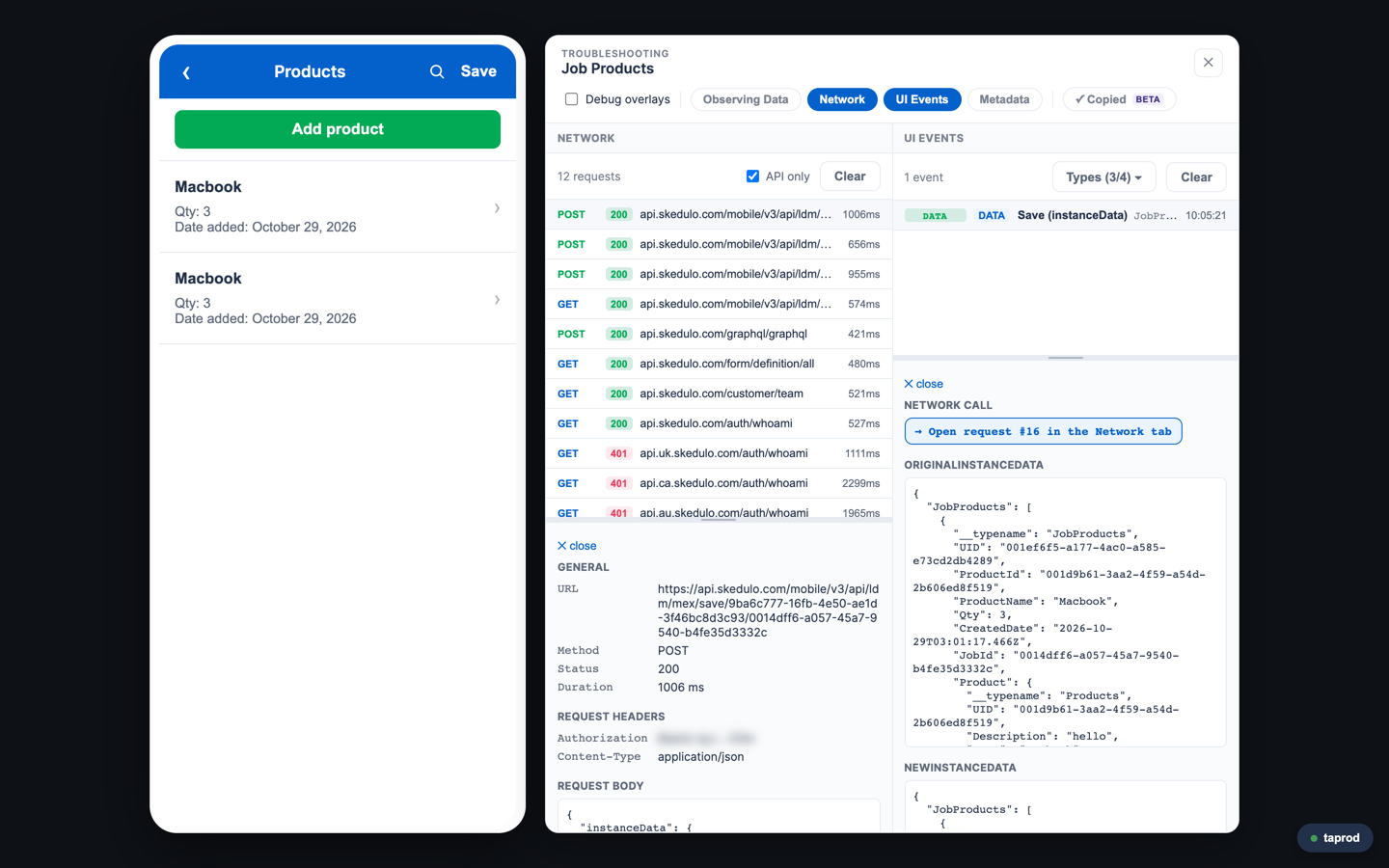
LDM also includes a Troubleshooting panel that shows the form’s live data, the state of each field’s rules, every network call, and the events the form raises.
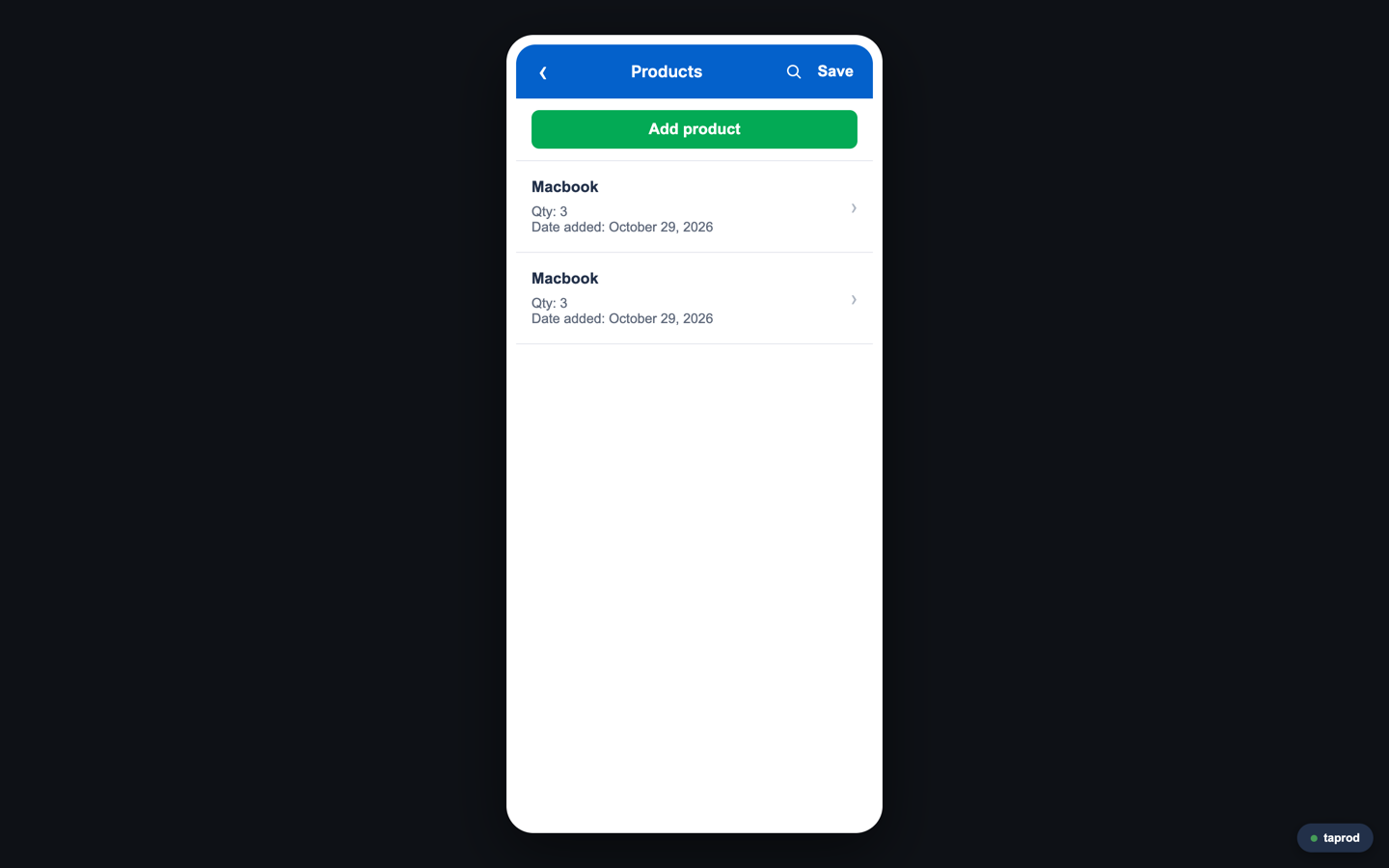
LDM has the following limits:
- It supports standard low-code forms only. MEXWEX (web app) forms are not supported.
- Device-only controls are simulated. Signature, attachment, and image annotation controls use a sample image but perform the real upload, list, and delete calls. The voice-to-text control renders, but capturing voice works only on a device. The current location comes from your browser.
- The form must already be deployed to your team. LDM reads your local form definition, but loads data through the deployed form.
Prerequisites
-
The Skedulo CLI. See Install the Skedulo CLI.
-
The Skedulo Plus extensions plugin for the CLI. Install or update it with:
sked plugins install @skedulo/plugin-mex -
Node.js 20 or later.
-
An API token for a Skedulo administrator who is linked to a resource. See Get an access token.
-
The form deployed to your team. See Use the Skedulo CLI to upload and manage your Skedulo Plus extension.
Set up LDM
-
From the folder that contains your form folders, download the LDM app:
sked mex template lowcode-ldm -o ./ldm_lowcodeThe command copies the app into
./ldm_lowcodeand overwrites that folder each time you run it, so running it again gives you the latest version. Your form folders are outside the app folder and are not changed.my-forms/ ├── job-products/ # a form folder (mex_definition/, upload_config.json) ├── site-inspection/ # another form folder └── ldm_lowcode/ # the LDM app -
Install the app’s dependencies and start it:
cd ldm_lowcode npm install npm run dev -
Open the URL that
npm run devprints, by defaulthttp://localhost:3100. If port 3100 is in use, the app starts on the next free port and prints that URL instead.The app also listens on your network address, which
npm run devprints as Network. Anyone on your network can open it and read your local form files, so use it only on a trusted network.
By default, LDM lists the form folders next to the app folder. To list forms from a different folder, set LDM_FORMS_ROOT when you start the app:
LDM_FORMS_ROOT="/path/to/your/forms" npm run dev
On Windows PowerShell, set the variable first:
$env:LDM_FORMS_ROOT = "C:\path\to\your\forms"
npm run dev
Get an access token
LDM calls the Skedulo API with an access token. The token must belong to a Skedulo administrator who is linked to a resource, because LDM loads jobs, shifts, and resource data as that resource. The resource is recorded in the token when you create it, so link the user to a resource first. If you link the user after creating the token, create a new token.
Create an API token in the Skedulo web app under Settings > Developer tools > API tokens. For details, see Create API tokens with developer tools.
Keep the token secret. Anyone who has it can use the Skedulo API as that user.
LDM stores the token in your browser’s site data for the LDM URL, and keeps it after you select Clear credentials. On a shared computer, clear the site data for the LDM URL when you finish.
Connect to your team and open a form
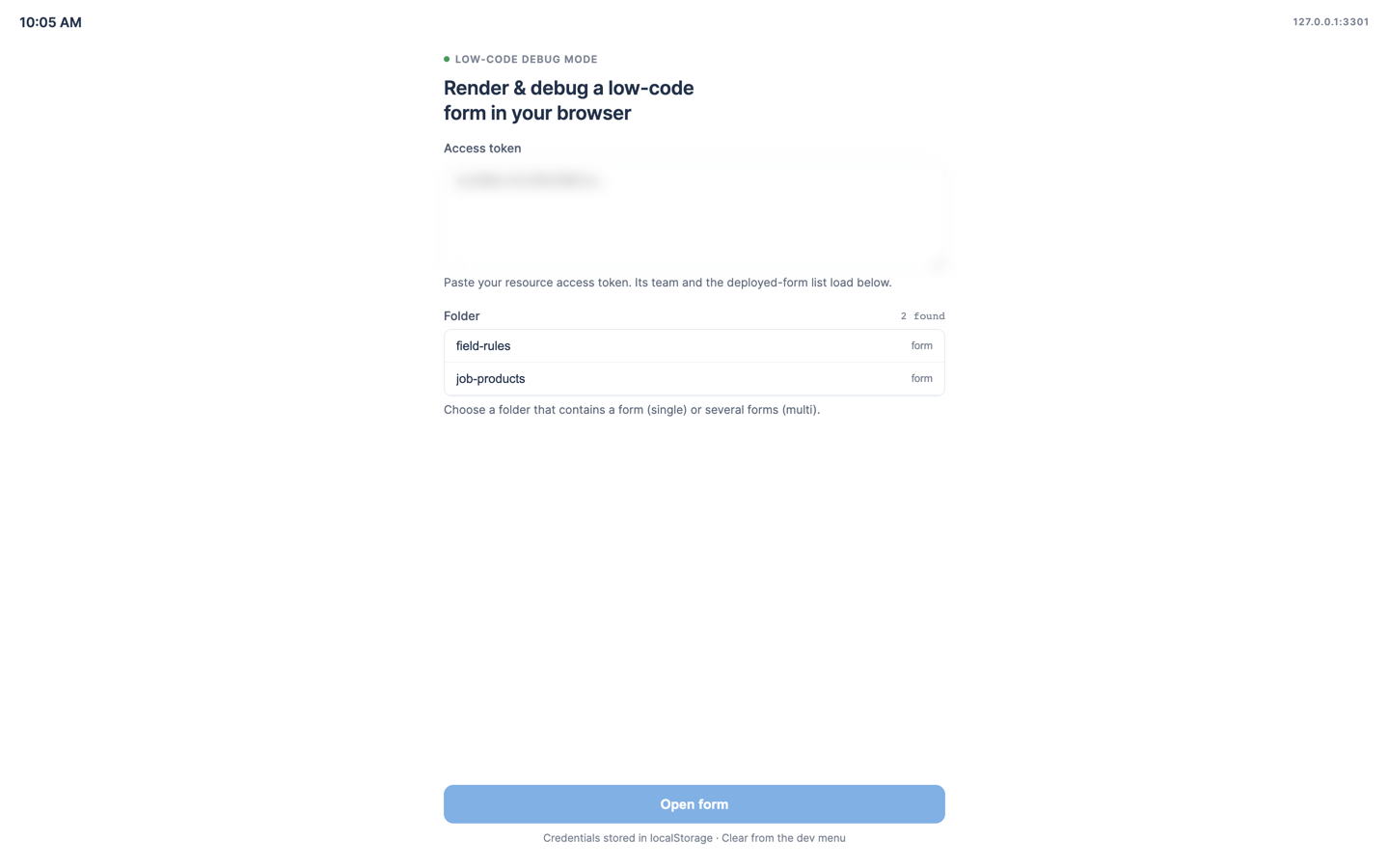
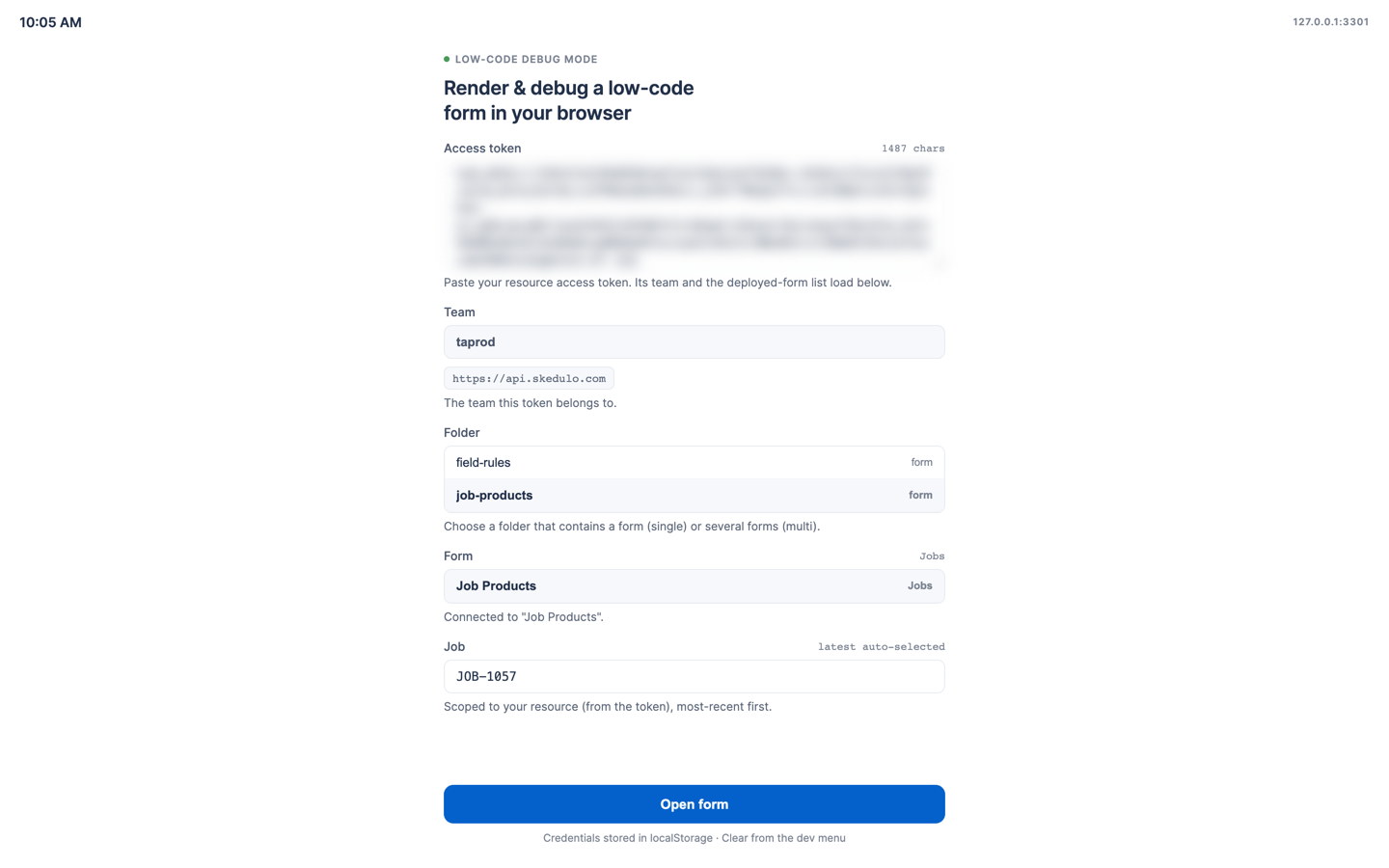
- Access token: Paste your access token. LDM finds the region your team is in and shows the team name below the token. Check that it is the team you expect. If the token has expired or is not valid, an error appears instead.
- Folder: Select the folder that contains your form. A folder can contain a single form or several forms.
- Form: Select the form. Forms that LDM can’t open are disabled. Hover over the warning icon to see why: the form is a MEXWEX form, it is not a low-code form, or it is not deployed to your team.
- Job or Shift: If the form runs on a job or a shift, LDM selects the one most recently allocated to your resource, and lists the ten most recent allocations. Search by name or description to find another record, or paste its UID. Forms that run on the resource itself don’t need a record.
- Click Open form.
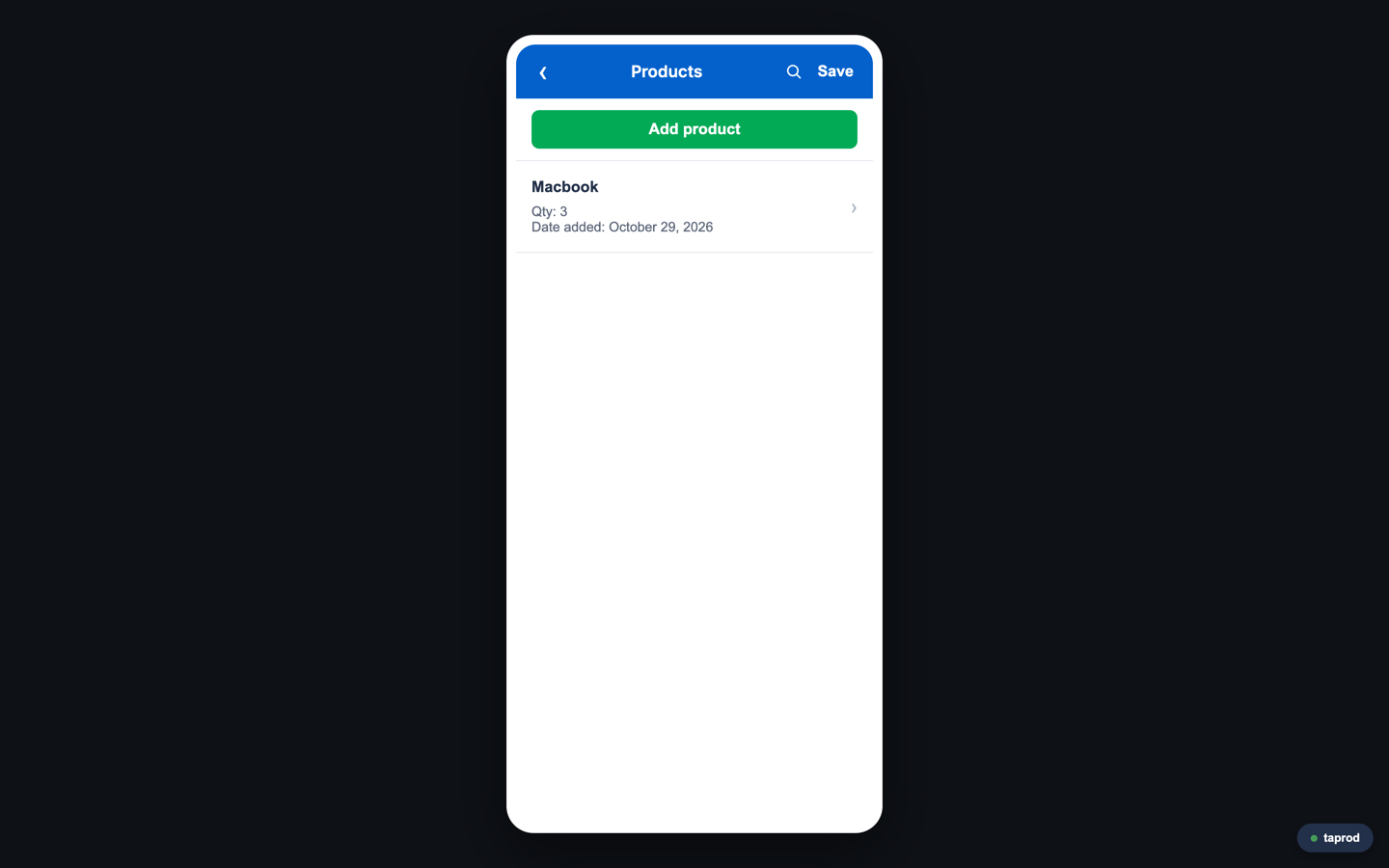
The form opens in a phone-sized frame. To use a tablet-sized frame, select Tablet in the Dev menu.
Use the Dev menu
Click the team chip in the lower-right corner to open the Dev menu:
- Phone or Tablet: Change the size of the frame the form runs in.
- Reload data: Reload the form’s data from your team.
- Hard refresh (pull upstream): Ask the server to pull the latest data, then reload.
- Troubleshooting: Open the Troubleshooting panel.
- Clear credentials: Return to the connect screen to open a different form. Your access token is kept.
Inspect the form with the Troubleshooting panel
To open the Troubleshooting panel, press ⌘ + Shift + D (macOS) or Ctrl + Shift + D (Windows), or select Troubleshooting in the Dev menu. Press Esc to close it.
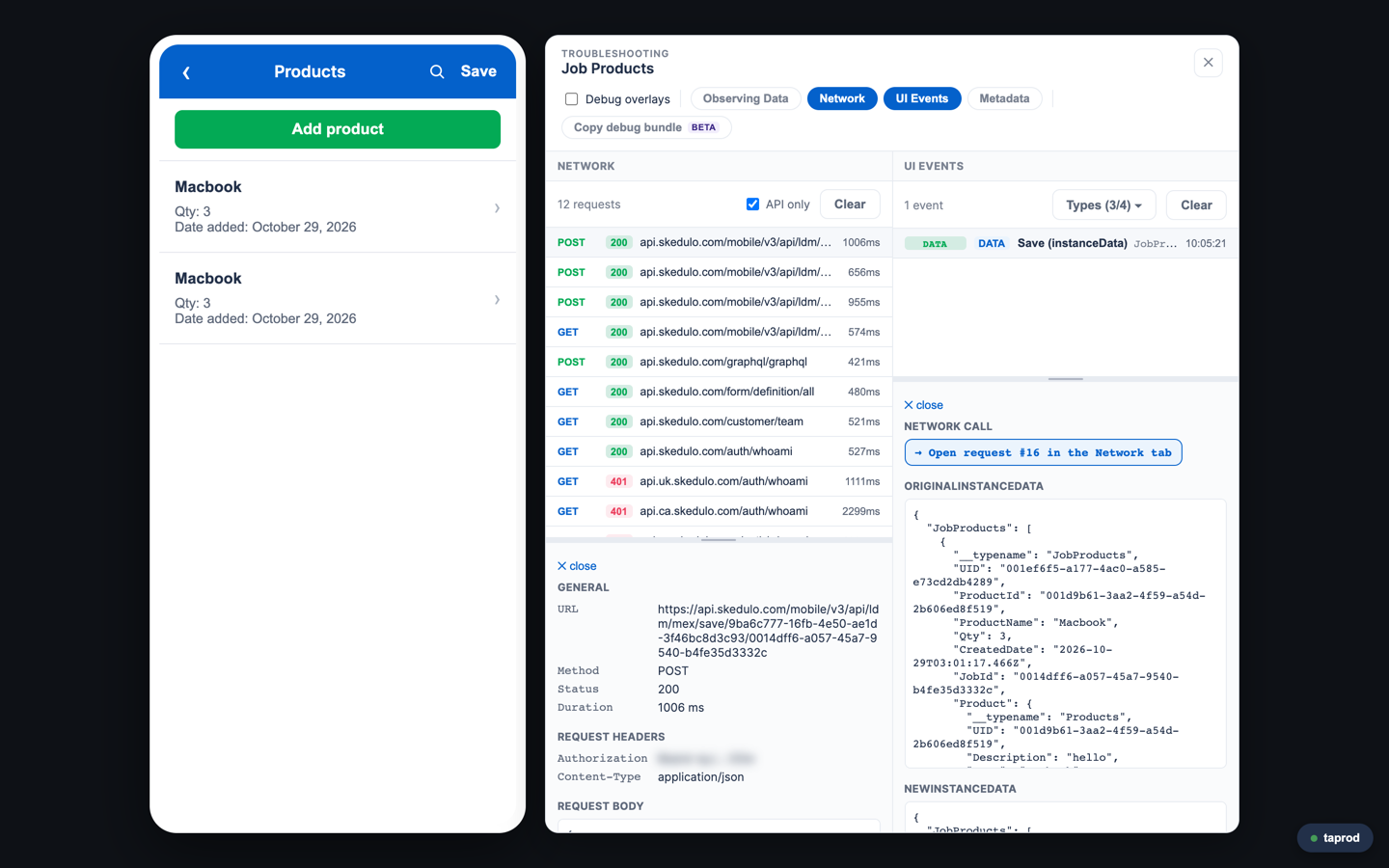
The panel has four sections. Turn each one on or off in the panel header, or open one directly with ⌘/Ctrl + Shift and a number:
| Shortcut | Section |
|---|---|
⌘/Ctrl + Shift + 1 |
Observing Data |
⌘/Ctrl + Shift + 2 |
Network |
⌘/Ctrl + Shift + 3 |
UI Events |
⌘/Ctrl + Shift + 4 |
Metadata |
Observing Data
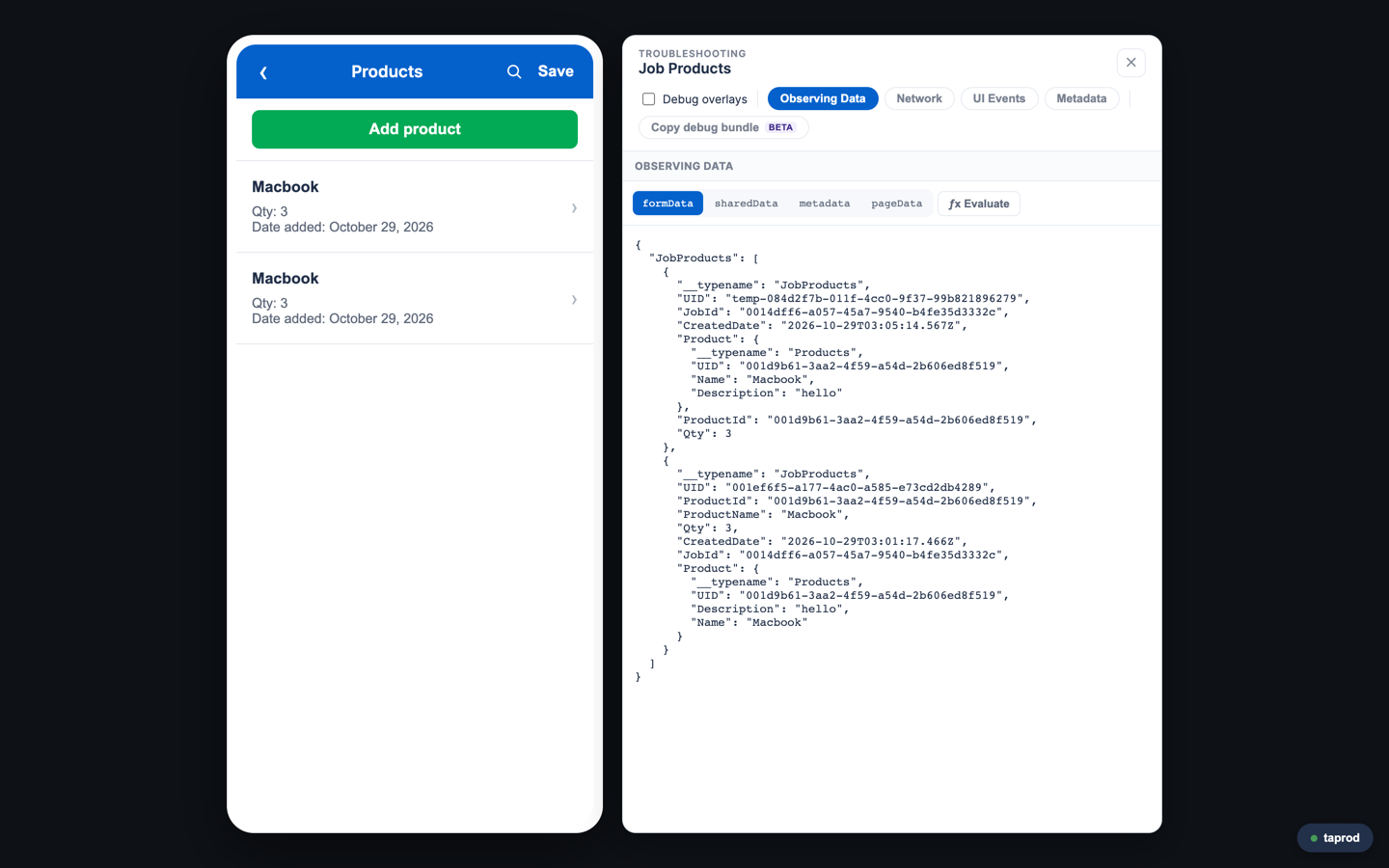
Observing Data shows the data the form is bound to, updated as you use the form:
formData: The record you are editing. This is what the form saves.sharedData: Read-only static and reference data.pageData: The current page’s working data.metadata: Form-level settings and the record the form runs on.
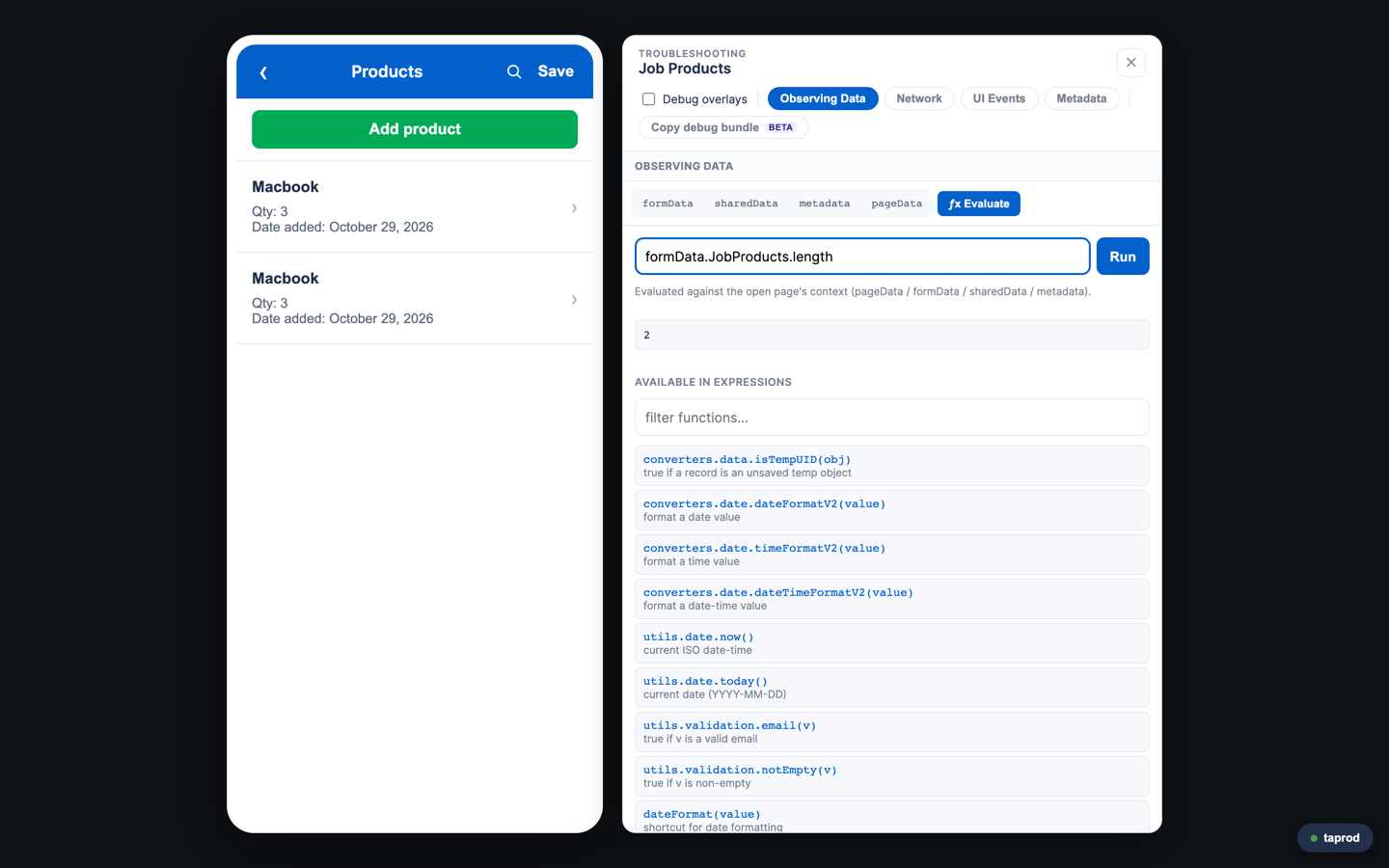
The ƒx Evaluate tab runs any expression against the current page, using the same engine as the form. Use it to check a value, or to test a showIf expression before you add it to the form. The tab includes a searchable reference of the functions you can use in expressions.
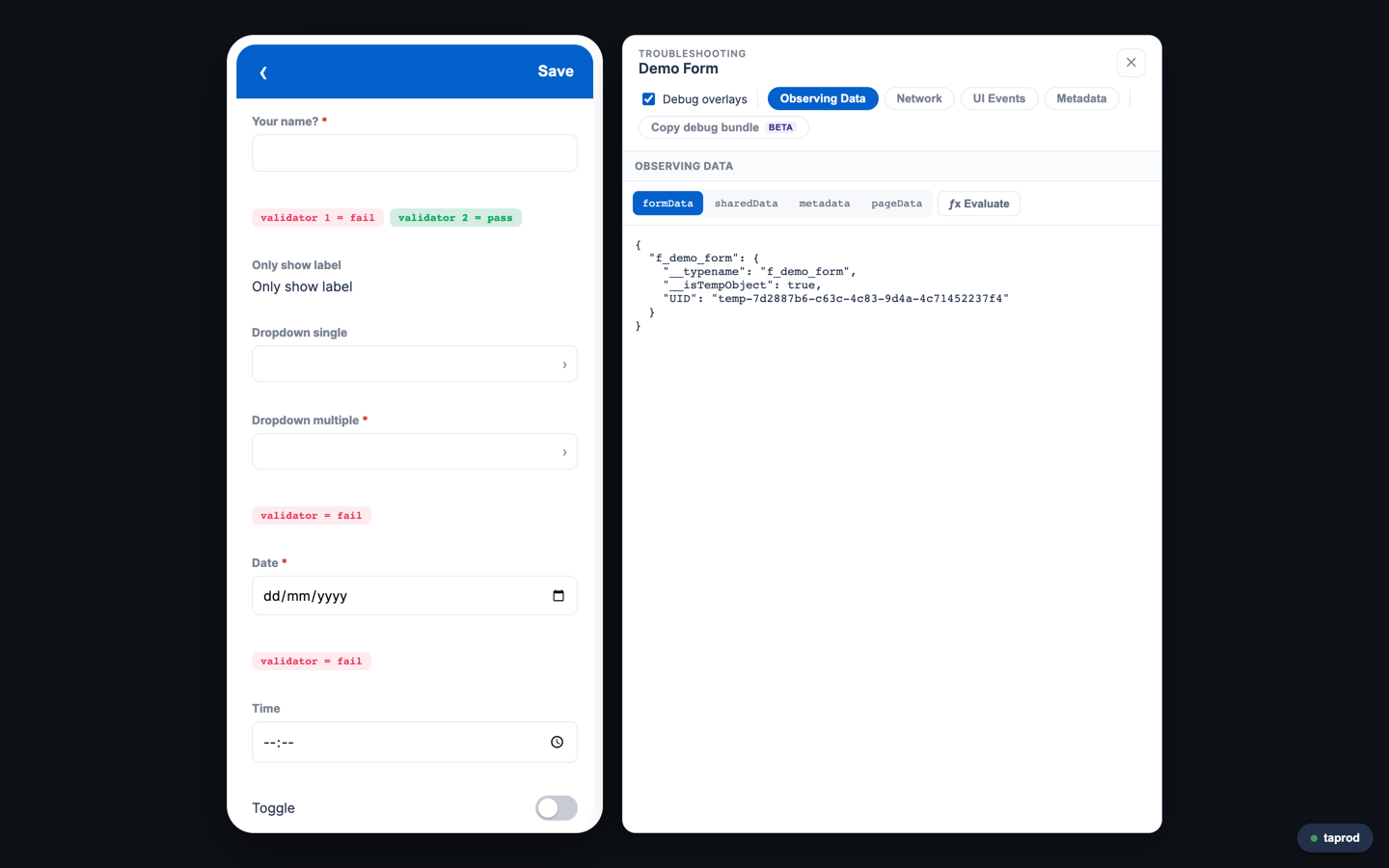
Debug overlays
Select Debug overlays in the panel header to show the live state of each field’s showIf, mandatoryIf, and expression validator rules as chips under the field:
- A
showIformandatoryIfchip is green when the expression is true and gray when it is false. - A
validatorchip is green when it passes and red when it fails. - A red chip that shows
errormeans the expression could not be evaluated.
Fields hidden by showIf keep their chip and are labeled hidden, so you can still inspect them. Custom function (customFunction) validators don’t get a chip.
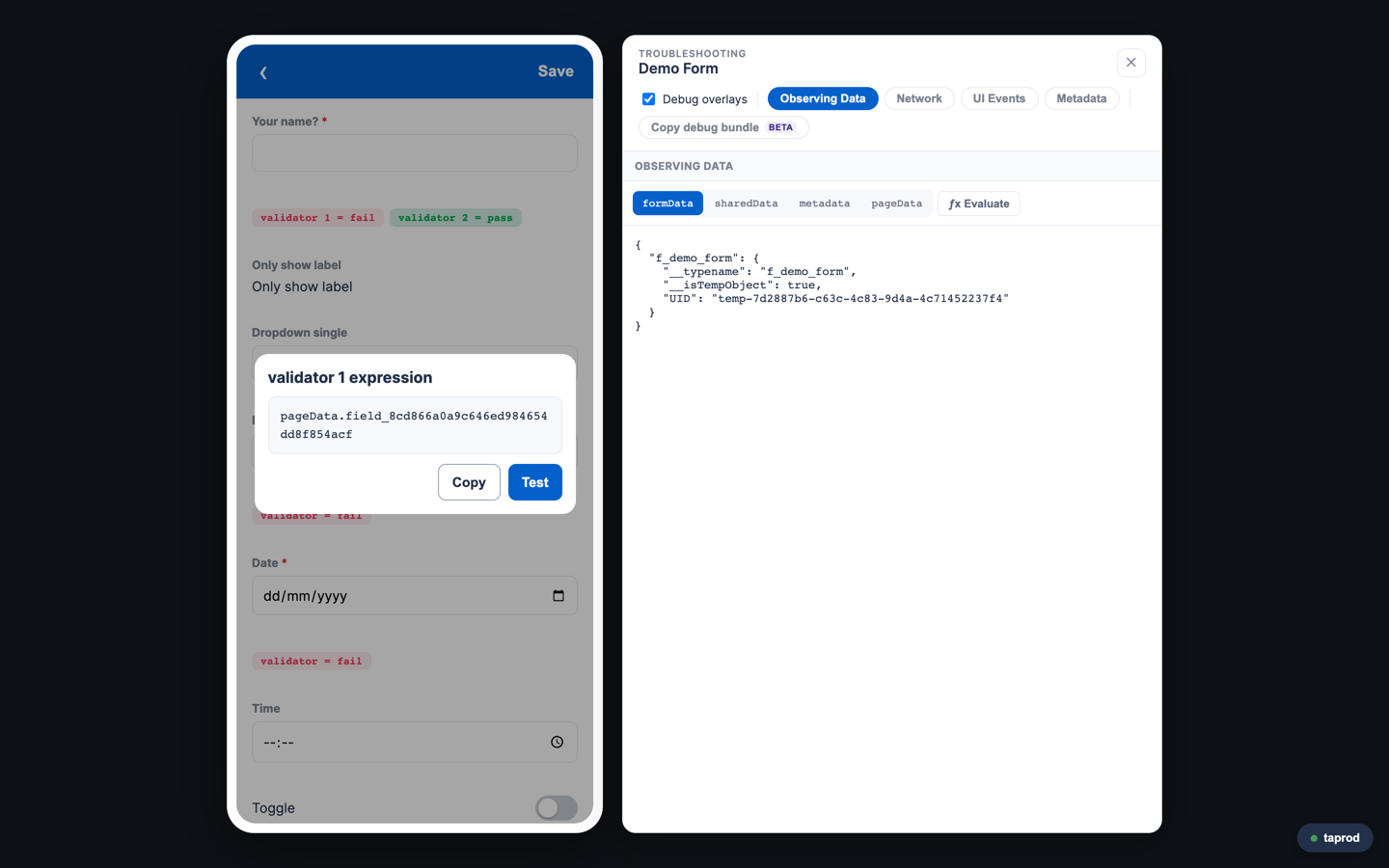
Double-click a chip to see its expression. Click Copy to copy it, or Test to run it in ƒx Evaluate.
Network
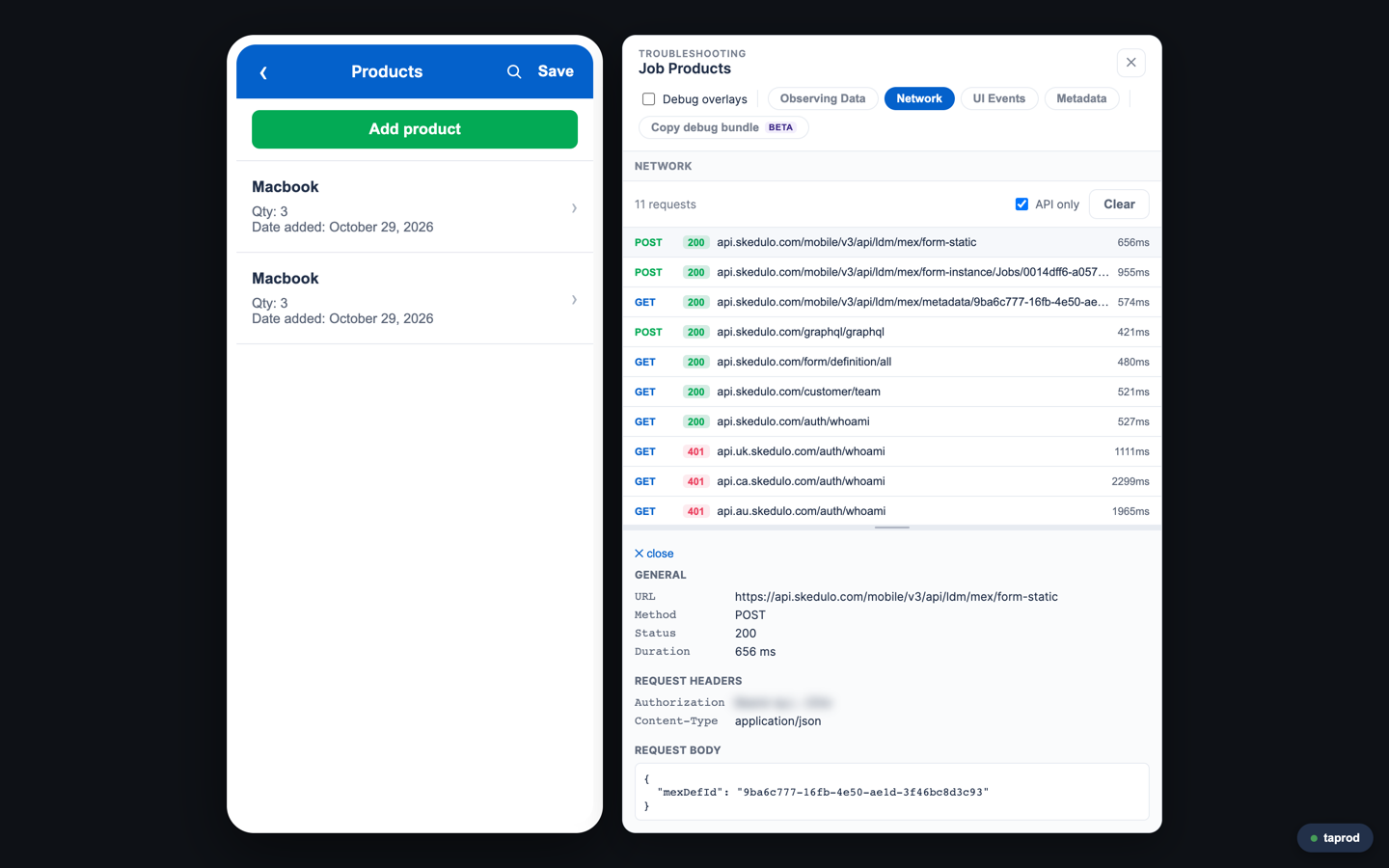
Network lists every API call LDM makes, with its method, status, and duration. Click a call to see its request and response. Your access token is masked in the list. This section is on by default for online-mode forms, which read and save records as you go. For more about online mode, see Online mode.
UI Events
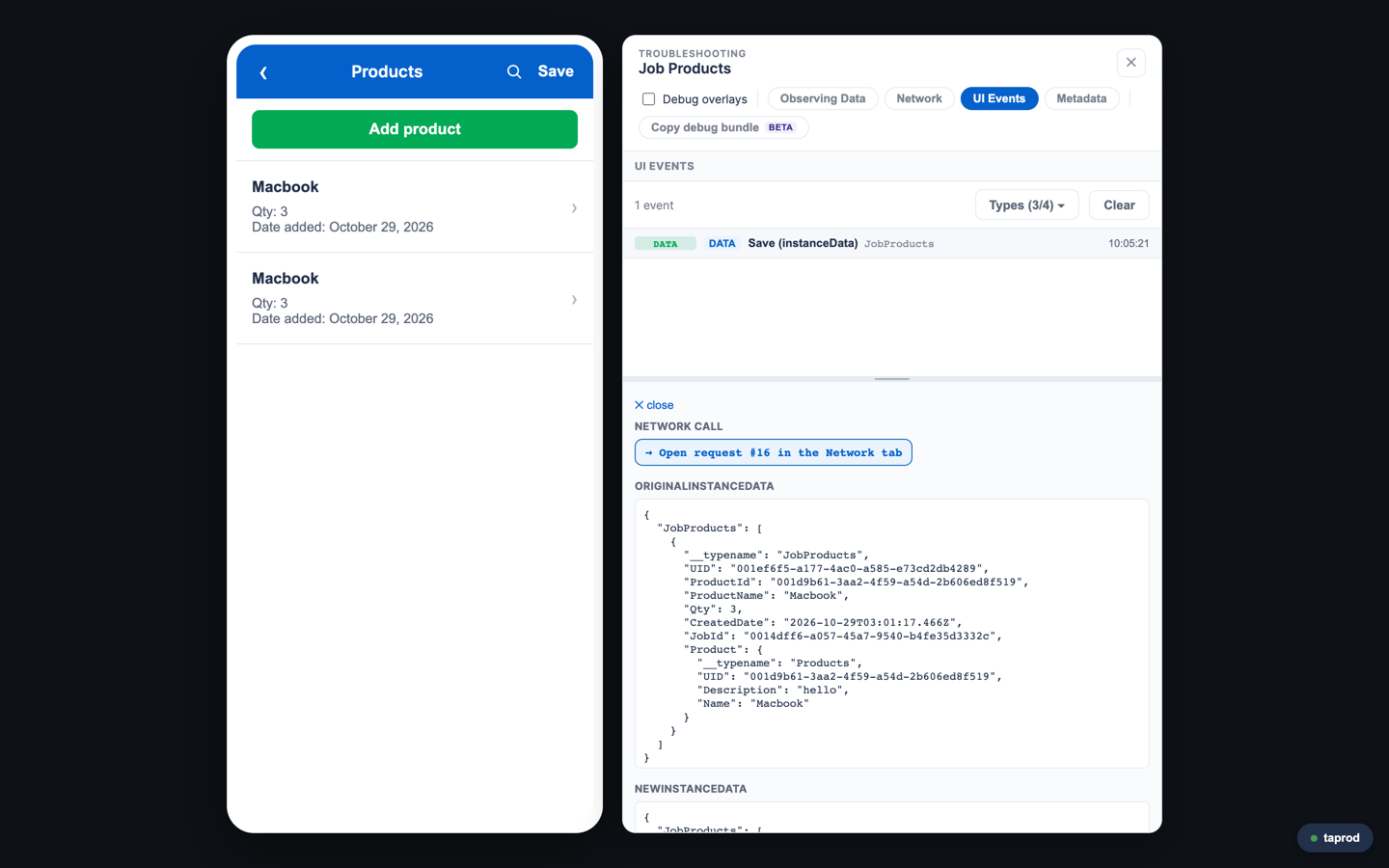
UI Events logs what happens inside the form. Use Types to choose which kinds of event to show:
- Observer: A data observer ran, with the value that changed and the handler it ran.
- Custom function: A custom function (
cf.*) ran, with its arguments, return value, and duration. This type is off by default because custom functions run on every render. - Logs: Warnings and errors from LDM.
- Data: A save, upsert, or delete that the form sent, with its payload.
A Data event links to its network call. Click Open request in the event to open that call in Network.
Metadata
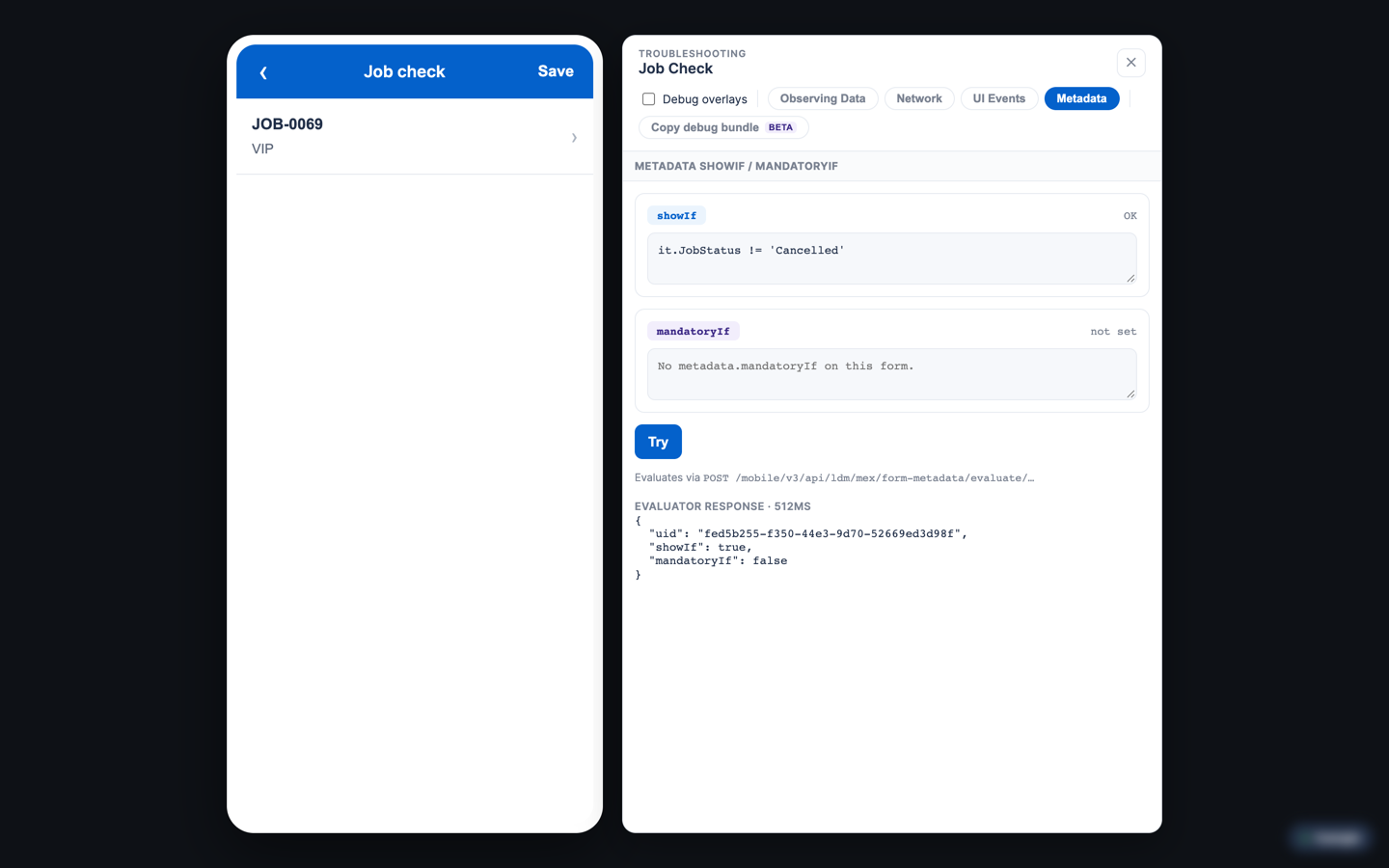
If a form doesn’t appear on a record in the mobile app, the cause is often a showIf or mandatoryIf expression in the form’s metadata. Metadata shows these expressions. Click Try to evaluate one on the server against the current record and see the result, the time it took, and the raw response.
Copy debug bundle (Beta)
Click Copy debug bundle in the panel header to copy the form’s state to your clipboard as Markdown. The bundle includes the form definition, metadata, the live formData, sharedData, and pageData, and recent network calls and UI events with their details. Paste it into a support request, or into an AI assistant, to share the full context of a problem.
The bundle contains your form data and network responses. Remove personal data, customer data, and credentials before you share it, and share it only through channels your organization approves.
Update LDM
To get the latest version of LDM, update the plugin and download the app again:
sked plugins update
sked mex template lowcode-ldm -o ./ldm_lowcode
cd ldm_lowcode
npm install
Feedback
Was this page helpful?